
How to Order Alphabetic Command on Excel: A Step-by-step Guide
Are you tired of manually sorting your data in alphabetic order? Do you want to learn how to do it quickly and efficiently using Microsoft Excel? Look no further! In this article, we will guide you through the steps to order alphabetic command on Excel, whether you’re using the desktop version or the online version.
What is Alphabetic Command on Excel?
Alphabetic command on Excel refers to the ability to sort data in a specific column or row alphabetically. This feature allows you to arrange your data in a way that makes it easy to read and analyze.
How to Order Alphabetic Command on Microsoft Excel (Windows/MacOS)
To order alphabetic command on Microsoft Excel, follow these steps:
- Open Excel: Open the Excel program on your computer.
- Select The Data: Select the column or row that you want to sort alphabetically.
- Click on The Home Tab: Click on the “Home” tab in the top menu bar.
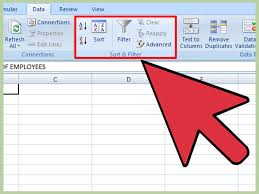
- Click on The Sort & Filter Button: Click on the “Sort & Filter” button in the “Data” group.
- Select The Order Option: Select the order option that you want to use, such as “A to Z” or “Z to A”.
- Click OK: Click OK to apply the sorting.
How to Order Alphabetic Command on Excel Online
To order alphabetic command on Excel online, follow these steps:
- Log in to Excel Online: Log in to your Excel account.
- Open a New Spreadsheet: Open a new spreadsheet or select an existing one.
- Select The Data: Select the column or row that you want to sort alphabetically.
- Click on The Sort Button: Click on the “Sort” button in the toolbar.
- Select The Order Option: Select the order option that you want to use, such as “A to Z” or “Z to A”.
- Click OK: Click OK to apply the sorting.
How to Order Alphabetic Command With Formulas on Excel
To order alphabetic command using formulas on Excel, follow these steps:
- Select The Cell: Select the cell where you want to display the sorted data.
- Enter The Formula: Enter the formula “=GIVEN.It #order(…)” and press enter.
- Select The Data Range: Select the range of cells that you want to sort alphabetically.
- Click OK: Click OK to apply the sorting.
How to Order Alphabetic Command on Excel For Smartphone And Tablet
To order alphabetic command on Excel for smartphone and tablet, follow these steps:
- Open Excel: Open the Excel app on your device.
- Select The Data: Select the column or row that you want to sort alphabetically.
- Tap on The Sort Button: Tap on the “Sort” button in the toolbar.
- Select The Order Option: Select the order option that you want to use, such as “A to Z” or “Z to A”.
- Click OK: Click OK to apply the sorting.
How to Order Alphabetic Command With Picture on Excel
To order alphabetic command using a picture on Excel, follow these steps:
- Insert a Picture: Insert a picture into your spreadsheet.
- Select The Data: Select the column or row that you want to sort alphabetically.
- Click on The Sort Button: Click on the “Sort” button in the toolbar.
- Select The Order Option: Select the order option that you want to use, such as “A to Z” or “Z to A”.
- Click OK: Click OK to apply the sorting.
Conclusion
In conclusion, ordering alphabetic command on Excel is a simple and efficient process that can be done using various methods, including the desktop version, online version, smartphone app, and tablet app. By following these steps, you can quickly and easily sort your data in alphabetical order, making it easier to read and analyze.
Frequently Asked Questions (FAQs)
Q: What is alphabetic command on Excel?
A: Alphabetic command on Excel refers to the ability to sort data in a specific column or row alphabetically.
Q: How do I order alphabetic command on Microsoft Excel?
A: To order alphabetic command on Microsoft Excel, select the data, click on the “Home” tab, click on the “Sort & Filter” button, and select the order option.
Q: Can I use formulas to order alphabetic command on Excel?
A: Yes, you can use formulas to order alphabetic command on Excel by using the formula “=GIVEN.It #order(…)”.
Q: How do I order alphabetic command on Excel for smartphone and tablet?
A: To order alphabetic command on Excel for smartphone and tablet, open the app, select the data, tap on the “Sort” button, and select the order option.
Q: Can I use a picture to order alphabetic command on Excel?
A: Yes, you can use a picture to order alphabetic command on Excel by inserting a picture into your spreadsheet and selecting the data to sort.
Q: What is the difference between A to Z and Z to A sorting?
A: The main difference between A to Z and Z to A sorting is that A to Z sorts in ascending order (from A to Z), while Z to A sorts in descending order (from Z to A).
Q: Can I use Excel online to order alphabetic command?
A: Yes, you can use Excel online to order alphabetic command by logging in to your account and following the steps.


