
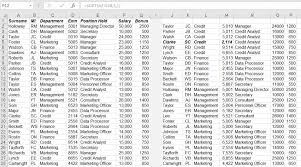
Unlocking Excel’s Power: Mastering Sorting And Filtering
As a computer user, you’re likely no stranger to Microsoft Office, particularly its stalwart companion, Excel. However, despite its ubiquity, many users struggle with the basics of data manipulation within this powerful tool. In this article, we’ll delve into the world of sorting and filtering in Excel, exploring the various ways to organize your data with precision and ease.
Why Sorting And Filtering Matter
In today’s fast-paced digital landscape, data is king. As businesses, organizations, and individuals rely increasingly on data-driven decision-making, the need for efficient data management has never been more pressing. Sorting and filtering are essential skills in this context, allowing you to distill complex information into actionable insights.
Sorting 101: Ordering Your Data With Excel
To begin our journey into the world of sorting, let’s focus on ordering your data within Excel. This is a fundamental operation that can be performed using various methods:
- Sorting on PC: On a Windows machine, open your Excel spreadsheet and select the cells containing the data you wish to sort. Use the “Home” tab in the ribbon to access the “Sort & Filter” option. Choose “Order” from the dropdown menu, and select either ascending or descending order.
- Sorting Online: For Excel Online users, the process is similar. Select the cells of interest, click on the “Sort & Filter” icon (represented by a funnel), and choose your desired sorting order.
Filtering: Refining Your Data For Precision
Filtering is another essential tool in Excel’s arsenal. By applying filters to your data, you can narrow down complex information to specific subsets relevant to your needs:
- Filtering on PC: On a Windows machine, access the “Sort & Filter” option (as mentioned earlier) and select “Filter.” This will display a dropdown menu with various filter options.
- Filtering Online: For Excel Online users, follow the same procedure as sorting. The filtering process is identical.
Sorting And Filtering on Mobile Devices
Excel for mobile devices offers an equally intuitive experience:
- Mobile Sorting And Filtering: On both iOS and Android platforms, select the cells of interest, tap on the “Sort & Filter” icon (represented by a funnel), and choose your desired sorting or filtering option.
Tips And Tricks: Mastering Sorting And Filtering
To further enhance your Excel skills, keep these tips in mind:
- Sorting Multiple Columns: To sort data across multiple columns, select all the cells of interest and follow the standard sorting procedure.
- Filtering Specific Criteria: When filtering, you can specify specific criteria by clicking on the “Filter” dropdown menu and selecting your desired filter option.
Conclusion
In conclusion, mastering sorting and filtering in Excel is an essential skill for anyone working with data. By understanding these fundamental operations, you’ll be able to unlock Excel’s full potential and make informed decisions with confidence.
Faqs: Unlocking Excel’s Power
Q1: What are the benefits of sorting and filtering my data in Excel?
A1: Sorting and filtering enable efficient data management, allowing you to distill complex information into actionable insights.
Q2: How do I sort data on a PC?
A2: On a Windows machine, select the cells containing the data you wish to sort, access the “Home” tab, and choose “Sort & Filter.”
Q3: Can I filter specific criteria in Excel?
A3: Yes, when filtering, you can specify specific criteria by clicking on the “Filter” dropdown menu.
Q4: How do I perform sorting and filtering on mobile devices?
A4: On both iOS and Android platforms, select the cells of interest, tap on the “Sort & Filter” icon, and choose your desired sorting or filtering option.
Q5: What are some tips for mastering sorting and filtering in Excel?
A5: Consider selecting all the cells of interest when sorting multiple columns and specifying specific criteria when filtering.
Conclusion
In conclusion, unlocking Excel’s power requires a solid understanding of its fundamental operations – sorting and filtering. By following this article and exploring these essential skills, you’ll be well on your way to becoming an Excel master, capable of making informed decisions with confidence.


