
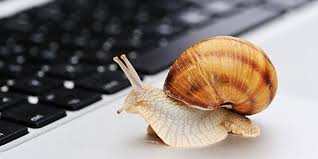
How to Speed Up a Slow Pc: A Step-by-step Guide
Are you tired of waiting for your computer to open files, launch applications, or even just load the desktop? Do you feel like you’re stuck in an eternal loop of frustration and boredom? Well, worry no more! In this article, we’ll show you how to speed up a slow PC with simple yet effective tips and tricks.
Understanding Why Your PC is Slow
Before we dive into the solutions, it’s essential to understand why your PC might be slow in the first place. Here are some common reasons:
- Outdated operating system
- Insufficient RAM or storage space
- Malware or viruses
- Poor disk performance
- Too many background programs running
Tip 1: Update Your Operating System
Make sure you’re running the latest version of your operating system. This will ensure that you have access to the latest security patches, performance improvements, and feature updates.
How to Update Windows 10, 11, or 7
To update your Windows OS, follow these steps:
- For Windows 10: Go to Settings > Update & Security > Windows Update.
- For Windows 11: Go to Settings > Update & Security > Windows Update.
- For Windows 7: Go to Start > Control Panel > System and Security > Windows Update.
Tip 2: Disable Unnecessary Programs
Close unnecessary programs running in the background, as they can consume system resources and slow down your PC. To do this:
- Press Ctrl+Shift+Esc on your keyboard.
- In the Task Manager, click on the “Startup” tab.
- Look for any programs that you don’t recognize or don’t need to run at startup.
- Right-click on them and select “Disable”.
Tip 3: Update Your Drivers
Outdated drivers can cause system crashes and slow down your PC. To update your drivers:
- Go to Start > Control Panel > System and Security > Device Manager.
- Expand the categories and look for any devices with a yellow exclamation mark.
- Right-click on them and select “Update Driver”.
Tip 4: Defragment Your Hard Drive
If you have a mechanical hard drive, defragmenting it can help speed up your PC. To do this:
- Go to Start > Control Panel > System and Security > Administrative Tools > Disk Defragmenter.
- Follow the prompts to defragment your hard drive.
Tip 5: Use a Solid-state Drive (SSD)
Consider replacing your mechanical hard drive with an SSD. SSDs are much faster than traditional hard drives and can significantly improve system performance.
Additional Tips
Here are some more tips to help speed up your PC:
- Close unnecessary tabs in your browser.
- Disable animations and visual effects.
- Update your graphics drivers.
- Run a virus scan with an anti-virus software like Norton or McAfee.
- Consider upgrading your RAM for improved performance.
Conclusion
Speeding up a slow PC is easier than you think! By following these simple tips and tricks, you can improve system performance, reduce lag, and enjoy a smoother computing experience. Remember to stay updated with the latest security patches and feature updates, and don’t hesitate to seek professional help if you need it.
Frequently Asked Questions (FAQs)
Here are some frequently asked questions about speeding up a slow PC:
Q: How often should I update my operating system?
A: It’s recommended to update your OS every 3-6 months for the latest security patches and performance improvements.
Q: What is the best way to close unnecessary programs running in the background?
A: Use the Task Manager to close any unnecessary programs or services that are consuming system resources.
Q: Can I still use a mechanical hard drive with an SSD?
A: Yes, you can still use a mechanical hard drive with an SSD. However, consider replacing your HDD with an SSD for improved performance.
Q: How do I disable animations and visual effects on Windows 10 or 11?
A: To disable animations and visual effects, go to Settings > Personalization > Themes, and toggle off the “Animations” switch.
Q: Can I use a free anti-virus software like Avast or AVG?
A: Yes, you can use free anti-virus software like Avast or AVG. However, consider upgrading to a paid version for better protection and features.
How to Speed Up a Slow Mac
If you’re using a Mac, here are some additional tips to speed up your slow computer:
- Close unnecessary tabs in Safari.
- Disable animations and visual effects.
- Update your graphics drivers.
- Run a virus scan with an anti-virus software like Norton or McAfee.
- Consider upgrading your RAM for improved performance.
Conclusion
Speeding up a slow PC is easier than you think! By following these simple tips and tricks, you can improve system performance, reduce lag, and enjoy a smoother computing experience. Remember to stay updated with the latest security patches and feature updates, and don’t hesitate to seek professional help if you need it.
Frequently Asked Questions (FAQs)
Here are some frequently asked questions about speeding up a slow Mac:
Q: How often should I update my operating system?
A: It’s recommended to update your OS every 3-6 months for the latest security patches and performance improvements.
Q: What is the best way to close unnecessary programs running in the background?
A: Use Activity Monitor to close any unnecessary programs or services that are consuming system resources.
Q: Can I still use a mechanical hard drive with an SSD on my Mac?
A: Yes, you can still use a mechanical hard drive with an SSD. However, consider replacing your HDD with an SSD for improved performance.
Q: How do I disable animations and visual effects on macOS?
A: To disable animations and visual effects, go to System Preferences > Accessibility, and toggle off the “Animations” switch.
Q: Can I use a free anti-virus software like Avast or AVG on my Mac?
A: No, you cannot use free anti-virus software like Avast or AVG on your Mac. Instead, consider using built-in security features like Gatekeeper or XProtect.


