
How To Speed Up Your Ipad: Tips And Tricks
Are you tired of your iPad being slow and unresponsive? Do you wish it could run as smoothly as when you first got it? You’re not alone! Many iPad users face the same problem, but don’t worry, we’ve got some tips and tricks to help you speed up your device.
What’s Causing The Slowness?
Before we dive into the solutions, let’s quickly discuss what might be causing the slowness. There are several reasons why your iPad might be slow:
- Outdated Software: If your iPad is running an outdated version of iPadOS, it can lead to performance issues.
- Too Many Apps: Having too many apps installed on your iPad can slow it down, especially if you have a lot of data stored in them.
- Background Apps: Apps that run in the background can consume system resources and slow down your device.
- Memory Constraints: If your iPad is running low on memory (RAM), it can cause performance issues.
Update Your Ipados
The first step to speed up your iPad is to update its software. Make sure you’re running the latest version of iPadOS, as this will help resolve any known bugs and improve performance.
To check for updates:
- Go to Settings > General > Software Update.
- If an update is available, tap “Download and Install.”
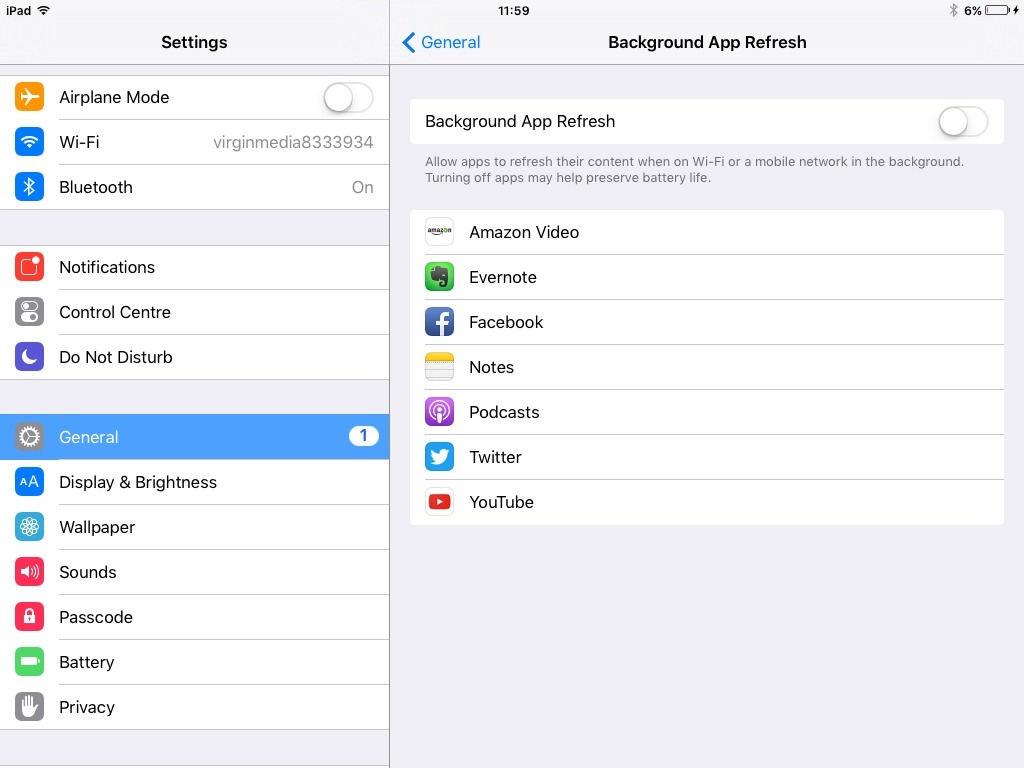
Disable Automatic Downloads in Background
Disabling automatic downloads in the background can also help speed up your iPad. This feature allows apps to download content in the background, but it can consume system resources.
To disable automatic downloads:
- Go to Settings > App Store.
- Tap “Disable” next to “Background Updates.”
Disable Animations And Effects
Animations and effects on your iPad can be visually appealing, but they can also slow down your device.
To disable animations and effects:
- Go to Settings > Accessibility > Effects.
- Toggle off the switch next to “Reduce Motion.”
- Also toggle off the switch next to “Augment Contrast” and “Reduce Transparency.”
Delete Unused Apps
Having too many apps installed on your iPad can slow it down, especially if you have a lot of data stored in them.
To delete unused apps:
- Go to the Home screen or App Store.
- Find an app you want to delete and tap and hold on its icon.
- Tap the “X” button that appears above the icon.
- Confirm deletion by tapping “Delete.”
Restart Your Ipad
If your iPad is still slow, try restarting it. This will close all apps and free up system resources.
To restart your iPad:
- Press and hold the Sleep/Wake button until the power-off slider appears.
- Slide the slider to the right to turn off your iPad.
- Press and hold the Sleep/Wake button again until you see the Apple logo.
- Release the button when the logo appears.
Restore Your Ipad
If none of the above steps help, you can try restoring your iPad to its factory settings. This will erase all data on your device, so make sure to back up any important files before doing this.
To restore your iPad:
- Go to Settings > General > Transfer or Reset iPad.
- Tap “Erase All Content and Settings.”
- Follow the prompts to complete the process.
How To Check For Updates on Your Internet Connection
To check for updates on your internet connection, go to the website of your internet service provider (ISP) and look for any available updates.
Can I Change My Dns Server on My Ipad?
Yes, you can change your DNS server on your iPad by going to Settings > Wi-Fi, tapping on the “i” icon next to your network name, and selecting “Configure DNS.”
How To Close Unnecessary Apps on My Ipad
To close unnecessary apps, go to the Home screen or App Store, find an app you want to close, and tap and hold on its icon until it starts to jiggle, then tap the “-” button that appears above the icon.
Let me know if you need any further assistance!


