
How to Speed Up Qbittorrent: A Step-by-step Guide
Are you tired of slow downloads on qBittorrent? Do you want to boost your download speeds and get the most out of this powerful torrent client? Look no further! In this article, we’ll show you how to speed up qBittorrent using a series of simple steps.
Understanding The Basics
Before we dive into the nitty-gritty details, let’s take a moment to understand the basics. QBittorrent is a free and open-source torrent client that allows you to download files from the internet at incredible speeds. However, like any other program, it can be configured in various ways to optimize its performance.
Configure Your Router
The first step in speeding up qBittorrent is to configure your router correctly. To do this:
- Open a web browser and type in the IP address of your router (usually 192.168.0.1 Or 192.168.1.1).
- Log in using your username and password.
- Click on the “Port Forwarding” tab and create a new rule to open the door for qBittorrent.
Optimize Your Client
Once you’ve created the new rule, make sure to save it and apply the changes. This will ensure that qBittorrent can communicate with your router correctly.
Now that we have our router configured, let’s move on to optimizing the parameters of usage. To do this:
- Open qBittorrent and go to Settings > Options.
- Click on the “Speed” tab and enter the maximum upload speed recommended by Azureus Calculator.
- Enter the maximum download speed recommended by Azureus Calculator.
Determine Your Connection Speed
Before we can optimize our speeds, we need to know what they are! To do this:
- Open a web browser and go to SpeedTest.
- Click on the “Settings” tab and select Kbps as your speed unit.
- Click on the “GO” button and wait for the test to complete.
Configure Your Client Settings
Now that we have our speeds, let’s move on to configuring our client settings. To do this:
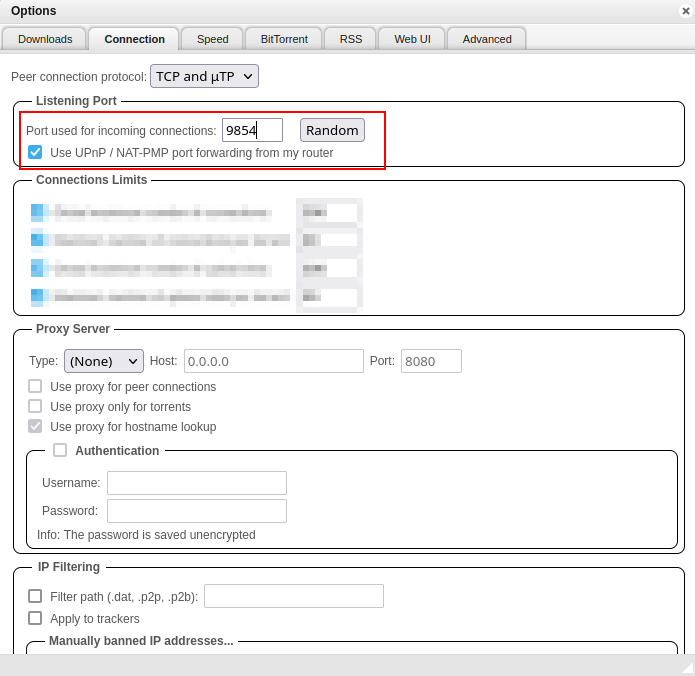
- Open qBittorrent and go to Settings > Options.
- Click on the “Connection” tab and enter the maximum upload speed recommended by Azureus Calculator.
- Enter the maximum download speed recommended by Azureus Calculator.
Circumvent Provider Filters
Some providers apply filters on torrent traffic, which can slow down your speeds. To circumvent these filters:
- Open qBittorrent and go to Settings > Options.
- Click on the “BitTorrent” tab and select “Demand encryption”.
- Apply and confirm the changes.
Search For Files With More Sources
To find files with more sources, you can use the built-in engine of inquiry or an external one like Azureus Calculator.
Alternative Clients
If qBittorrent doesn’t meet your expectations, there are other alternatives available:
- Bittorrent: The official client from BitTorrent Inc.
- Transmission: A lightweight and user-friendly client for Windows, Mac, and Linux.
- Deluge: An essential and light client for Windows, Mac, and Linux.
Conclusion
Speeding up qBittorrent is a straightforward process that requires some basic knowledge of how the program works. By following these simple steps, you can boost your download speeds and get the most out of this powerful torrent client. Remember to always configure your router correctly and optimize the parameters of usage for maximum performance.
Faqs
- Q: How do I Speed up Qbittorrent?
A: To speed up qBittorrent, follow the steps outlined in this article. - Q: What is Azureus Calculator?
A: Azureus Calculator is a service that recommends optimal speeds for your torrent client. - Q: Can I Use Other Alternatives to Qbittorrent?
A: Yes, there are several alternatives available, including BitTorrent, Transmission, and Deluge. - Q: How do I Circumvent Provider Filters on Torrent Traffic?
A: To circumvent provider filters, follow the steps outlined in this article. - Q: Can I Search For Files With More Sources Using Qbittorrent?
A: Yes, you can use the built-in engine of inquiry or an external one like Azureus Calculator to find files with more sources. - Q: How do I Optimize my Speeds on Qbittorrent?
A: To optimize your speeds on qBittorrent, follow the steps outlined in this article. - Q: Can I Use Qbittorrent on Multiple Platforms?
A: Yes, qBittorrent is available for Windows, Mac, and Linux. - Q: Is Qbittorrent a Free And Open-source Client?
A: Yes, qBittorrent is a free and open-source torrent client.


