
How to Make Windows 10 Faster: Tips And Tricks
Are you tired of your Windows 10 computer taking ages to start up? Do you find yourself waiting patiently, tapping your foot impatiently, as the spinning wheel of death taunts you with its slow progress? Well, you’re in luck! In this article, we’ll share some tips and tricks on how to make Windows 10 faster and more responsive.
The Problem: Slow Startup
We’ve all been there. You turn on your computer, expecting it to spring to life quickly and efficiently. But no, not today. Today, it takes an eternity for the desktop to load, and you’re left wondering what’s going on. This phenomenon is known as a slow startup, and it can be caused by a variety of factors.
Tip #1: Disable Automatic Program Startup
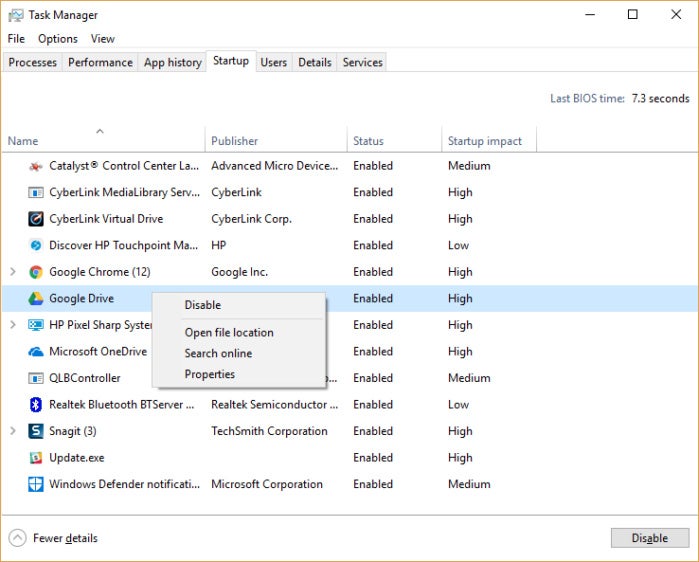
One of the most common causes of slow startups is the automatic execution of programs at boot time. If your computer is set to run multiple programs automatically when you start up, this can significantly slow down the process. To fix this, follow these steps:
- Press Ctrl + Alt + Del to open Task Manager
- Click on the “Startup” tab
- Disable any unnecessary programs from starting automatically
- Restart your computer and see if it’s faster
Tip #2: Defragment Your Hard Drive
Another common cause of slow startups is disk fragmentation. This occurs when files become scattered across the hard drive, making it harder for the operating system to access them quickly. To defragment your hard drive, follow these steps:
- Press Windows + R to open the Run dialog box
- Type “defrag” and press Enter
- Follow the prompts to complete the defragmentation process
Tip #3: Avoid Software Optimization Tools
Some software optimization tools can actually slow down your computer instead of speeding it up. These tools often run in the background, consuming system resources and slowing down startup times. To avoid this, stick with built-in Windows 10 features or reputable third-party software.
Tip #4: Reinstall Windows 10
If all else fails, you may need to take drastic measures. Reinstalling Windows 10 can be a last resort, but it’s often the most effective way to get your computer running smoothly again. Make sure to back up any important files before doing so!
The Benefits of Upgrading Hardware
If your current hardware is outdated or obsolete, it may be time to consider upgrading. A new solid-state drive (SSD) can significantly boost startup times and overall system performance.
Conclusion
Making Windows 10 faster requires a combination of tweaking settings, disabling unnecessary programs, and potentially upgrading your hardware. By following these tips and tricks, you should be able to speed up your computer’s startup time and make it more responsive.
Frequently Asked Questions
- Q: What Causes Slow Startups on Windows 10?
A: Slow startups can be caused by a variety of factors, including automatic program execution, disk fragmentation, software optimization tools, and outdated hardware. - Q: How do I Disable Automatic Program Startup?
A: To disable automatic program startup, press Ctrl + Alt + Del to open Task Manager, click on the “Startup” tab, and disable any unnecessary programs from starting automatically. - Q: What is Disk Fragmentation, And How do I Defragment my Hard Drive?
A: Disk fragmentation occurs when files become scattered across the hard drive, making it harder for the operating system to access them quickly. To defragment your hard drive, press Windows + R to open the Run dialog box, type “defrag” and press Enter, and follow the prompts to complete the defragmentation process. -
Q: Are Software Optimization Tools Really Necessary?
A: No, they’re not! Stick with built-in Windows 10 features or reputable third-party software to avoid slowing down your computer. -
Q: Can I Reinstall Windows 10 if my Computer is Slow?
A: Yes, but make sure to back up any important files before doing so! -
Q: What Hardware Upgrades Can Improve Startup Times And System Performance?
A: Upgrading to a solid-state drive (SSD) can significantly boost startup times and overall system performance. -
Q: How Often Should I Defragment my Hard Drive?
A: It’s recommended to defragment your hard drive at least once a month, or as needed. -
Q: Can I Use Third-party Software to Optimize my Computer’s Performance?
A: Yes, but be sure to stick with reputable and safe third-party software to avoid slowing down your computer!


