
How to Speed Up Windows 11: A Step-by-step Guide
Are you tired of your Windows 11 PC slowing down? Do you want to boost its performance without spending a fortune on new hardware or software? Look no further! In this article, we’ll show you how to speed up Windows 11 using simple and effective methods.
Why Is My Windows 11 PC Slow?
Before we dive into the solutions, let’s understand why your Windows 11 PC might be slow in the first place. Here are some common reasons:
- Background Programs: Some apps or services might be running in the background, consuming system resources without your knowledge.
- Cache And Temporary Files: Your computer stores cache and temporary files on its hard drive, which can take up valuable space and slow down performance.
- Malware or Viruses: Malicious software can compromise your PC’s performance and even steal sensitive information.
- Graphics Effects: Windows 11 has various graphical effects that can slow down your system, especially on less powerful hardware.
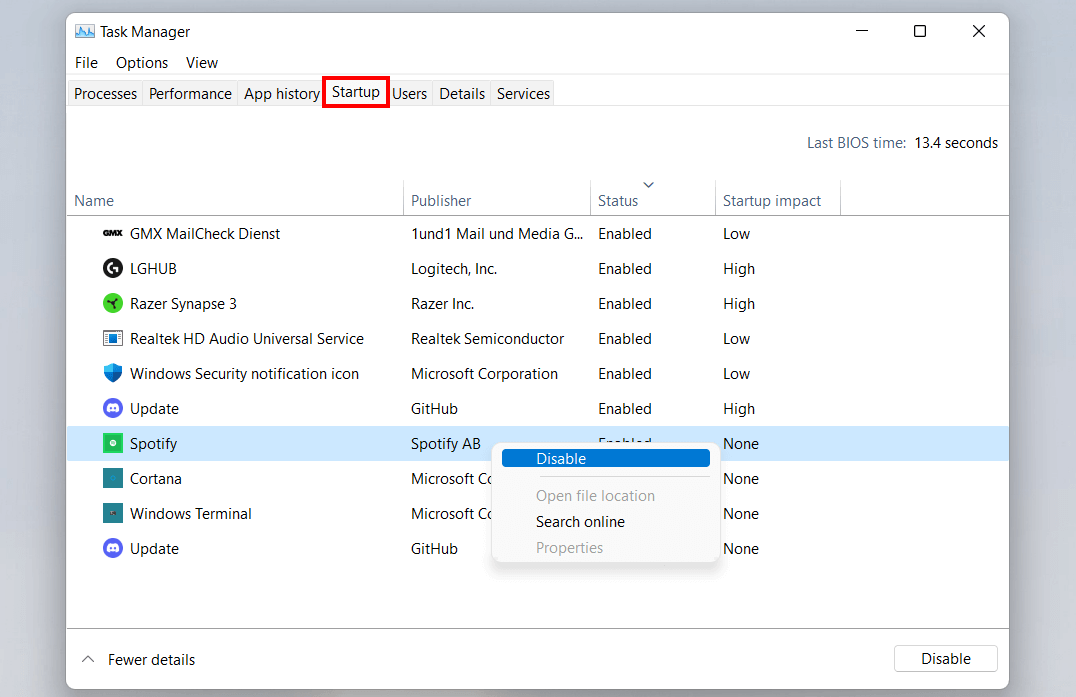
Method 1: Disabling Unnecessary Startup Programs
To speed up your Windows 11 PC, start by disabling unnecessary startup programs. Here’s how:
- Click the Start button and select Settings.
- Go to System > Apps & features.
- Scroll through the list of installed apps and look for any that you don’t use regularly.
- Select the app and click the Uninstall button.
Method 2: Cleaning Up Cache And Temporary Files
Next, let’s clean up cache and temporary files on your PC:
- Click the Start button and type “cleaning disc” in the search bar.
- Open the Disk Cleanup tool and select the drive you want to clean up (usually C:).
- Check the boxes next to the categories you want to clean up (e.G., Temporary Files, System Files).
- Click OK to confirm.
Method 3: Using a Lightweight Antivirus
To protect your PC from malware and viruses, consider using a lightweight antivirus:
- Go to the Microsoft Store and search for “Windows Defender”.
- Install and configure Windows Defender.
- Regularly update its virus definitions to stay protected.
Method 4: Disabling Graphics Effects
Now, let’s disable some of the more resource-intensive graphics effects in Windows 11:
- Click the Start button and select Settings.
- Go to System > Display.
- Scroll down to the “Graphics” section and toggle off any effects you don’t need.
Method 5: Updating Your Operating System
Make sure your operating system is up-to-date, as newer versions often include performance improvements:
- Click the Start button and select Settings.
- Go to Update & Security > Windows Update.
- Check for updates and install them if available.
Method 6: Avoiding All-in-one Optimization Tools
While all-in-one optimization tools might seem appealing, they can sometimes do more harm than good. Instead, focus on individual methods that address specific performance issues.
Additional Tips to Speed Up Your Windows 11 PC
Here are some additional tips to help you speed up your Windows 11 PC:
- Update Your Ram: Adding more RAM can significantly improve performance.
- Use a Solid-state Drive (SSD): Consider replacing your traditional hard drive with an SSD for faster loading times and improved overall performance.
- Avoid Modifying The System Registry: Unless you’re experienced, it’s best to avoid making changes to the system registry, as this can lead to system instability.
Conclusion
Speeding up your Windows 11 PC is easier than you think! By following these simple methods, you can boost its performance and enjoy a smoother computing experience. Remember to stay vigilant against malware and viruses, and consider upgrading your hardware for even better results.
Frequently Asked Questions (FAQs)
- What’s The Best Way to Speed up my Windows 11 Pc?
The most effective method is usually a combination of several individual methods, such as disabling unnecessary startup programs, cleaning up cache and temporary files, and using a lightweight antivirus. - Can I Use an All-in-one Optimization Tool to Speed up my Windows 11 Pc?
It’s generally not recommended to use all-in-one optimization tools, as they can sometimes do more harm than good and might compromise system stability. - How Often Should I Clean up Cache And Temporary Files on my Windows 11 Pc?
Clean up your cache and temporary files regularly (e.G., Every week or two) to maintain optimal performance. - Can Malware or Viruses Slow Down my Windows 11 Pc?
Yes, malicious software can compromise your PC’s performance and even steal sensitive information. - What’s The Best Way to Protect my Windows 11 PC From Malware And Viruses?
Use a lightweight antivirus like Windows Defender, regularly update its virus definitions, and be cautious when opening emails or downloading files. - How Can I Disable Graphics Effects in Windows 11?
Go to Settings > System > Display, scroll down to the “Graphics” section, and toggle off any effects you don’t need.
Remember to stay safe online and enjoy a faster, more enjoyable computing experience with these simple tips!


