
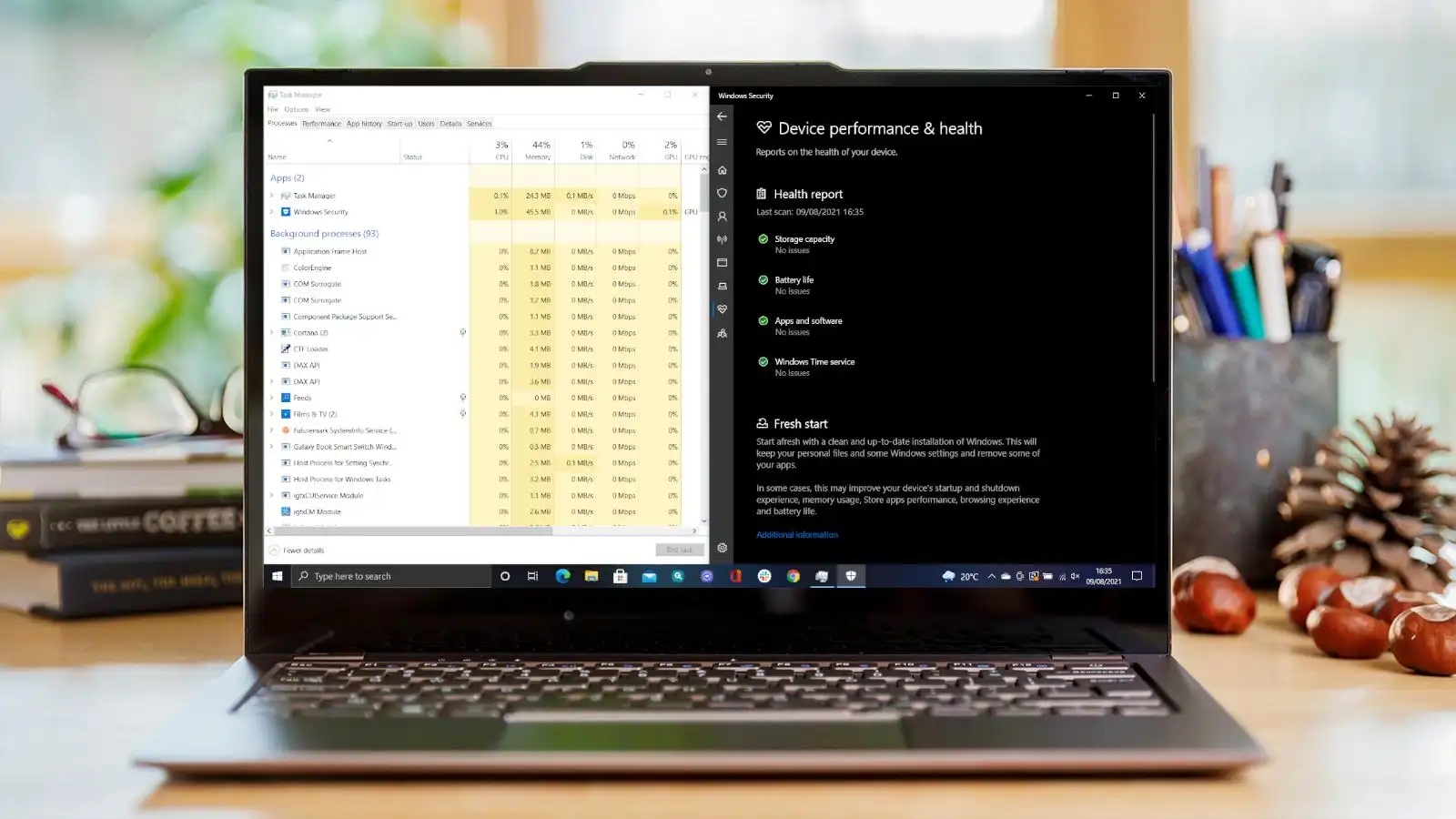
How to Speed Up Your PC to The Start
Are you tired of waiting for your computer to start up? Do you feel like it’s taking forever to load Windows or macOS? Well, you’re in luck because today we’re going to talk about how to speed up your PC to the start. Yes, you read that right – speeding up! It means making your computer go fast, and we’re going to show you exactly how to do it.
The Problem of Slowness
We’ve all been there – you turn on your computer, and it takes what feels like an eternity to load up Windows or macOS. You start to think that something is wrong with your computer, but in reality, it’s just a matter of unnecessary applications slowing down the startup process.
Tip 1: Disable Unnecessary Programs
The first tip we have for you is to disable unnecessary programs from starting up automatically. You see, when Windows or macOS loads up, some programs are set to start automatically in the background. These programs can include things like email clients, instant messaging apps, and social media platforms.
How to Do It
To do this, simply follow these steps:
- Click on the Start menu (or equivalent) and select Settings.
- In the Settings window, click on Apps.
- In the Apps window, click on Start.
- In the new window that opens, you’ll see a list of all the applications installed on your computer.
- Look for any programs that you don’t need to start automatically and disable them.
Tip 2: Use Antivirus And Antimalware
Another tip we have for you is to use antivirus and antimalware software to protect your computer from malware and viruses. These types of threats can slow down your computer and even crash it if left unchecked.
How to Do It
To do this, simply follow these steps:
- Install a reputable antivirus program (such as Microsoft Defender).
- Run regular scans to detect any potential threats.
- Use an antimalware program (such as Malwarebytes) to scan for and remove malware.
Tip 3: Defragment Your Hard Drive
The next tip we have for you is to defragment your hard drive, or in other words, optimize your hard drive by rearranging its files. This can help improve performance by allowing your computer’s operating system to access data more quickly.
How to Do It
To do this, simply follow these steps:
- Open the Disk Defragmenter tool (which you can find in the Start menu).
- Run a defragmentation operation to optimize your hard drive.
- Repeat this process regularly to keep your hard drive running smoothly.
Tip 4: Avoid System Optimization Software
Now, we know what you’re thinking – why not use software to optimize my system? Well, here’s the thing: Some of these programs can actually slow down your computer rather than speed it up!
How to Do It
To avoid this trap, simply follow these steps:
- Research any software you’re considering installing.
- Read reviews and check for potential issues with system optimization.
- Stick with reputable antivirus and antimalware software instead.
Tip 5: Update Your Hardware
Finally, the last tip we have for you is to update your hardware! This can include things like upgrading your RAM or replacing your hard drive with a solid-state drive (SSD).
How to Do It
To do this, simply follow these steps:
- Check for any updates on your computer’s operating system.
- Install any available updates.
- Consider upgrading your RAM or replacing your hard drive with an SSD.
Conclusion
In conclusion, speeding up your PC to the start is easier than you think! By following these simple tips and tricks, you can make your computer run faster and more efficiently.
Frequently Asked Questions (FAQs)
Q: What’s the best antivirus software for my Windows or macOS system?
A: The answer depends on personal preference, but we recommend using Microsoft Defender for Windows or Malwarebytes for macOS.
Q: How often should I defragment my hard drive?
A: It’s recommended to run a defragmentation operation every few months to keep your hard drive running smoothly.
Q: Can software optimization programs really slow down my system?
A: Yes, unfortunately! Some of these programs can cause problems rather than fix them. Stick with reputable antivirus and antimalware software instead.
Q: How can I update my hardware?
A: It depends on what you need – if you’re due for a RAM upgrade or want to replace your hard drive with an SSD, now is the time!
Q: Can I use multiple methods to speed up my PC at once?
A: Yes! While each method has its own benefits and drawbacks, combining them can lead to even better results.
Q: Are there any risks associated with updating my hardware or software?
A: Unfortunately, yes. Be sure to research any updates thoroughly before installing them on your system.
Q: Can I use this guide for Windows 10 or macOS instead of Windows 11?
A: While the steps are similar, some details may vary depending on your operating system. Check our other guides for specific information on how to speed up your PC for each OS.
Q: How long will it take me to notice improvements from these methods?
A: It depends on your specific situation, but most people see performance improvements after a few minutes of tweaking their settings.


