
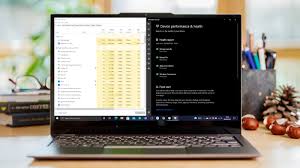
How to Speed Up Your Windows 8 Pc: A Step-by-step Guide
Are you tired of waiting for your Windows 8 PC to boot up or perform tasks? Do you feel like your computer is running slower than when you first bought it? Don’t worry, we’ve got the solution! In this article, we’ll show you how to speed up your Windows 8 PC with simple and effective tips.
Why Your Windows 8 PC Might Be Slow
Before we dive into the solutions, let’s take a look at some common reasons why your Windows 8 PC might be slow:
- Pre-installed software taking up space on your hard drive
- Automatic start of programs you don’t use
- Errors in the system record that can cause slowdowns and crashes
- Fragmentation of files on your hard drive, making it harder for your computer to access them
Tip 1: Remove Unnecessary Software
The first step to speeding up your Windows 8 PC is to remove any unnecessary software that’s taking up space on your hard drive. This includes pre-installed antivirus software, multimedia programs, toolbars, and other apps you don’t use.
To do this, you can use a free application called The PC Decrapifier. This program will scan your computer and identify which software is not essential to its operation. You can then select the software you want to remove and let the program take care of it for you.
Tip 2: Disable Automatic Start
Another way to speed up your Windows 8 PC is to disable the automatic start of programs that you don’t use. This includes any programs that automatically launch when you boot up your computer.
To do this, follow these steps:
- Right-click on an empty spot in the Task Manager and select “Management activity”
- Select the “Start” tab
- Disable any programs that you don’t want to start automatically
Tip 3: Erase Unnecessary Files
The next step is to erase any unnecessary files that are taking up space on your hard drive. This includes cache files, browser history, and other temporary files.
To do this, you can use the famous software CCleaner. This program will scan your computer for any unnecessary files and give you the option to delete them.
Tip 4: Fix System Errors
System errors can cause a lot of problems on your Windows 8 PC, including slowdowns and crashes. To fix these errors, you can use a free program called Free Error Cleaner.
This program will scan your computer for any system errors and give you the option to repair them. Follow the instructions in the program to complete this process.
Tip 5: Defragment Your Hard Drive
Fragmentation of files on your hard drive can make it harder for your computer to access them, leading to slowdowns and crashes. To defragment your hard drive, follow these steps:
- Click on the Start button and type “defrag” in the search bar
- Select the option to optimize your hard drive
Tip 6: Restore Your System
If none of the above tips work for you, it might be time to restore your system to its factory settings. This will erase all of your personal files and settings, but it will give you a fresh start with a clean slate.
To do this, follow these steps:
- Click on the Start button and select “Settings”
- Select the option to update and recover
- Choose the option to reset your PC
Conclusion
Speeding up your Windows 8 PC doesn’t have to be difficult. By following these simple tips, you can get your computer running at its best in no time.
Remember, it’s always a good idea to back up your personal files and settings before making any major changes to your system.
We hope this article has been helpful in speeding up your Windows 8 PC. If you have any further questions or need additional help, feel free to ask!
Faqs
- Q: What Are Some Common Reasons Why my Windows 8 PC is Slow?
A: Some common reasons include pre-installed software taking up space on your hard drive, automatic start of programs you don’t use, errors in the system record that can cause slowdowns and crashes, and fragmentation of files on your hard drive. - Q: How do I Remove Unnecessary Software From my Windows 8 Pc?
A: You can use a free application called The PC Decrapifier to scan your computer for any unnecessary software and remove it. - Q: What is Ccleaner, And How Does it Help Speed up my Windows 8 Pc?
A: CCleaner is a program that scans your computer for any unnecessary files and gives you the option to delete them, which can help free up space on your hard drive and improve your system’s performance. - Q: How do I Fix System Errors on my Windows 8 Pc?
A: You can use a free program called Free Error Cleaner to scan your computer for any system errors and repair them. - Q: What is Defragmentation, And How Does it Help Speed up my Windows 8 Pc?
A: Defragmentation is the process of rearranging files on your hard drive so that they’re stored in contiguous blocks, which can improve your system’s performance by reducing fragmentation. - Q: How do I Restore my Windows 8 PC to Its Factory Settings?
A: You can follow these steps to reset your PC and restore it to its factory settings.
Recommended Reading
- “How to Speed Up Your Computer in 5 Easy Steps”
- “The Ultimate Guide to Cleaning Out Unnecessary Files on Your Windows 8 PC”
- “Fixing System Errors: A Step-by-Step Guide for Beginners”
I hope this helps! If you have any further questions or need additional help, feel free to ask.


