
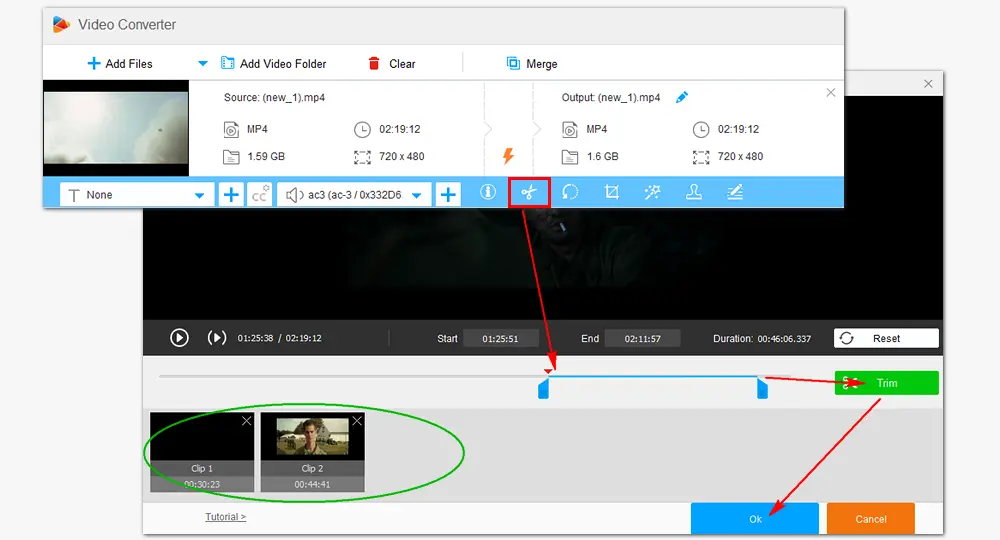
How to Divide a Video Into Parts: A Step-by-step Guide
Are you tired of dealing with long videos that take up too much space on your device? Do you want to share specific parts of a video with others, but don’t know how to do it? Well, you’re in luck! In this article, we’ll show you how to divide a video into parts using various methods.
Why Divide a Video Into Parts?
Before we dive into the nitty-gritty, let’s quickly discuss why dividing a video into parts is useful. Here are some reasons:
- Save Storage Space: Long videos can take up a lot of space on your device, which can be a problem if you’re running low on storage.
- Share Specific Parts: If you want to share a specific part of a video with someone else, dividing it into smaller parts makes it easier to do so.
- Edit And Customize: Dividing a video into parts allows you to edit and customize each segment separately, which can be useful for creating highlight reels or montages.
Programs to Divide a Video Into Parts
There are several programs that allow you to divide a video into parts. Here are some of the most popular ones:
Avidemux (Windows, Macos, Linux)
Avidemux is a free and open-source video editor that allows you to cut, merge, and encode videos. It’s available for Windows, macOS, and Linux.
To use Avidemux, follow these steps:
- Download and install Avidemux from the official website.
- Launch Avidemux and click on the folder icon in the top-left corner to select the video you want to divide.
- Use the timeline to navigate to the start of the first segment you want to cut.
- Click on the “Add” button to add a new segment, then click on the “Cut” button to split the video into two parts.
- Repeat this process for each segment you want to create.
Vlc (Windows, Macos, Linux)
VLC is a popular media player that also allows you to edit and convert videos. It’s available for Windows, macOS, and Linux.
To use VLC, follow these steps:
- Download and install VLC from the official website.
- Launch VLC and drag the video you want to divide into the window.
- Click on the “Media” menu and select “Record”.
- Use the timeline to navigate to the start of the first segment you want to record.
- Click on the “Start” button to begin recording, then click on the “Stop” button when you’re finished.
- Repeat this process for each segment you want to create.
Other Online Solutions
If you don’t want to download and install software on your computer, there are several online solutions that allow you to divide a video into parts. Here are some of them:
- Cut Video Online: This is a free online service that allows you to cut videos into smaller parts.
- Clideo: This is another online service that allows you to edit and convert videos, including cutting them into smaller parts.
- Kapwing: This is a popular online editor that allows you to edit and customize videos, including cutting them into smaller parts.
Apps to Divide a Video Into Parts
If you’re using an Android or iOS device, there are several apps that allow you to divide a video into parts. Here are some of the most popular ones:
- Vidtrim (Android): This is a free app that allows you to cut, merge, and encode videos.
- Imovie (iOS, Ipados): This is a built-in app on Apple devices that allows you to edit and customize videos, including cutting them into smaller parts.
Conclusion
Dividing a video into parts can be useful for various reasons, such as saving storage space, sharing specific parts of a video, or editing and customizing each segment separately. There are several programs and online solutions that allow you to do this, including Avidemux, VLC, Cut Video Online, Clideo, Kapwing, VidTrim, and iMovie.
We hope this guide has been helpful in showing you how to divide a video into parts using various methods. Happy editing!
Frequently Asked Questions
Here are some frequently asked questions about dividing a video into parts:
- Q: How do I Divide a Video Into Parts?
A: There are several ways to divide a video into parts, including using software like Avidemux or VLC, or online services like Cut Video Online or Clideo. - Q: What is The Best Way to Divide a Video Into Parts?
A: The best way to divide a video into parts depends on your specific needs and preferences. Some people prefer to use software like Avidemux or VLC, while others prefer online services like Cut Video Online or Clideo. - Q: Can I Divide a Video Into Parts on my Phone?
A: Yes, you can divide a video into parts using various apps available for Android and iOS devices. Some popular options include VidTrim and iMovie. - Q: How do I Save The Divided Video Parts?
A: Once you’ve divided a video into parts, you can save each segment separately as a new file. The exact process will depend on the software or online service you’re using.
We hope this guide has been helpful in answering some of your questions about dividing a video into parts!


