
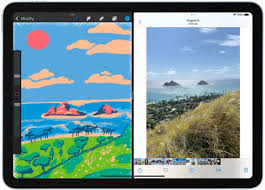
How to Divide Your Ipad Screen Into Two: A Step-by-step Guide
Are you tired of juggling multiple apps on your iPad screen? Do you wish you could have two separate areas of work at the same time? Look no further! In this article, we’ll show you how to divide your iPad screen into two using the Split View feature.
What is Split View?
Split View is a feature introduced in iOS 9 that allows you to divide your iPad screen into two separate areas, each running a different app. This means you can have two apps open at the same time, taking up half of the screen each.
Benefits of Using Split View
Using Split View offers several benefits, including:
- Improved multitasking: With Split View, you can have two apps open at the same time, making it easier to switch between them.
- Increased productivity: By having two areas of work on your iPad screen, you can stay focused and get more done.
- Enhanced user experience: Split View provides a more intuitive way to use your iPad, making it feel more like a laptop.
System Requirements For Using Split View
Before we dive into the steps, make sure you meet the system requirements:
- Your iPad must be running iOS 9 or later.
- You must have at least one app in the Dock (the bar at the bottom of the screen).
- The app you want to use with Split View must be compatible with this feature.
Step-by-step Guide to Using Split View
Now that we’ve covered the basics, let’s get started!
Step 1: Accessing The Settings App
To enable Split View, you’ll need to access the Settings app. Here’s how:
- Tap on the Settings icon (looks like a cog) on your iPad screen.
- Scroll down and tap on “Home Screen & Dock.”
- Tap on “Multitasking.”
Step 2: Enabling Split View
Once you’re in the Multitasking settings, make sure Split View is enabled:
- Check that the switch next to “Split View” is turned on.
- If it’s not, tap on the switch to turn it on.
Step 3: Assigning Apps to The Dock
Before using Split View, you’ll need to assign at least one app to the Dock. Here’s how:
- Tap on an app icon (any app will do).
- Hold your finger down on the app until it starts to jiggle.
- Tap on the “Edit Home Screen” button.
- Drag the app icon to the bottom of the screen, where the Dock is located.
Step 4: Opening Two Apps
Now that you’ve got an app in the Dock, it’s time to open two apps:
- Tap on an app icon (any app will do).
- Hold your finger down on the app until it starts to jiggle.
- Drag the app icon to the right side of the screen, where Split View is enabled.
Step 5: Adjusting The Split View
Once you’ve got two apps open in Split View, you can adjust the split view by dragging the line between the two apps:
- Hold your finger down on the dividing line until it starts to jiggle.
- Drag the line to the left or right to adjust the size of each app.
Step 6: Closing an App
When you’re done with one of the apps, simply close it by tapping on the “X” button:
- Tap on the “X” button at the top-right corner of the app.
- The app will close, and you’ll be left with the other app.
Common Faqs About Split View
Here are some common questions we’ve received about Split View:
- Q: How do I Know if my Ipad is Compatible With Split View?
A: If your iPad is running iOS 9 or later, it’s compatible with Split View. - Q: Can I Use Split View With Any App?
A: Not all apps are compatible with Split View. Check the App Store for compatible apps. - Q: How do I Close an App in Split View?
A: Simply tap on the “X” button at the top-right corner of the app.
Conclusion
Split View is a powerful feature that allows you to divide your iPad screen into two separate areas, each running a different app. By following these steps, you can unlock the full potential of your iPad and stay productive on-the-go!
Frequently Asked Questions (FAQs)
- Q: What Are The Benefits of Using Split View?
A: Improved multitasking, increased productivity, and an enhanced user experience. - Q: How do I Enable Split View on my Ipad?
A: Access the Settings app, scroll down to “Home Screen & Dock,” and tap on “Multitasking.” - Q: Can I Use Split View With Any App?
A: Not all apps are compatible with Split View. - Q: How do I Close an App in Split View?
A: Tap on the “X” button at the top-right corner of the app. - Q: Is Split View Available on All Ipad Models?
A: No, only certain iPad models are compatible with Split View. - Q: Can I Use Split View to Display Two Instances of The Same App?
A: Yes, but only with some apps (e.G., Safari). - Q: How do I Add a Third App to my Screen Using Split View And Slide Over?
A: You can open one app in Split View and another in Slide Over, then bring a third app over the top of both. - Q: Can I Disable Split View on my Ipad?
A: Yes, you can turn off Split View by accessing the Settings app and disabling it under “Home Screen & Dock” > “Multitasking.”


