
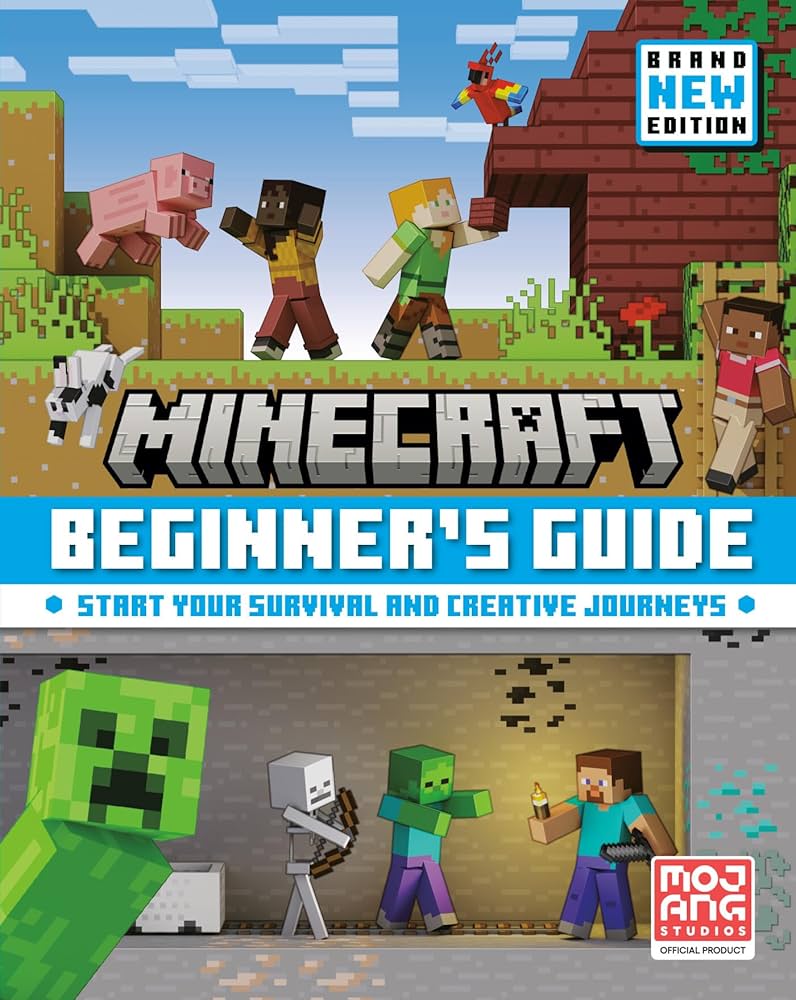
The Ultimate Guide to Starting Minecraft: A Beginner’s Tutorial
Are you ready to embark on an epic adventure? Do you want to explore a vast, blocky world filled with mysteries and dangers? Look no further than Minecraft! This iconic sandbox game has been delighting players of all ages since its release in 2011. But if you’re new to the world of Minecraft, where do you start?
In this comprehensive guide, we’ll take you through the basics of starting a new Minecraft adventure. We’ll cover the three main game modes: Survival, Adventure, and Creative. By the end of this tutorial, you’ll be equipped with the knowledge to begin your own Minecraft journey.
What is Minecraft?
Minecraft is a sandbox-style video game created by Mojang Studios. It allows players to explore, build, and survive in a procedurally generated world made up of blocks. The game has three main modes: Survival, Adventure, and Creative.
Which Mode Should You Choose?
Before we dive into the tutorial, let’s quickly discuss each mode:
- Survival: This is the default mode where players must gather resources, build shelter, and fend off monsters that come out at night.
- Adventure: In this mode, players can explore a fixed world without the threat of monsters. However, they cannot break or place blocks.
- Creative: This mode allows players to build anything they want without worrying about resources or monsters.
Starting Minecraft: A Step-by-step Guide
Survival Mode
To start playing in Survival mode:
- Open Minecraft and select the “Java Edition” (PC) or “Bedrock Edition” (Windows 10, smartphone, tablet, or console).
- Create a new world by selecting the “Play” option.
- Choose the game mode: Select “Survival” from the options.
Adventure Mode
To start playing in Adventure mode:
- Open Minecraft and select the “Java Edition” (PC) or “Bedrock Edition” (Windows 10, smartphone, tablet, or console).
- Create a new world by selecting the “Play” option.
- Choose the game mode: Select “Adventure” from the options.
Note that in Adventure mode, you cannot break or place blocks. You can only explore and interact with existing structures.
Creative Mode
To start playing in Creative mode:
- Open Minecraft and select the “Java Edition” (PC) or “Bedrock Edition” (Windows 10, smartphone, tablet, or console).
- Create a new world by selecting the “Play” option.
- Choose the game mode: Select “Creative” from the options.
In Creative mode, you’ll have access to all blocks and items in your inventory. You can build anything without worrying about resources or monsters.
Tips For Starting Minecraft
- Familiarize yourself with the controls and menu options before starting a new world.
- Explore and gather resources during the day to prepare for nighttime.
- Build shelter and stock up on food, water, and other essential items.
- Experiment with different game modes to find what suits you best.
Conclusion
Starting Minecraft can be daunting, especially for beginners. But with this guide, you should now have a solid understanding of how to begin your adventure in Survival, Adventure, or Creative mode. Remember to explore, build, and survive (if playing in Survival mode), and most importantly, have fun!
Frequently Asked Questions
-
What is The Difference Between Java And Bedrock Editions?
The Java edition is for PC users, while the Bedrock edition is available on Windows 10, smartphone, tablet, or console. -
Can I Play Minecraft Online With Friends?
Yes! Minecraft allows multiplayer gameplay, where you can join or create servers to play with friends. -
How do I Get Started With Modding And Customizing my Game?
You’ll need to explore the official Minecraft forums, wiki, and community-driven websites for tutorials and guides on modding and customization. -
What Are Some Tips For Surviving in Survival Mode?
Gather resources during the day, build shelter, stock up on food, water, and other essential items, and experiment with different strategies to stay alive. -
How do I Access Creative Mode?
To enter Creative mode, select “Creative” from the game modes options when creating a new world. -
Can I Play Minecraft Without an Account or Subscription?
Yes! You can play Minecraft in offline mode, but keep in mind that some features and updates may require an online connection. -
Are There Any Resources Available For Learning More About Minecraft?
Absolutely! The official Minecraft website offers tutorials, guides, and community forums where you can connect with other players and learn from their experiences. -
Can I Use Minecraft as a Tool For Educational Purposes or Creative Projects?
Yes! Minecraft has been widely adopted in schools and institutions for teaching concepts like math, science, and programming. It’s also an excellent platform for creative expression and project-based learning.


