
Windows 10: A Comprehensive Guide to Initiating Provisional Modality
As a computer user, you may encounter issues with your PC that prevent it from starting normally. In such cases, initiating Windows 10 in provisional modality can be a lifesaver. But what exactly is this feature, and how do you access it? In this article, we will delve into the world of Windows 10’s provisional modality, exploring its benefits, risks, and step-by-step procedures for initiating it.
Understanding Provisional Modality
Provisional modality, also known as safe boot or recovery mode, is a feature that allows you to start your PC with only the essential components loaded. This means that Windows 10 will not load any programs or drivers that might be causing problems, giving you a clean slate to troubleshoot and resolve issues.
Benefits of Provisional Modality
Initiating Windows 10 in provisional modality offers several benefits:
- Troubleshooting: By loading only essential components, you can isolate the source of the problem and perform targeted troubleshooting.
- System Recovery: If your PC is experiencing system crashes or other critical issues, provisional modality allows you to recover your data and settings.
- Security: This feature ensures that your system remains secure by preventing malicious software from running.
Risks Associated With Provisional Modality
While provisional modality can be incredibly helpful, it’s essential to understand the potential risks:
- Data Loss: If you’re not careful, you might lose unsaved work or important data.
- System Instability: Provisional modality may not load all necessary drivers or components, leading to system instability.
Step-by-step Guide to Initiating Windows 10 in Provisional Modality
Now that we’ve discussed the benefits and risks, let’s move on to the step-by-step guide:
Method 1: Using The Settings App
- Click on the Start button (Windows logo) in the bottom-left corner of the screen.
- Select Settings from the menu.
- Navigate to Update & Security > Recovery.
- Click on Restart Now under Advanced startup.
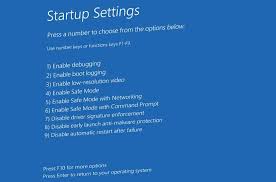
- Choose Troubleshoot > Advanced Options > Startup Settings.
Method 2: Using The Command Prompt
- Press the Windows key + R to open the Run dialog box.
- Type
shutdown /r /oand press Enter. - In the Startup Settings menu, select Provisional Modality with net or Provisional Modality without net.
Method 3: Using The F8 Key
- Restart your PC.
- Press the F8 key repeatedly as your PC boots up.
- Select Provisional Modality from the Advanced Boot Options menu.
Alternative Solutions to Common Problems
Even after initiating provisional modality, you might encounter issues that prevent you from resolving problems. Don’t worry! Try these alternative solutions:
- System Format: If all else fails, consider formatting your system and reinstalling Windows 10.
- Hardware Replacement: In some cases, replacing faulty hardware components can resolve issues.
Conclusion
Windows 10’s provisional modality is a powerful tool that can help you troubleshoot and recover from system crashes or other critical issues. By understanding the benefits and risks associated with this feature, you’ll be better equipped to navigate your way through complex problems. Remember to always back up your data before attempting to initiate provisional modality.
Frequently Asked Questions
- What is Windows 10’s Provisional Modality?
Provisional modality, also known as safe boot or recovery mode, allows you to start your PC with only essential components loaded. - How do I Access Provisional Modality?
You can initiate provisional modality using the Settings app, Command Prompt, or F8 key. - What Are The Benefits of Provisional Modality?
Provisional modality offers troubleshooting, system recovery, and security benefits. - Are There Any Risks Associated With Provisional Modality?
Yes, you might experience data loss or system instability if not used properly. - Can I Use Provisional Modality to Resolve Hardware Issues?
No, provisional modality is designed for software-related problems only. - How do I Exit Provisional Modality?
You can simply restart your PC to exit provisional modality. - What Are Alternative Solutions if I’m Still Experiencing Problems?
Consider formatting your system or replacing faulty hardware components.


