
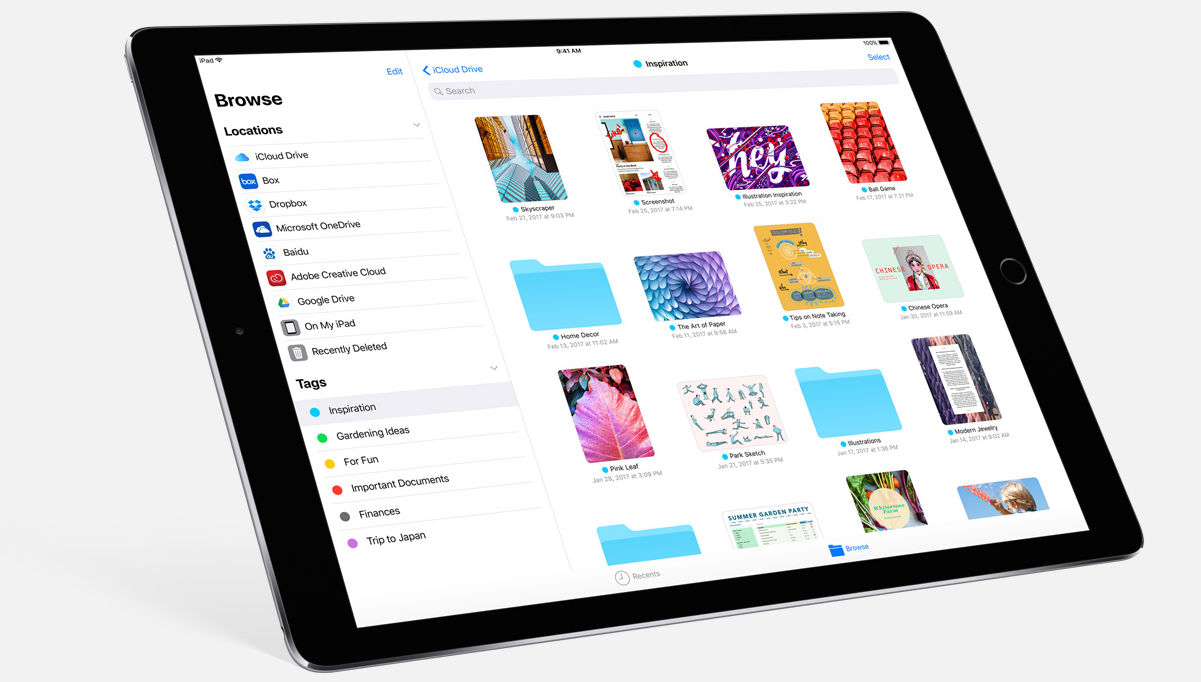
Mastering Your Ipad’s File Management: A Comprehensive Guide
Are you tired of cluttered files on your iPad, making it difficult to find what you need? Do you struggle with organizing your documents and keeping them safe from accidental deletion or damage? Look no further! In this article, we will guide you through the process of mastering your iPad’s file management, using both native apps and third-party solutions.
Understanding Your Ipad’s File System
Before we dive into the tips and tricks, it’s essential to understand how your iPad’s file system works. The iPadOS operating system has an integrated system for creating compressed files, known as “Rows.” This feature allows you to store multiple files in a single, zip-like container.
Tips For Filing Files on Your Ipad
Before we proceed with the tutorial, here are some general tips to keep in mind:
- Avoid Duplicating Folder Names: Give your folders descriptive and unique names that reflect their content.
- Use Subfolders: Organize your files within folders using subfolders to make it easier to find what you need.
- Save Copies of Important Files: Consider saving a copy of your important files on an external drive or cloud storage service for added security.
Tutorial: Filing Files With The Native Ipad App
The native iPad app, Rows, is a great starting point for managing your files. Here’s how to use it:
- Open The Rows App: Tap on the blue folder icon to open the Rows app.
- Select The File(s): Choose the file(s) you want to file by tapping on them.
- Create a New Folder: Tap the “+” icon to create a new folder, and give it a descriptive name.
- Move Files Into Folders: Drag and drop the selected files into the newly created folder.
Alternative Solution: Using Third-party Apps
If you’re not satisfied with the native iPad app or want more advanced features, consider using third-party apps like Documents by Readdle. This app offers additional functionality, such as editing PDFs and scanning documents. Here’s how to use it:
- Download And Install Documents: Get the Documents app from the App Store.
- Configure The App: Follow the on-screen instructions to configure the app according to your needs.
- Select Files And Create Folders: Use the “+” icon to select files and create new folders, just like in the native Rows app.
Services of Cloud Storage
For added security, consider saving a copy of your important files on cloud storage services like iCloud Drive or Google Drive. Here’s how to use them:
- Open The Files App: Tap on the Files icon to open the Files app.
- Select Files And Create Folders: Use the “+” icon to select files and create new folders, just like in the native Rows app.
- Copy Files to Cloud Storage: Use the “Share” feature to copy your selected files to a cloud storage service.
Conclusion
Mastering your iPad’s file management is easier than you think! By following these tips and tutorials, you’ll be able to organize your files, keep them safe from accidental deletion or damage, and access them quickly when needed. Remember to save copies of important files on cloud storage services for added security.
Faqs
- Q: What is The Best Way to Organize my Ipad’s Files?
A: Use a combination of folders and subfolders to keep your files organized. - Q: How Can I Access my Cloud-stored Files From my Ipad?
A: Open the Files app, select the file(s), and tap on the “Share” feature to copy them to your desired cloud storage service. - Q: What Are Some Recommended Third-party Apps For Managing Files on my Ipad?
A: Consider using Documents by Readdle or other similar apps that offer additional functionality. - Q: How Can I Prevent Accidental Deletion of Important Files on my Ipad?
A: Save copies of your important files on cloud storage services, and use the “Recover” feature in some apps to retrieve deleted files. - Q: What is Icloud Drive, And How Does it Work?
A: ICloud Drive is a free service that allows you to store up to 5 GB of data online. You can access your files from any device connected to the same Apple ID account. - Q: How do I Create Compressed Files on my Ipad?
A: Use the native Rows app or third-party apps like Documents by Readdle to create compressed files. - Q: Can I Use Google Drive, Dropbox, or Onedrive on my Ipad?
A: Yes, you can use these cloud storage services on your iPad by installing their respective apps from the App Store. - Q: How do I Recover Deleted Files on my Ipad?
A: Some apps, like Documents by Readdle, offer a “Recover” feature that allows you to retrieve deleted files. Check with the app’s developer for specific instructions.


