
How to File Photos on Icloud: A Step-by-step Guide
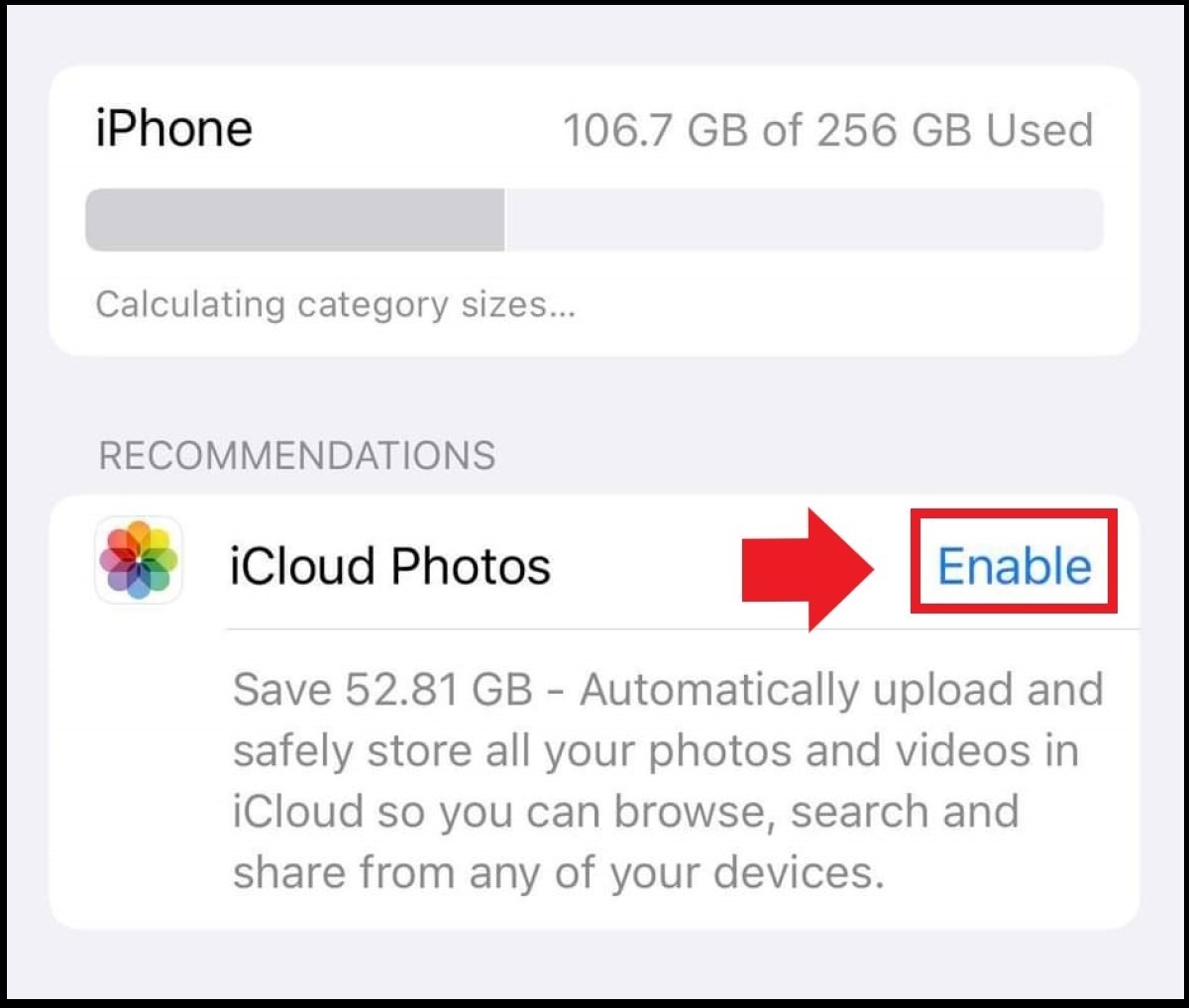
Are you wondering how to file photos on iCloud? Look no further! In this article, we’ll take a comprehensive look at the process of storing your photos on Apple’s cloud storage service.
What is Icloud Photo Library?
ICloud Photo Library is a feature of iCloud that allows you to store and sync your photos across all your devices. With iCloud Photo Library, you can access your photos from anywhere, on any device with an internet connection.
How to File Photos on Icloud: A Guide For Iphone And Ipad Users
Filing photos on iCloud is easy! Here’s how:
- Open The Settings App: Tap on the “Settings” icon on your home screen.
- Tap on Your Name: Tap on your name at the top of the screen.
- Tap on Icloud: Scroll down and tap on “iCloud.”
- Turn on Icloud Photo Library: Slide the switch next to “iCloud Photo Library” to turn it on.
- Choose Your Settings: You’ll see two options: “Optimize Storage” or “Download Originals.” Choose the one that suits your needs.
How to File Photos on Icloud: A Guide For Mac Users
Filing photos on iCloud is also easy on a Mac!
- Open The Photos App: Click on the Photos icon in your dock.
- Click on Photo > Preferences: In the top menu, click on “Photo” and then “Preferences.”
- Click on The Icloud Tab: Click on the “iCloud” tab at the top of the window.
- Turn on Icloud Photo Library: Check the box next to “iCloud Photo Library” to turn it on.
How to File Photos on Icloud: A Guide For Windows Users
Filing photos on iCloud is easy even on a Windows PC!
- Download And Install The Icloud App: Go to the Microsoft Store and download the iCloud app.
- Launch The Icloud App: Launch the iCloud app from your start menu.
- Click on Photos: Click on the “Photos” tab at the top of the window.
- Turn on Icloud Photo Library: Check the box next to “iCloud Photo Library” to turn it on.
How to Download Photos From Icloud
Want to download photos from iCloud? Here’s how:
- Open The Icloud Website: Go to the iCloud website and log in with your Apple ID.
- Click on Photos: Click on the “Photos” tab at the top of the window.
- Select The Photos You Want to Download: Select the photos you want to download by checking the box next to each one.
- Click Download: Click on the “Download” button at the bottom of the screen.
How to Stop Saving Photos on Icloud
Want to stop saving photos on iCloud? Here’s how:
- Open The Settings App (iPhone/iPad): Tap on the “Settings” icon on your home screen.
- Tap on Your Name: Tap on your name at the top of the screen.
- Tap on Icloud: Scroll down and tap on “iCloud.”
- Turn Off Icloud Photo Library: Slide the switch next to “iCloud Photo Library” to turn it off.
How to Stop Saving Photos on Icloud (Mac)
Want to stop saving photos on iCloud? Here’s how:
- Open The Photos App: Click on the Photos icon in your dock.
- Click on Photo > Preferences: In the top menu, click on “Photo” and then “Preferences.”
- Click on The Icloud Tab: Click on the “iCloud” tab at the top of the window.
- Uncheck Icloud Photo Library: Uncheck the box next to “iCloud Photo Library.”
How to Stop Saving Photos on Icloud (Windows)
Want to stop saving photos on iCloud? Here’s how:
- Open The Icloud App: Launch the iCloud app from your start menu.
- Click on Photos: Click on the “Photos” tab at the top of the window.
- Uncheck Icloud Photo Library: Uncheck the box next to “iCloud Photo Library.”
Frequently Asked Questions (FAQs)
Q: What is iCloud Photo Library?
A: ICloud Photo Library is a feature of iCloud that allows you to store and sync your photos across all your devices.
Q: How do I file photos on iCloud?
A: To file photos on iCloud, simply open the Settings app or Photos app on your device, go to the iCloud tab, and turn on iCloud Photo Library.
Q: Can I download photos from iCloud?
A: Yes! You can download photos from iCloud by going to the iCloud website, logging in with your Apple ID, selecting the photos you want to download, and clicking the “Download” button.
Q: How do I stop saving photos on iCloud?
A: To stop saving photos on iCloud, simply open the Settings app or Photos app, go to the iCloud tab, and turn off iCloud Photo Library.
Conclusion
Filing photos on iCloud is a straightforward process that can be completed on any device. By following the steps outlined in this guide, you’ll be able to store and sync your photos across all your devices. If you have any questions or need further assistance, feel free to ask!


