
How to File Photos on Iphone: A Comprehensive Guide
Are you tired of cluttering your iPhone’s memory with photos? Do you want to keep them organized and easily accessible? Look no further! In this article, we’ll show you how to file photos on iPhone using various methods, including the use of cloud services like iCloud and Google Photos.
What is Icloud Photo Library?
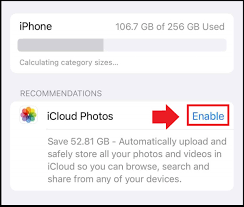
ICloud Photo Library is a service provided by Apple that allows you to store your photos and videos in the cloud. This means that you can access them from any device connected to your iCloud account, without taking up space on your iPhone’s memory.
How to Set Up Icloud Photo Library
To set up iCloud Photo Library, follow these steps:
- Go to Settings > [Your Name] > iCloud > Photos.
- Toggle the switch next to “iCloud Photo Library” to turn it on.
- Wait for the service to sync your photos and videos.
How to File Photos in Albums
To file photos in albums using the Photos app, follow these steps:
- Open the Photos app.
- Tap on the “Albums” tab at the bottom of the screen.
- Select a category or create a new album by tapping the “+” icon.
- Choose the photos you want to add to the album and tap “Add” in the top-right corner.
How to Use Google Photos
Google Photos is another cloud service that allows you to store your photos and videos, and even offers some features like automatic organization and editing. To set up Google Photos on your iPhone:
- Download the Google Photos app from the App Store.
- Sign in with your Google account or create a new one.
- Grant access to your photos by tapping “Allow” when prompted.
How to File Photos Using Google Photos
To file photos using Google Photos, follow these steps:
- Open the Google Photos app.
- Tap on the “Library” tab at the bottom of the screen.
- Select a category or create a new album by tapping the “+” icon.
- Choose the photos you want to add to the album and tap “Add” in the top-right corner.
How to Transfer Photos From PC to Iphone
To transfer photos from your PC to your iPhone, follow these steps:
- Connect your iPhone to your PC using a USB cable.
- Open iTunes on your PC and select your iPhone.
- Click on the “Photos” tab and select the folder containing the photos you want to transfer.
Frequently Asked Questions
Q: How much storage space does iCloud Photo Library take up on my iPhone?
A: ICloud Photo Library only takes up a small amount of storage space on your iPhone, as it stores most of the data in the cloud.
Q: Can I use both iCloud Photo Library and Google Photos at the same time?
A: Yes, you can use both services simultaneously, but keep in mind that they may sync with each other.
Q: How do I free up space on my iPhone’s memory when using iCloud Photo Library or Google Photos?
A: To free up space on your iPhone’s memory, go to Settings > [Your Name] > iCloud > Photos and toggle the switch next to “Optimize Storage”.
Q: Can I save photos directly from WhatsApp to my iPhone’s camera roll?
A: Yes, you can save photos taken using WhatsApp directly to your iPhone’s camera roll.
Q: How do I transfer photos from my PC to my iPhone without losing them?
A: You can use a service like Snapdrop or transfer the photos manually using iTunes or the Finder app on Mac.
Conclusion
Filing photos on iPhone is a breeze with these simple methods. Whether you choose to use iCloud Photo Library, Google Photos, or another cloud service, you’ll be able to keep your photos organized and easily accessible from any device connected to your account.


