
How to Connect Your PC to a Tv: A Comprehensive Guide
Are you tired of using your computer’s small monitor? Do you want to share your favorite games, movies, or presentations with friends and family on a larger screen? Look no further! In this article, we’ll guide you through the process of connecting your PC to a TV, exploring various methods and devices that make it possible.
The Benefits of Connecting Your PC to a TV
Connecting your PC to a TV offers several benefits, including:
- Larger screen size for better viewing experience
- Ability to share content with multiple people at once
- Easier collaboration and presentation opportunities
Method 1: Using Miracast (Windows)
Miracast is a technology that allows you to wirelessly connect your Windows PC to a TV. To do this:
- Ensure your TV has Miracast capabilities.
- Install the Miracast app on your computer.
- Connect your computer and TV to the same Wi-Fi network.
- Open the Miracast app and select your TV as the display device.
Method 2: Using Chromecast (Windows/macOS)
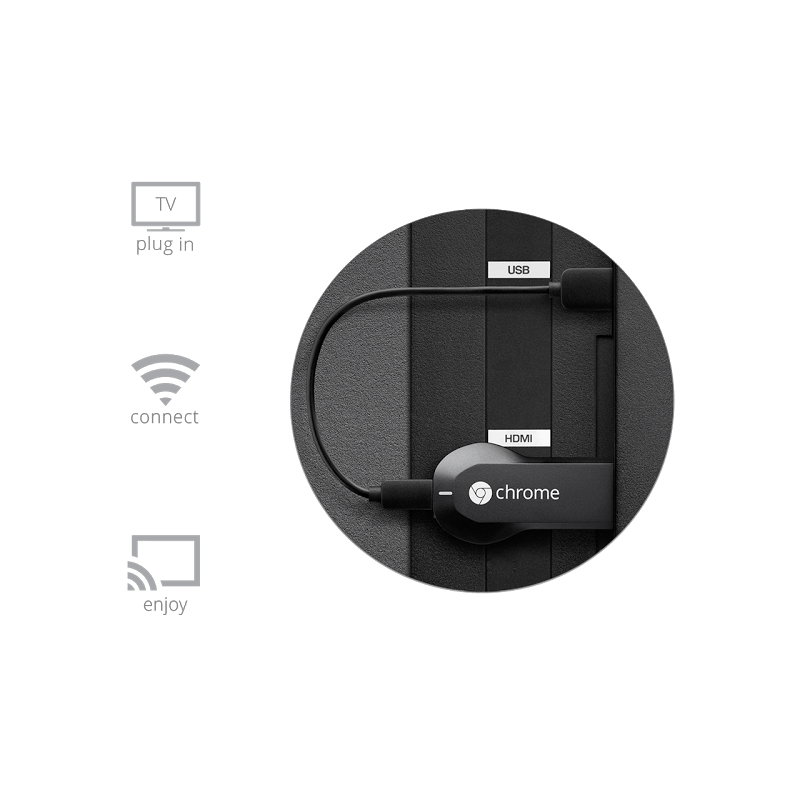
Chromecast is a popular streaming device that can connect your PC to a TV wirelessly. To do this:
- Purchase a Chromecast device.
- Connect it to an HDMI port on your TV.
- Download and install the Google Home app on your computer.
- Open the app, select your Chromecast device, and choose what you want to display.
Method 3: Using Apple Tv/airplay (macOS)
If you’re a Mac user, you can use Apple TV or AirPlay to connect your PC to a TV. To do this:
- Ensure your TV has AirPlay capabilities.
- Connect your computer and TV to the same Wi-Fi network.
- Open the Apple TV app on your computer.
- Select your TV as the display device.
Method 4: Using Hdmi Cable
Connecting your PC to a TV using an HDMI cable is a more traditional method. To do this:
- Ensure both devices have an HDMI port.
- Connect one end of the HDMI cable to your computer’s HDMI port.
- Connect the other end to your TV’s HDMI port.
Method 5: Using Wireless Devices (e.G., Samsung, Lg)
Many modern TVs come with built-in wireless connectivity options, such as Miracast or AirPlay. To use these features:
- Check your TV’s manual for specific instructions.
- Ensure both devices are connected to the same Wi-Fi network.
Troubleshooting Common Issues
When connecting your PC to a TV, you may encounter some common issues. Here are a few troubleshooting tips:
- Ensure both devices are connected to the same Wi-Fi network.
- Check that all cables are securely plugged in.
- Restart both devices if you experience any connectivity problems.
Conclusion
Connecting your PC to a TV is easier than ever, thanks to various methods and devices available. Whether you choose Miracast, Chromecast, Apple TV/AirPlay, HDMI cable, or wireless devices, we’ve got you covered. Remember to troubleshoot common issues if you encounter any problems along the way.
Faqs
- Q: What Are The Benefits of Connecting my PC to a Tv?
A: Larger screen size for better viewing experience, ability to share content with multiple people at once, and easier collaboration and presentation opportunities. - Q: How do I Connect my PC to a TV Using Miracast?
A: Ensure your TV has Miracast capabilities, install the Miracast app on your computer, connect both devices to the same Wi-Fi network, and open the Miracast app to select your TV as the display device. - Q: Can I Use Chromecast With a Windows Pc?
A: Yes! You can use Chromecast with a Windows PC by downloading and installing the Google Home app, selecting your Chromecast device, and choosing what you want to display. - Q: How do I Connect my Mac to a TV Using Airplay?
A: Ensure your TV has AirPlay capabilities, connect both devices to the same Wi-Fi network, open the Apple TV app on your computer, and select your TV as the display device. - Q: Can I Use an Hdmi Cable to Connect my PC to a Tv?
A: Yes! You can use an HDMI cable to connect your PC to a TV by connecting one end to your computer’s HDMI port and the other end to your TV’s HDMI port. - Q: What Are Some Common Issues When Connecting my PC to a Tv?
A: Ensure both devices are connected to the same Wi-Fi network, check that all cables are securely plugged in, and restart both devices if you experience any connectivity problems. - Q: Can I Use Wireless Devices Like Samsung or LG to Connect my PC to a Tv?
A: Yes! Many modern TVs come with built-in wireless connectivity options; check your TV’s manual for specific instructions. - Q: What Should I do if I Encounter Issues When Connecting my PC to a Tv?
A: Troubleshoot common issues by checking that both devices are connected to the same Wi-Fi network, ensuring all cables are securely plugged in, and restarting both devices if necessary.


