
Streaming on Twitch: A Comprehensive Guide For Xbox Users
As a gamer and streamer, you’re probably eager to share your gaming experiences with the world. Twitch is an excellent platform for streaming games, and using an Xbox can enhance your streaming quality. In this article, we’ll guide you through the process of setting up your Xbox for streaming on Twitch.
Requirements For Streaming on Twitch With Xbox
Before we dive into the tutorial, it’s essential to understand the minimum requirements for streaming on Twitch with Xbox:
- A stable internet connection (upload speed: 4500 Kbps or 4.5 Mbps)
- A working Xbox console connected to the internet
- An Xbox Live account
- The Twitch app downloaded on your Xbox
Setting Up Your Xbox For Streaming
To set up your Xbox for streaming, follow these steps:
Enrolling in Xbox Live
- Connect your Xbox to the internet using a cable Ethernet (recommended) or Wi-Fi.
- Open the settings menu and navigate to “Account” > “Sign-in, sign-out.”
- Select “Add new” and follow the prompts to create an Xbox Live account.
Creating a Twitch Account
If you don’t have a Twitch account, now’s the perfect time to create one:
- Go to the official Twitch website and click on “Sign up.”
- Fill out the registration form with your details.
- Confirm your email address by clicking on the verification link sent by Twitch.
Streaming on Twitch With Xbox
Once you have a Twitch account, follow these steps to stream games from your Xbox:
- Download the Twitch app from the Microsoft Store.
- Launch the Twitch app and sign in with your account credentials.
- Connect your Xbox console to the same Wi-Fi network as your PC or mobile device.
- Open the Twitch app on your Xbox and select “Stream.”
- Follow the prompts to configure your streaming settings, including resolution, bitrate, and audio settings.
Alternative Solutions: Using a Capture Card
While using the built-in capabilities of your Xbox is a great option, you can also use a capture card to enhance your streaming quality:
- Use a compatible capture card (e.G., Elgato, AverMedia, or Roxio) to connect your Xbox to your PC.
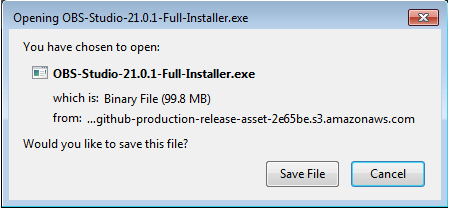
- Install and configure the necessary software (e.G., OBS Studio) to stream from your PC.
Troubleshooting Common Issues
If you encounter any issues during the setup process, refer to our guide on troubleshooting common problems with Twitch streaming on Xbox:
- Check your internet connection speed.
- Ensure that your Xbox is connected to the same Wi-Fi network as your PC or mobile device.
- Verify that your capture card (if using) is properly configured.
Conclusion
Streaming games from your Xbox on Twitch can be an exciting experience. With this comprehensive guide, you’ll be able to set up your console and create a professional-looking stream. Remember to troubleshoot common issues and experiment with alternative solutions for enhanced streaming quality.
Frequently Asked Questions (FAQs)
- What Are The Minimum System Requirements For Streaming on Twitch With Xbox?
- A stable internet connection with an upload speed of 4500 kbps or 4.5 Mbps.
- How do I Connect my Xbox to The Same Wi-fi Network as my PC or Mobile Device?
- Ensure that both devices are connected to the same router and check your internet connection settings.
- Can I Use a Capture Card to Stream Games From my Xbox?
- Yes, you can use a compatible capture card (e.G., Elgato, AverMedia, or Roxio) to connect your Xbox to your PC and enhance your streaming quality.
- What Are The Recommended Settings For Streaming Games on Twitch With Xbox?
- Use a resolution of 1080p at 30 FPS, and adjust your bitrate according to your internet connection speed.
- How do I Troubleshoot Common Issues During The Setup Process?
- Check your internet connection speed, ensure that your Xbox is connected to the same Wi-Fi network as your PC or mobile device, and verify that your capture card (if using) is properly configured.
- Can I Use my Smartphone or Tablet to Manage my Twitch Stream From my Xbox?
- Yes, you can use a streaming app on your smartphone or tablet to manage your Twitch stream from your Xbox.
- How do I Save And Edit my Twitch Streams For Future Reference?
- Use the built-in editor features within the Twitch app or third-party software (e.G., OBS Studio) to edit and save your streams for later use.
By following this comprehensive guide, you’ll be well on your way to creating a high-quality streaming experience on Twitch using your Xbox console. Happy streaming!


