
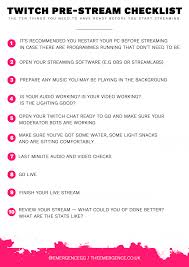
How to Stream on Twitch: A Step-by-step Guide
Are you a passionate gamer looking to share your gaming experiences with the world? Or perhaps you’re an aspiring streamer eager to build a community around your favorite hobbies? Look no further! In this comprehensive guide, we’ll take you through the process of streaming on Twitch, from setting up your channel to going live.
Why Stream on Twitch?
Twitch is one of the most popular platforms for live streaming, with millions of active users and a vast library of content. By joining the Twitch community, you can:
- Connect with fellow gamers and like-minded individuals
- Share your passions and expertise with a global audience
- Build a loyal following and establish yourself as an authority in your niche
Getting Started: Creating a Twitch Account
Before you begin streaming, you’ll need to create a Twitch account. Here’s how:
- Sign up: Visit the Twitch website (www.Twitch.Tv) and click on “Register” at the top right corner.
- Fill Out Your Profile: Provide basic information like your name, email address, and password.
- Verify Your Account: Check your email for a verification link and follow the instructions to activate your account.
Setting Up Your Channel
Now that you have an account, it’s time to set up your channel:
- Choose a Username: Pick a unique and memorable name that represents you or your brand.
- Customize Your Profile: Add a profile picture, bio, and other details to make your channel stand out.
- Set up Your Stream: Configure your streaming settings, including video quality, audio settings, and more.
Streaming on Twitch: A Step-by-step Guide
Here’s how to go live on Twitch:
- Download And Install Twitch Studio: This free app is designed specifically for streaming on Twitch and makes the process easy and seamless.
- Configure Your Stream Settings: Set up your video quality, audio settings, and other preferences in Twitch Studio.
- Choose a Game or Content: Select the game or content you want to stream, and make sure it’s configured correctly in Twitch Studio.
- Go Live: Click on the “Start Streaming” button, and you’ll be live on Twitch!
- Engage With Your Audience: Interact with your viewers through chat, polls, and other features.
Streaming on Twitch With Obs
OBS (Open Broadcasting Software) is a popular platform for streaming on Twitch. Here’s how to use it:
- Download And Install Obs: Get the latest version of OBS from the official website.
- Configure Your Stream Settings: Set up your video quality, audio settings, and other preferences in OBS.
- Add Sources: Add your webcam, microphone, and other sources to the OBS interface.
- Go Live: Click on the “Start Streaming” button, and you’ll be live on Twitch!
Streaming on Twitch With Streamlabs
Streamlabs is a powerful platform for streaming on Twitch. Here’s how to use it:
- Download And Install Streamlabs: Get the latest version of Streamlabs from the official website.
- Configure Your Stream Settings: Set up your video quality, audio settings, and other preferences in Streamlabs.
- Add Sources: Add your webcam, microphone, and other sources to the Streamlabs interface.
- Go Live: Click on the “Start Streaming” button, and you’ll be live on Twitch!
Streaming on Twitch With a Console
Yes, you can even stream on Twitch with a console! Here’s how:
- Check Compatibility: Make sure your console is compatible with Twitch streaming.
- Use a Capture Card: Connect your console to a capture card, which will capture the video and audio signals.
- Stream Using Obs or Streamlabs: Use either OBS or Streamlabs to stream your console gameplay on Twitch.
Tips And Tricks
Here are some additional tips and tricks to help you succeed as a Twitch streamer:
- Be Authentic And Engaging: Share your personality, humor, and passion with your audience.
- Interact With Your Viewers: Respond to comments, engage in chat, and create a community around your channel.
- Promote Your Channel: Share your streams on social media, forums, and other platforms to attract new viewers.
Conclusion
Streaming on Twitch is an exciting way to share your passions and connect with like-minded individuals. By following this guide, you’ll be well on your way to becoming a successful Twitch streamer. Remember to always be authentic, engage with your audience, and promote your channel to reach new heights!
Frequently Asked Questions (FAQs)
- Q: What is Twitch?
A: Twitch is a live streaming platform for video games, music, art, and other creative content. - Q: How do I Create a Twitch Account?
A: Visit the Twitch website (www.Twitch.Tv), click on “Register,” and follow the instructions to sign up. - Q: What is The Best Streaming Software For Twitch?
A: The best streaming software for Twitch depends on your personal preferences and needs. OBS, Streamlabs, and Twitch Studio are popular options. - Q: Can I Stream on Twitch With a Console?
A: Yes, you can stream on Twitch with a console, but make sure it’s compatible and use a capture card to capture the video and audio signals. - Q: How do I Engage With my Audience on Twitch?
A: Respond to comments, engage in chat, create polls, and other features to interact with your viewers and build a community around your channel. - Q: Can I Promote my Twitch Stream on Social Media?
A: Yes, share your streams on social media platforms like Twitter, Facebook, Instagram, and more to attract new viewers. - Q: How do I Troubleshoot Streaming Issues on Twitch?
A: Check the Twitch status page for any known issues, consult the official Twitch documentation, and seek help from the community forum or support team.
Bonus Content
- Best Streaming Software For Twitch: A comparison of OBS, Streamlabs, and Twitch Studio
- Tips For Building a Community on Twitch: Strategies for engaging with your audience and creating a loyal following
- How to Promote Your Twitch Channel: Ideas for sharing your streams on social media, forums, and other platforms


