
The Ultimate Guide to Photo Editing: How to Stylize a Photo With Ease
Are you tired of mediocre photos that don’t quite capture the essence of your memories? Do you wish you could make your photos stand out with a touch of creativity? Look no further! In this comprehensive guide, we’ll show you how to stylize a photo like a pro using various software and apps.
Why Stylize a Photo in The First Place?
Stylizing a photo can enhance its visual appeal, making it more engaging and memorable. Whether you’re a photographer, artist, or simply someone who loves capturing life’s moments, stylizing your photos can be a great way to add a personal touch and make them stand out.
Software Options For Photo Editing
If you’re looking for software options to edit your photos, here are some popular choices:
Adobe Photoshop
One of the most widely used photo editing software, Adobe Photoshop offers a range of features and tools to help you stylize your photos. With its user-friendly interface and vast array of filters and effects, Photoshop is an ideal choice for beginners and pros alike.
How to Stylize a Photo With Adobe Photoshop
- Download And Install Adobe Photoshop: If you haven’t already, download the free trial version or purchase the software.
- Open Your Photo: Choose the photo you want to stylize and open it in Photoshop.
- Convert to Black And White: Go to Image > Adjustments > Grayscale to convert your photo to black and white.
- Adjust Luminosity And Contrast: Head to Image > Adjustments > Luminosity/Contrast to adjust the brightness and contrast of your photo.
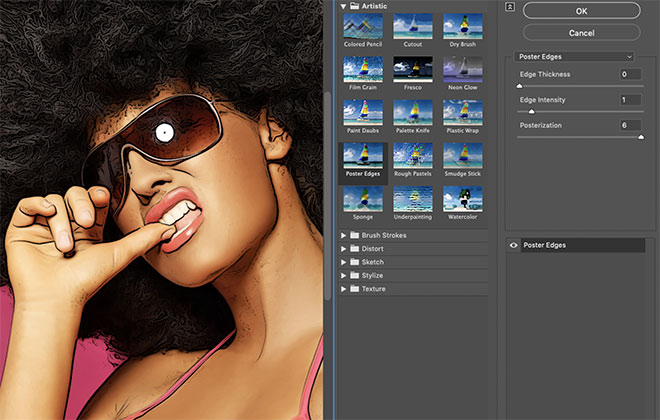
- Apply Filters: Go to Filter > Artistic > Poster Edges to apply a poster edge effect, or use other filters like Glow or Orton Effect to add texture and interest.
Other Software Options
If you’re looking for alternatives to Adobe Photoshop, here are some options:
Gimp
A free and open-source photo editing software, GIMP offers many of the same features as Photoshop. With a user-friendly interface and a wide range of filters and effects, GIMP is an excellent choice for those on a budget.
How to Stylize a Photo With Gimp
- Open Your Photo: Choose the photo you want to stylize and open it in GIMP.
- Convert to Black And White: Go to Image > Mode > Grayscale to convert your photo to black and white.
- Adjust Luminosity And Contrast: Head to Image > Adjustments > Brightness/Contrast to adjust the brightness and contrast of your photo.
- Apply Filters: Go to Filter > Artistic > Unsharp Mask to apply an unsharp mask effect, or use other filters like Glowing Edge or Cartoon Effect to add texture and interest.
Adobe Illustrator
A powerful vector graphics editor, Adobe Illustrator is ideal for creating illustrations and graphics from scratch. However, you can also use it to stylize photos by converting them into vectors.
How to Stylize a Photo With Adobe Illustrator
- Open Your Photo: Choose the photo you want to stylize and open it in Illustrator.
- Convert to Vector: Go to Object > Rasterize to convert your photo to a vector image.
- Adjust Colors: Head to Window > Color > Hue/Saturation to adjust the colors of your photo.
- Apply Filters: Go to Filter > Artistic > Sketch to apply a sketch effect, or use other filters like Pastel or Watercolor to add texture and interest.
Online Services For Photo Editing
If you don’t have access to software on your computer or prefer online services, here are some options:
Photopea
A free online photo editor, Photopea offers many of the same features as Photoshop. With a user-friendly interface and a wide range of filters and effects, Photopea is an excellent choice for those who want to edit their photos online.
How to Stylize a Photo With Photopea
- Open Your Photo: Choose the photo you want to stylize and open it in Photopea.
- Convert to Black And White: Go to Image > Adjustments > Grayscale to convert your photo to black and white.
- Adjust Luminosity And Contrast: Head to Image > Adjustments > Brightness/Contrast to adjust the brightness and contrast of your photo.
- Apply Filters: Go to Filter > Artistic > Poster Edges to apply a poster edge effect, or use other filters like Glowing Edge or Cartoon Effect to add texture and interest.
Google Photos
A free online service for editing photos, Google Photos offers a range of features and tools to help you stylize your photos. With its user-friendly interface and automatic image editing capabilities, Google Photos is an ideal choice for those who want to edit their photos on the go.
How to Stylize a Photo With Google Photos
- Open Your Photo: Choose the photo you want to stylize and open it in Google Photos.
- Convert to Black And White: Go to Edit > Grayscale to convert your photo to black and white.
- Adjust Luminosity And Contrast: Head to Edit > Brightness/Contrast to adjust the brightness and contrast of your photo.
- Apply Filters: Go to Edit > Effects > Glowing Edge to apply a glowing edge effect, or use other filters like Pastel or Watercolor to add texture and interest.
Apps For Photo Editing
If you prefer mobile apps for editing photos, here are some popular choices:
Prisma
A free app for photo editing, Prisma offers a range of artistic styles and effects that can be applied to your photos. With its user-friendly interface and automatic image editing capabilities, Prisma is an ideal choice for those who want to stylize their photos on the go.
How to Stylize a Photo With Prisma
- Open Your Photo: Choose the photo you want to stylize and open it in Prisma.
- Select Artistic Style: Choose from a range of artistic styles, such as Oil Painting or Watercolor.
- Adjust Colors: Head to Adjust > Hue/Saturation to adjust the colors of your photo.
- Apply Filters: Go to Filter > Artistic > Sketch to apply a sketch effect, or use other filters like Pastel or Glowing Edge to add texture and interest.
Conclusion
In conclusion, stylizing a photo is a great way to enhance its visual appeal and make it more engaging. With the software and apps mentioned above, you can achieve professional-looking results without needing extensive editing experience. Whether you’re a photographer, artist, or simply someone who loves capturing life’s moments, stylizing your photos can be a fun and creative way to express yourself.
Frequently Asked Questions
Q: What is photo editing?
A: Photo editing refers to the process of modifying a digital image to enhance its visual appeal, correct errors, or add artistic effects.
Q: Why should I stylize my photos?
A: Stylizing your photos can enhance their visual appeal, making them more engaging and memorable. It’s also a great way to express yourself creatively.
Q: What software options are available for photo editing?
A: Adobe Photoshop, GIMP, Adobe Illustrator, Photopea, Google Photos, Prisma, and other apps offer a range of features and tools to help you stylize your photos.
Q: Can I use online services for photo editing?
A: Yes, online services like Photopea, Google Photos, and other apps can be used for photo editing.
Q: Are there any mobile apps for photo editing?
A: Yes, apps like Prisma, Photoshop Express, Sketch Me!, and others offer a range of features and tools to help you stylize your photos on the go.


