
Delivering an Accomplished on Google Classroom: A Step-by-step Guide
Are you ready to deliver an accomplished on Google Classroom? With this guide, you’ll be able to do so with ease.
What is Google Classroom?
Google Classroom is a free online platform that allows teachers and students to collaborate and share assignments. It’s a great tool for educators to manage their classes and for students to submit their work.
Delivering an Accomplished on Google Classroom: Computer Version
To deliver an accomplished on Google Classroom, follow these steps:
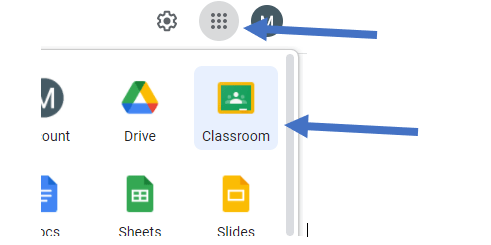
- Access The Leading Page of Google Classroom: Log in to your account using your Google credentials.
- Select The Option “My Visible Courses”: In the top navigation bar, select the icon with a blue circle and white outline.
- Choose The Course Where You Want to Deliver The Accomplished: Select the course from the dropdown list.
- Go to The Section “Assigned”: In the left-hand menu, click on “Assigned.”
- Select The Assigned Task: Click on the task you want to deliver.
- Add Any Attachments: If required, add any documents or files related to the task.
- Click on The “Deliver” Button: Confirm that you’ve completed the task by clicking on the “Deliver” button.
Alternative Method: Delivering an Accomplished on Google Classroom Mobile App
If you’re using a mobile device, follow these steps:
- Download And Install The Google Classroom App: Get the app from the Google Play Store (for Android devices) or the Apple App Store (for iOS devices).
- Log in to Your Account: Use your Google credentials to log in.
- Access The Leading Page of Google Classroom: Tap on the icon with a blue circle and white outline.
- Choose The Course Where You Want to Deliver The Accomplished: Select the course from the dropdown list.
- Go to The Section “Assigned”: In the left-hand menu, tap on “Assigned.”
- Select The Assigned Task: Click on the task you want to deliver.
- Add Any Attachments: If required, add any documents or files related to the task.
- Tap on The “Deliver” Button: Confirm that you’ve completed the task by tapping on the “Deliver” button.
Tips And Tricks
- Make sure you have a stable internet connection before delivering an accomplished.
- Check if the task has a deadline; if it does, ensure you deliver it before the due date.
- If you need to make changes or modifications to your work, retract the original delivery by clicking on the “Retract” button and resubmit.
Common Issues
- Deadline Missed: If you’ve missed the deadline for delivering an accomplished, check with your teacher if there’s any possibility of late submission.
- Technical Issues: If you’re experiencing technical difficulties while using Google Classroom, try restarting the app or logging out and back in.
Conclusion
Delivering an accomplished on Google Classroom is a straightforward process. With these steps, you’ll be able to submit your work without any hassle. Remember to check for deadlines and technical issues before submitting your work.
Frequently Asked Questions (FAQs)
- Q: What if I Miss The Deadline?
A: Check with your teacher if there’s any possibility of late submission. - Q: Can I Retract a Delivered Accomplished?
A: Yes, you can retract a delivered accomplished and resubmit it by clicking on the “Retract” button. - Q: How do I Add Attachments to my Accomplished?
A: You can add documents or files related to your task by selecting the “Add” option. - Q: Can I Use Google Classroom on my Mobile Device?
A: Yes, you can download and install the Google Classroom app from the Google Play Store (for Android devices) or the Apple App Store (for iOS devices). - Q: What if I’m Experiencing Technical Issues With Google Classroom?
A: Try restarting the app or logging out and back in. - Q: Can I See my Completed Assignments on Google Classroom?
A: Yes, you can view your completed assignments by accessing the “Completed” section. - Q: How do I Transfer Modifications to an Already Delivered Accomplished?
A: Access the leading page of Google Classroom, tap on the icon with a blue circle and white outline, select the course, go to the section “Assigned,” select the task, and click on the “Retract” button to make changes. - Q: Can I Use Google Classroom For Collaborative Work?
A: Yes, Google Classroom allows you to collaborate with classmates and teachers in real-time.


