
Upgrade Your Twitch Experience With Amazon Prime
Are you an avid gamer or streamer looking to enhance your Twitch experience? Look no further than Amazon Prime! As a valued member of the Amazon community, you can now enjoy exclusive benefits on Twitch, including free subscriptions and more.
What is Amazon Prime Gaming?
Amazon Prime Gaming, previously known as Twitch Prime, is a subscription service that unlocks additional features and content on Twitch. With Prime Gaming, you’ll gain access to exclusive games, in-game loot, and other perks. And the best part? If you’re already an Amazon Prime member, you can enjoy these benefits without any additional cost!
How Do I Link My Amazon Account to Twitch?
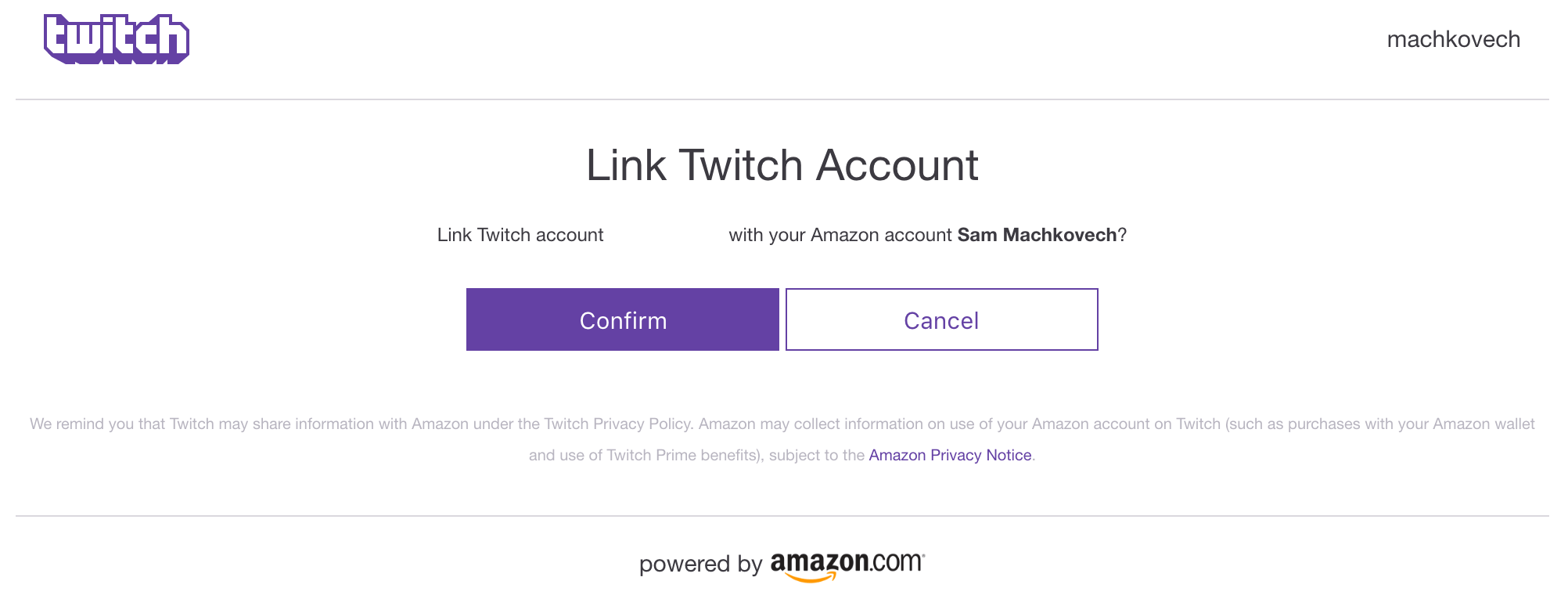
Linking your Amazon account to Twitch is a straightforward process. Follow these steps:
- Ensure you have an active Amazon Prime subscription.
- Visit the Twitch website and sign in with your Twitch account credentials.
- Click on your profile picture, then select “Settings” from the dropdown menu.
- Choose “Links” from the settings page.
- You’ll see a list of linked accounts; click “Add Account” and select Amazon Prime.
- Confirm the connection by clicking “Link Account.”
What Are The Benefits of Linking My Amazon Account to Twitch?
By linking your Amazon account to Twitch, you’ll enjoy the following benefits:
- Free Subscriptions: Get free subscriptions to channels on Twitch with your Prime Gaming subscription.
- Exclusive Content: Access exclusive games, in-game loot, and other perks through Prime Gaming.
- Personalized Chat: Enhance your streaming experience with personalized chat options.
- Emoticon And Colorization: Add some flair to your chat with exclusive emoticons and color schemes.
- Stream Extension: Extend the replay period of past transmissions on Twitch.
How Do I Subscribe to a Channel For Free?
Subscribing to a channel for free is easy! Follow these steps:
- Ensure you have linked your Amazon account to Twitch (as described above).
- Visit the channel page of your preferred streamer.
- Click on the “Subscribe” button and select “Free Subscription” from the dropdown menu.
- Confirm your subscription by clicking “Confirm.”
Can I Use Amazon Prime Gaming on My Phone?
Yes, you can use Amazon Prime Gaming on your phone! The Twitch app is available for both Android and iOS devices. To subscribe to a channel for free using your phone:
- Open the Twitch app and sign in with your Twitch account credentials.
- Visit the channel page of your preferred streamer.
- Tap on the “Subscribe” button and select “Free Subscription” from the dropdown menu.
- Confirm your subscription by tapping “Confirm.”
Is It Possible to Subscribe to a Channel For Free Without Amazon Prime?
Unfortunately, it is not possible to subscribe to a channel for free without Amazon Prime. However, you can still enjoy many other benefits on Twitch, including interacting with streamers and engaging in live chat.
What If I Don’t Have an Active Subscription to a Channel Using Prime Gaming?
If the “Subscribe” button is not available or grayed out, it means you already have an active subscription to a channel using Prime Gaming. You can check your subscriptions by visiting the Twitch website, clicking on your profile picture, and selecting “Subscriptions” from the dropdown menu.
Frequently Asked Questions (FAQs)
- Q: What is Amazon Prime Gaming?
A: Amazon Prime Gaming is a subscription service that unlocks additional features and content on Twitch. - Q: How do I Link my Amazon Account to Twitch?
A: Follow the steps outlined in this guide to link your Amazon account to Twitch. - Q: What Are The Benefits of Linking my Amazon Account to Twitch?
A: Enjoy free subscriptions, exclusive content, personalized chat options, and more by linking your Amazon account to Twitch. - Q: Can I Subscribe to a Channel For Free Without Amazon Prime?
A: Unfortunately, it is not possible to subscribe to a channel for free without Amazon Prime. - Q: How do I Unsubscribe From a Channel Using Prime Gaming?
A: To unsubscribe from a channel using Prime Gaming, visit the Twitch website, click on your profile picture, and select “Subscriptions” from the dropdown menu. Then, choose the subscription you want to cancel and follow the prompts.
Conclusion
Upgrading your Twitch experience with Amazon Prime is easier than ever! By following these simple steps, you can unlock exclusive benefits, including free subscriptions and more. Don’t miss out on this amazing opportunity to enhance your streaming experience. Get started today by linking your Amazon account to Twitch!


