
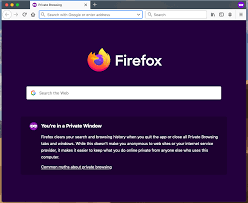
How to Sail Anonymously With Firefox
Are you concerned about your online privacy? Do you want to browse the internet without leaving a trail? Look no further than sailing anonymously with Firefox! In this guide, we’ll show you how to navigate the web without being tracked or identified.
Understanding Anonymous Navigation
Anonymous navigation refers to the ability to surf the internet without revealing your identity. This can be done using various tools and techniques, including VPNs, Tor browsers, and browser extensions. Firefox, in particular, offers a range of features that enable anonymous browsing.
Setting Up Anonymous Navigation on PC
To set up anonymous navigation on your PC, follow these steps:
- Open Firefox and click on the menu button (three horizontal lines) in the top-right corner.
- Select “New window” from the dropdown menu.
- In the new window that opens, click on the padlock icon in the address bar to access the settings.
- Scroll down to the “Privacy & Security” section and toggle the switch next to “Delete cookies and site data when Firefox is closed.”
- Close the window to exit anonymous mode.
Anonymous Navigation on Smartphone And Tablet
To set up anonymous navigation on your smartphone or tablet, follow these steps:
- Open Firefox and tap the menu button (three horizontal lines) in the top-left corner.
- Select “New private window” from the dropdown menu.
- In the new window that opens, tap the padlock icon in the address bar to access the settings.
- Scroll down to the “Privacy & Security” section and toggle the switch next to “Delete cookies and site data when Firefox is closed.”
- Close the window to exit anonymous mode.
Using Tor Browser
Tor browser offers an additional layer of anonymity when browsing the internet. To set up Tor browser, follow these steps:
- Download and install Tor browser from the official website.
- Launch Tor browser and click on the “Connect” button.
- Wait for the connection to establish and you’ll be able to browse anonymously.
Other Systems For Anonymous Browsing
While Firefox offers a range of features for anonymous browsing, there are other systems available that can enhance your online security. Some options include:
- VPNs (Virtual Private Networks): These create a secure, encrypted tunnel between your device and the internet.
- Tor browser: As mentioned earlier, this browser uses a network of volunteer-run servers to encrypt your traffic and make it difficult to track.
- Onion router: This is a type of proxy server that can help you access websites while hiding your IP address.
Conclusion
Sailing anonymously with Firefox offers an excellent way to browse the internet without leaving a trail. By following these steps, you can set up anonymous navigation on your PC, smartphone, or tablet, and even use Tor browser for an extra layer of security. Remember to always be cautious when browsing online and take steps to protect your identity.
Frequently Asked Questions
- Q: What is Anonymous Navigation?
A: Anonymous navigation refers to the ability to browse the internet without revealing your identity. - Q: How do I Set up Anonymous Navigation on Firefox?
A: To set up anonymous navigation on Firefox, follow the steps outlined in this guide. - Q: What Are Some Other Systems For Anonymous Browsing?
A: Some other systems for anonymous browsing include VPNs, Tor browser, and onion router. - Q: How do I Use Tor Browser?
A: To use Tor browser, download and install it from the official website, then launch it and click on the “Connect” button. - Q: Is Using a Vpn or Tor Browser Enough to Keep me Safe Online?
A: While these tools can enhance your online security, they are not foolproof. Always be cautious when browsing online and take steps to protect your identity. - Q: Can I Use Anonymous Navigation on All Devices?
A: Yes, you can set up anonymous navigation on PC, smartphone, or tablet using Firefox. - Q: What Are Some Common Threats to Online Anonymity?
A: Some common threats to online anonymity include tracking cookies, IP address tracking, and data breaches. - Q: How do I Protect my Identity Online?
A: To protect your identity online, use strong passwords, enable two-factor authentication, and keep your software up-to-date.
Recommended Resources


