
Upgrading Windows 10 Home to Pro: A Step-by-step Guide
Are you looking to take your computing experience to the next level by upgrading from Windows 10 Home to Pro? Look no further! In this article, we will guide you through the process of upgrading to Windows 10 Pro, covering the costs, minimum requirements, and step-by-step instructions for both digital license and retail key upgrades.
Why Upgrade to Windows 10 Pro?
Before we dive into the upgrade process, let’s take a look at some of the reasons why you might want to consider upgrading from Home to Pro:
- Remote Desktop: One of the most significant advantages of upgrading to Windows 10 Pro is access to Remote Desktop. This feature allows you to remotely connect to and control your computer from another device.
- Security Features: Windows 10 Pro includes enhanced security features, such as Device Guard, Credential Guard, and Windows Defender Advanced Threat Protection.
- Business-grade Productivity Tools: With Windows 10 Pro, you’ll get access to business-grade productivity tools like Microsoft Office and other software.
Cost of Upgrading
Now that we’ve covered the benefits of upgrading, let’s talk about the costs. As of now, the digital license for Windows 10 Pro costs around €259 (IVA included) for both 32-bit and 64-bit versions. This is a one-time payment, and you can install the software on a single PC.
Minimum Requirements
Before you start the upgrade process, make sure your computer meets the minimum requirements:
- Processor: 1 GHz or higher
- Ram: At least 1 GB (32-bit) or 2 GB (64-bit)
- Disk Space: At least 20 GB
How to Upgrade Using a Digital License
To upgrade from Windows 10 Home to Pro using a digital license, follow these steps:
- Acquire The Digital License: Purchase the digital license for Windows 10 Pro from the Microsoft Store.
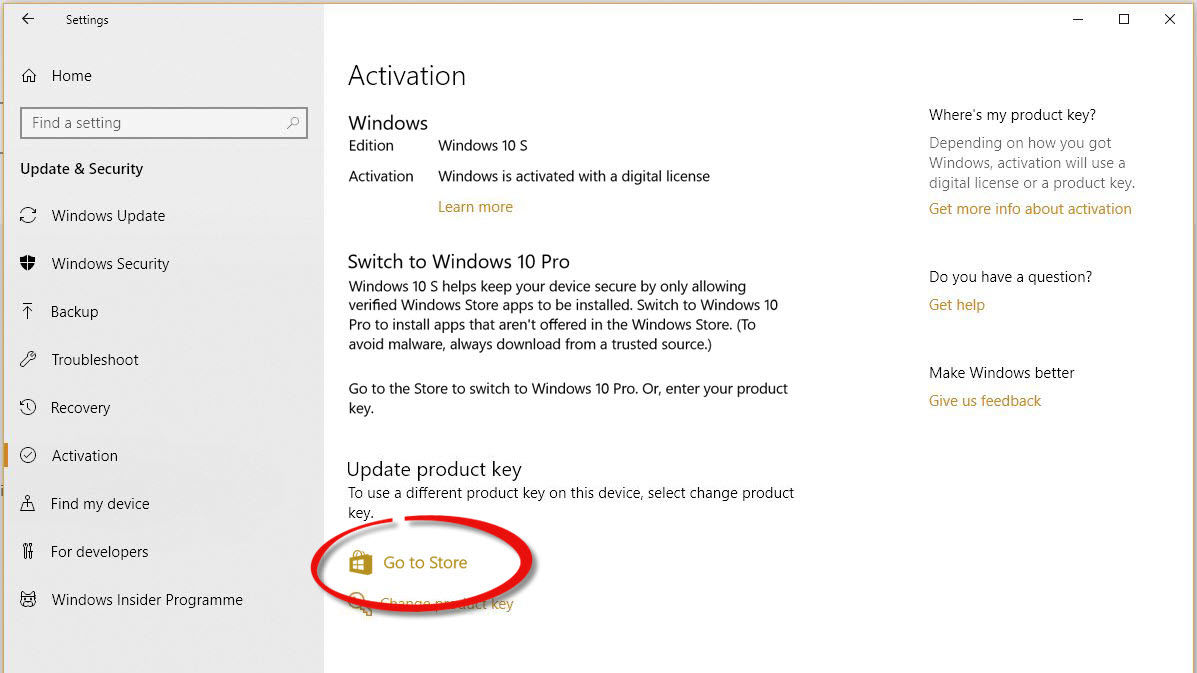
- Activate Windows 10: Open Settings and click on Update & Security > Activation. Click on Go to the Store to open the Microsoft Store.
- Select Upgrade to Pro: In the Microsoft Store, select the option to upgrade to Windows 10 Pro.
- Follow The Instructions: Follow the prompts to finalize the purchase and install the digital license.
How to Upgrade Using a Retail Key
To upgrade using a retail key, follow these steps:
- Gather Your Retail Key: Have your retail key for Windows 10 Pro ready.
- Access Activation: Open Settings > Update & Security > Activation.
- Enter Your Retail Key: Click on the option to enter your retail key and insert it into the prompt.
How to Get a Free Upgrade
If you’ve already acquired a previous version of Windows (Windows 7 or 8) with a valid Product Key, you can upgrade for free! Here’s how:
- Update Windows 10 Home: Update Windows 10 Home using the generic serial provided by Microsoft.
- Activate Your Product Key: Use your existing Product Key to activate the operating system.
Conclusion
Upgrading from Windows 10 Home to Pro is a straightforward process that offers numerous benefits, including Remote Desktop access and enhanced security features. We’ve covered the costs, minimum requirements, and step-by-step instructions for both digital license and retail key upgrades. Whether you’re looking to upgrade using a digital license or retail key, we hope this guide has been helpful in your decision.
Frequently Asked Questions
- Q: What is The Cost of Upgrading From Windows 10 Home to Pro?
A: The digital license for Windows 10 Pro costs around €259 (IVA included). - Q: Do I Need a New Product Key For my Upgrade?
A: No, you can use your existing Product Key if it’s valid. - Q: Can I Install Windows 10 Pro on Multiple Pcs?
A: Yes, but you’ll need to purchase separate licenses for each PC. - Q: Will Upgrading From Home to Pro Affect my Data And Files?
A: No, your data and files will remain intact during the upgrade process. - Q: Can I Revert Back to Windows 10 Home if Needed?
A: Yes, you can easily roll back to Windows 10 Home if needed.
References
- Microsoft Store
- Windows 10 Pro Upgrade Guide
- How to Upgrade from Windows 7 or 8 to Windows 10


