
How to Synchronize Your Google Contacts With Gmail
Are you tired of having multiple contact lists across different devices and platforms? Look no further! In this article, we’ll guide you on how to synchronize your Google contacts with Gmail, making it easier to manage your contacts across all your devices.
Why Synchronize Your Google Contacts With Gmail?
Synchronizing your Google contacts with Gmail offers several benefits. Firstly, it allows you to access your contacts from any device that has an internet connection, eliminating the need to manually update contact lists on each device. Secondly, synchronizing your contacts ensures that all your devices have the most up-to-date information, reducing the risk of outdated or incorrect contact details.
How to Synchronize Your Google Contacts With Gmail on Android Devices
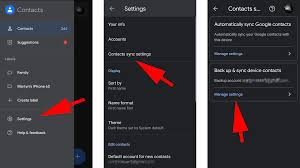
If you’re using an Android smartphone or tablet, synchronizing your Google contacts with Gmail is a straightforward process. Here’s how to do it:
- Open Settings: Go to your device’s settings app.
- Google Account: Select the “Accounts” option and then choose “Google.”
- Synchronize Contacts: Find the “Synchronize Contacts” option and toggle it on.
How to Synchronize Your Google Contacts With Gmail on Ios Devices
If you’re using an iPhone or iPad, synchronizing your Google contacts with Gmail is also a simple process:
- Open Settings: Go to your device’s settings app.
- Password & Account: Select the “Password & Account” option (on iOS 14 and later) or go to Settings > Mail (on earlier versions).
- Add Account: Tap on the “+” icon to add a new account, select Google, and fill in your Gmail credentials.
How to Synchronize Your Google Contacts With Gmail on PC
If you’re using a Windows computer, synchronizing your Google contacts with Gmail is also easy:
- Open Contacts App: Find the Contacts app on your computer.
- Add Account: Click on the “Settings” icon and then select “Accounts.”
- Google: Choose Google as the account type and enter your Gmail credentials.
How to Synchronize Your Google Contacts With Gmail on Mac
If you’re using a Mac, synchronizing your Google contacts with Gmail is also straightforward:
- Open System Preferences: Click on the Apple logo in the top left corner and select “System Preferences.”
- Accounts: Select the “Account Internet” icon.
- Google: Choose Google as the account type and enter your Gmail credentials.
How to Synchronize Your Google Contacts With Outlook
If you’re using Microsoft Outlook, synchronizing your Google contacts with it is also possible:
- Download GO Contact Sync Mod: Download and install GO Contact Sync Mod.
- Configure Account: Enter your Gmail credentials and select the account type.
- Synchronize Contacts: Select the contact list to synchronize.
How to Synchronize Your Google Contacts With Mozilla Thunderbird
If you’re using Mozilla Thunderbird, synchronizing your Google contacts with it is also possible:
- Download Gcontactsync: Download and install gContactSync.
- Configure Account: Enter your Gmail credentials and select the account type.
- Synchronize Contacts: Select the contact list to synchronize.
Conclusion
In conclusion, synchronizing your Google contacts with Gmail offers several benefits, including easier access to your contacts across all devices and platforms. Whether you’re using an Android device, iOS device, PC, Mac, or other email clients like Outlook and Mozilla Thunderbird, the process of synchronizing your Google contacts is relatively straightforward.
Frequently Asked Questions (FAQs)
-
Q: Can I Synchronize my Google Contacts With Gmail on Multiple Devices?
A: Yes! Synchronizing your Google contacts with Gmail allows you to access your contacts from any device that has an internet connection, making it easy to manage your contacts across all your devices.
-
Q: Is Synchronizing my Google Contacts With Gmail Secure?
A: Absolutely! Synchronizing your Google contacts with Gmail uses industry-standard encryption and security protocols to ensure the safety of your data.
-
Q: Can I Export my Google Contacts to Outlook or Other Email Clients?
A: Yes, you can export your Google contacts to various email clients, including Outlook, by using third-party apps like GO Contact Sync Mod for Outlook and gContactSync for Mozilla Thunderbird.
-
Q: How Often do I Need to Synchronize my Google Contacts With Gmail?
A: It’s recommended to synchronize your Google contacts with Gmail at regular intervals to ensure that all devices have the most up-to-date information, reducing the risk of outdated or incorrect contact details.
-
Q: Can I Sync my Contacts Manually or is it Automated?
A: While there are some options for manual synchronization, the majority of syncing processes in this article are automated, ensuring your contacts remain updated and consistent across all devices and platforms.
-
Q: How do I Cancel or Remove a Synchronized Account?
A: To cancel or remove a synchronized account, you can usually find the option to revoke access or delete the connected account within the settings of the respective device or email client.
-
Q: Can I Use Other Third-party Apps For Synchronization Besides Those Mentioned in This Article?
A: Yes! There are several other third-party apps available that allow you to synchronize your Google contacts with various devices and platforms, including iOS devices, PCs, Macs, Outlook, Mozilla Thunderbird, and more.
-
Q: Are There Any Specific Requirements For Synchronizing my Google Contacts With Gmail on Different Devices or Platforms?
A: Some requirements may vary depending on the device or platform you’re using. Be sure to check the documentation for each app or email client for specific instructions and system requirements.


