
How to Synchronize Your Android Contacts With Gmail or Outlook
Are you tired of manually transferring your contacts from one device to another? Do you want to sync your Android phone’s contact list with your Google or Outlook account? Look no further! In this article, we will guide you through the simple process of synchronizing your Android contacts with Gmail or Outlook.
Why Synchronize Your Contacts?
Synchronizing your contacts is a great way to keep your contact list up-to-date across all your devices. This means that if you update a contact on one device, it will automatically be updated on all your other devices connected to the same account.
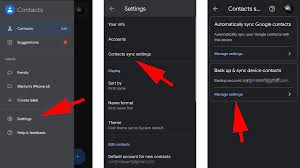
Step-by-step Guide: Synchronizing Android Contacts With Gmail
- Open The Google Contacts App: Find and open the Google Contacts app on your Android device.
- Check if Your Contacts Are Already Synced: Look for any sync issues or errors in the app.
- Go to Settings: Open the settings menu by tapping on the three vertical dots at the top right corner of the screen.
- Select Account: Choose your Google account from the list of available accounts.
- Synchronize Contacts: Tap on the “Sync” button next to the contact list section.
- Confirm Syncing: A confirmation message will appear; tap on “OK” to confirm syncing.
Step-by-step Guide: Synchronizing Android Contacts With Outlook
- Download And Install Microsoft Outlook App: Find and install the Microsoft Outlook app from the Google Play Store or your device’s app store.
- Open The App: Open the Microsoft Outlook app on your Android device.
- Add Account: Tap on the “Add account” button to add your Outlook account.
- Insert Credentials: Enter your Outlook login credentials (email and password).
- Synchronize Contacts: Once logged in, go to settings and tap on the contact list section. Enable syncing by tapping on the toggle next to the “Sync contacts” option.
Tips For Synchronizing Android Contacts With Iphone
If you’re switching from an Android device to an iPhone, it’s essential to transfer your contacts before making the switch. Here are some tips:
- Export Your Contacts: Export your contact list from your Android device and save it as a CSV file.
- Import Contacts on Iphone: Import the exported contacts into your new iPhone by going to Settings > [Your Name] > iCloud > iCloud Backup.
How to Synchronize Whatsapp Contacts
If you’ve already synchronized your contacts with Google or Outlook, but still can’t see them in WhatsApp, don’t worry! Here’s a step-by-step guide:
- Check Permissions: Open the app settings and ensure that WhatsApp has permission to access your contact list.
- Update Whatsapp Contact List: Open WhatsApp and select a contact to update its details.
Frequently Asked Questions
Q: How do I Sync my Android Contacts With Multiple Google Accounts?
A: To sync your contacts with multiple Google accounts, go to Settings > Account > Google account > Sync contacts for each account separately.
Q: Can I Sync my Outlook Contacts With Multiple Devices at Once?
A: Yes! You can sync your Outlook contacts across all your devices connected to the same account by enabling syncing in the Microsoft Outlook app settings.
Q: Why Are Some of my Contacts Missing From Whatsapp After Syncing?
A: If you’re experiencing issues with syncing, try checking permissions or updating WhatsApp’s contact list as described above.
Conclusion
Synchronizing your Android contacts with Gmail or Outlook is a straightforward process that ensures seamless access to your contact list across all devices connected to the same account. By following these steps and tips, you’ll be able to keep your contacts up-to-date without any hassle.


