
How to Synchronize Contacts on Android
As a smartphone user, you’ve probably encountered situations where you want to synchronize your contacts across different devices or platforms. This guide will walk you through the process of synchronizing contacts on Android using popular services like Gmail and Outlook.
Why Synchronize Contacts?
Synchronizing contacts is essential for several reasons:
- You can access your contacts from any device with an internet connection.
- It ensures that your contact list remains up-to-date, even if you change devices or add new contacts.
- Synchronization helps prevent data loss in case your device is damaged or stolen.
Synchronizing Contacts on Android With Gmail
If you’ve associated a Google account with your Android smartphone, the contacts in your phone’s address book should automatically synchronize with your Google account. However, sometimes this synchronization may not occur correctly, or it might have been disabled by mistake.
To resolve this issue, follow these steps:
- Open the app Settings (usually represented by an icon resembling a gear).
- Tap on the “Account” voice and then select “Google.”
- Make sure that the lever related to Contacts is set to ON.
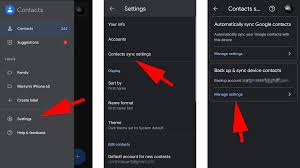
- Access the app Contacts, tap on the avatar of your Google account in the top-right corner, and navigate to Settings.
- Select “Settings for synchronization contacts Google” and then choose “Manage settings” present in the state synchronization tab.
Synchronizing Contacts With Outlook
To synchronize contacts between your Android device and Microsoft Outlook:
- Download and install the official Outlook app from the Play Store or alternative stores.
- Insert your Microsoft account credentials to configure the app.
- Navigate to Settings, tap on your email address, and enable contact synchronization.
Synchronizing Contacts Between Android And Iphone
If you’re switching from an Android device to an iPhone, follow these steps to synchronize your contacts:
- Open the Google account settings on your Android device.
- Ensure that contact synchronization is enabled.
- On your new iPhone, go to Settings > Accounts & Passwords > Add Account > Microsoft (Outlook).
- Enter your Microsoft account credentials and follow the prompts to complete the setup process.
Synchronizing Contacts Between Iphone And Android
To synchronize contacts from your iPhone to an Android device:
- Open the Google account settings on your Android device.
- Ensure that contact synchronization is enabled.
- On your iPhone, go to Settings > Accounts & Passwords > Add Account > Microsoft (Outlook).
- Enter your Microsoft account credentials and follow the prompts to complete the setup process.
Conclusion
Synchronizing contacts across different devices or platforms is a straightforward process that ensures you always have access to your contact list. By following these guides, you can keep your contacts up-to-date and secure, even if you switch devices or change operating systems.
Frequently Asked Questions (FAQs)
- Q: Why Should I Synchronize my Contacts?
A: Synchronizing contacts ensures that your contact list remains up-to-date across all your devices and platforms. - Q: How do I synchronize my contacts with Gmail?
A: Ensure that contact synchronization is enabled in the Google account settings on your Android device. - Q: Can I synchronize my contacts with Outlook?
A: Yes, download and install the official Outlook app from the Play Store or alternative stores to configure contact synchronization. - Q: How do I transfer my contacts from an iPhone to an Android device?
A: Open the Google account settings on your new Android device and ensure that contact synchronization is enabled. On your old iPhone, go to Settings > Accounts & Passwords > Add Account > Microsoft (Outlook), enter your Microsoft credentials, and follow the prompts. - Q: What if I’m switching from an Android device to an iPhone?
A: Open the Google account settings on your new iPhone, ensure that contact synchronization is enabled, and go through the setup process.
By following these steps and considering your specific situation, you can easily synchronize your contacts across different devices or platforms.


