
Synchronizing Preferred Browser Settings: A Guide
Are you tired of having to remember your browser settings on multiple devices? Do you want to enjoy a seamless browsing experience across all your computers and mobile devices? Look no further! In this article, we will guide you through the process of synchronizing your preferred browser settings using popular browsers like Google Chrome, Mozilla Firefox, Safari, and Microsoft Edge.
Why Synchronize Browser Settings?
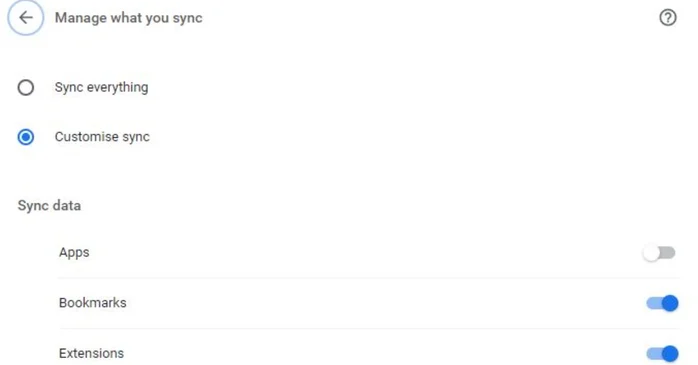
Synchronizing your browser settings allows you to access your favorite websites, bookmarks, and extensions on any device connected to your Google account. This feature is particularly useful for those who use multiple devices or share a computer with others. With synchronized browser settings, you can:
- Access your bookmarks and history from anywhere
- Use your favorite extensions across all devices
- Enjoy a consistent browsing experience
How to Synchronize Browser Settings in Google Chrome
To synchronize your preferred browser settings in Google Chrome, follow these steps:
- Create a Google Account: If you don’t already have a Google account, create one by visiting the Google website and following the sign-up process.
- Sign in to Google Chrome: Open Google Chrome on your device and sign in with your Google account credentials.
- Access Settings: Click on the three vertical dots in the top right corner of the browser window and select “Settings” from the drop-down menu.
- Click on “Advanced”: Scroll down to the “Advanced” section and click on it.
- Click on “Sync”: In the Advanced settings, click on the “Sync” option.
- Confirm Synchronization: A dialog box will appear asking you to confirm synchronization. Click on “OK” to proceed.
How to Synchronize Browser Settings in Mozilla Firefox
To synchronize your preferred browser settings in Mozilla Firefox, follow these steps:
- Create a Firefox Account: If you don’t already have a Firefox account, create one by visiting the Firefox website and following the sign-up process.
- Sign in to Firefox: Open Mozilla Firefox on your device and sign in with your Firefox account credentials.
- Access Menu: Click on the three horizontal lines in the top right corner of the browser window and select “Options” from the drop-down menu.
- Click on “Sync”: In the Options menu, click on the “Sync” option.
- Confirm Synchronization: A dialog box will appear asking you to confirm synchronization. Click on “OK” to proceed.
How to Synchronize Browser Settings in Safari
To synchronize your preferred browser settings in Safari, follow these steps:
- Sign in to Icloud: Open System Preferences on your Mac and sign in with your Apple ID credentials.
- Access Icloud Settings: Select the “iCloud” option from the sidebar menu.
- Check Safari Synchronization: Ensure that the box next to “Safari” is checked, indicating that Safari will be synchronized with your iCloud account.
How to Synchronize Browser Settings in Microsoft Edge
To synchronize your preferred browser settings in Microsoft Edge, follow these steps:
- Sign in to Microsoft Account: Open Microsoft Edge on your device and sign in with your Microsoft account credentials.
- Access Settings: Click on the three horizontal dots in the top right corner of the browser window and select “Settings” from the drop-down menu.
- Click on “Account”: In the Settings menu, click on the “Account” option.
- Click on “Sync”: In the Account settings, click on the “Sync” option.
- Confirm Synchronization: A dialog box will appear asking you to confirm synchronization. Click on “OK” to proceed.
Troubleshooting Tips
If you encounter any issues during the synchronization process, try the following:
- Ensure that your browser is up-to-date
- Check your internet connection and restart the browser
- Try synchronizing your browser settings again
Conclusion
Synchronizing your preferred browser settings across multiple devices can greatly enhance your browsing experience. By following the steps outlined in this article, you can enjoy a seamless browsing experience on any device connected to your Google account or other compatible services.
Frequently Asked Questions (FAQs)
- What is Browser Synchronization?
Browser synchronization allows you to access your favorite websites, bookmarks, and extensions across multiple devices connected to your Google account or other compatible services.
- Why Should I Synchronize my Browser Settings?
Synchronizing your browser settings allows you to enjoy a seamless browsing experience on any device, access your favorite websites and bookmarks from anywhere, and use your preferred extensions across all devices.
- Which Browsers Support Synchronization?
Google Chrome, Mozilla Firefox, Safari, and Microsoft Edge are some of the popular browsers that support synchronization.
- How do I Create a Google Account?
To create a Google account, visit the Google website and follow the sign-up process.
- What is The Benefit of Synchronizing Browser Settings in Google Chrome?
Synchronizing your preferred browser settings in Google Chrome allows you to access your bookmarks, history, and extensions from anywhere, making it easier to manage your browsing experience across multiple devices.
- Can I Synchronize my Browser Settings on a Mac?
Yes, you can synchronize your browser settings on a Mac using Safari, which is synchronized with your iCloud account.
- How do I Troubleshoot Synchronization Issues in Microsoft Edge?
If you encounter any issues during the synchronization process in Microsoft Edge, try ensuring that your browser is up-to-date, checking your internet connection and restarting the browser, or trying synchronizing again.
- What Are Some Common Troubleshooting Tips For Synchronization Issues?
Common troubleshooting tips include ensuring that your browser is up-to-date, checking your internet connection and restarting the browser, or trying synchronizing again.


