
How to Synchronize Your Preferred Chrome Browser Across All Devices
In today’s digital age, it’s not uncommon for us to have multiple devices that we use on a daily basis. From smartphones and tablets to laptops and desktops, our lives revolve around these devices, and with them comes the need to keep our data synchronized across all platforms. This is where cloud computing comes in – a system that allows us to store and access our files from anywhere, at any time.
One of the most popular browsers today is Google Chrome, which offers a seamless experience across multiple devices. But have you ever wondered how to synchronize your preferred Chrome browser across all your devices? In this article, we’ll explore the steps involved in synchronizing your Chrome browser on PC, smartphone, tablet, and other devices, as well as migrating data between browsers.
Why Synchronize Your Chrome Browser?
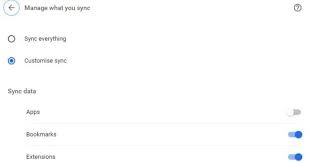
Synchronizing your Chrome browser across all your devices offers several benefits. For one, it allows you to access your bookmarks, history, and extensions from anywhere, at any time. This means that you can pick up where you left off on your laptop and continue browsing on your smartphone or tablet without having to manually sync your data.
How to Synchronize Your Chrome Browser on PC
Synchronizing your Chrome browser on PC is a straightforward process that involves linking your Google account to the browser. Here’s how to do it:
- Launch Chrome: Open Google Chrome on your PC and click on the three vertical dots in the top right corner.
- Click on Settings: Click on the gear icon next to the profile picture or email address at the top right corner of the screen.
- Link Your Google Account: Enter your Google account credentials to link it to the browser.
Once linked, Chrome will automatically sync your data across all devices that are signed in with the same Google account.
How to Synchronize Your Chrome Browser on Smartphone And Tablet
Synchronizing your Chrome browser on smartphone and tablet is similar to syncing on PC. Here’s how to do it:
- Launch Chrome: Open Google Chrome on your smartphone or tablet.
- Tap on The Three Vertical Dots: Tap on the three vertical dots in the top right corner of the screen.
- Tap on Settings: Tap on the gear icon next to the profile picture or email address at the top right corner of the screen.
- Link Your Google Account: Enter your Google account credentials to link it to the browser.
Once linked, Chrome will automatically sync your data across all devices that are signed in with the same Google account.
How to Synchronize Your Chrome Browser With Other Browsers
While synchronizing Chrome across multiple devices is convenient, sometimes you might want to synchronize data between browsers. This can be achieved by exporting and importing bookmarks or settings from one browser to another. Here’s how to do it:
- Exporting Bookmarks: To export bookmarks from Chrome, go to the three vertical dots in the top right corner of the screen, click on Settings, and then select “Bookmarks” > “Import and Export.” Choose “Export” and select a location to save the file.
- Importing Bookmarks: To import bookmarks into another browser, follow similar steps as exporting bookmarks from Chrome.
Synchronizing Chrome With Edge
If you’re using Microsoft Edge as your primary browser, synchronizing it with Chrome is also possible. Here’s how to do it:
- Launch Edge: Open Microsoft Edge on your PC.
- Click on The Three Vertical Dots: Click on the three vertical dots in the top right corner of the screen.
- Click on Settings: Click on the gear icon next to the profile picture or email address at the top right corner of the screen.
- Link Your Google Account: Enter your Google account credentials to link it to Edge.
Synchronizing Chrome With Firefox
Similarly, synchronizing Chrome with Firefox is also possible. Here’s how to do it:
- Launch Firefox: Open Mozilla Firefox on your PC.
- Click on The Three Horizontal Lines: Click on the three horizontal lines in the top right corner of the screen.
- Click on Settings: Click on the gear icon next to the profile picture or email address at the top right corner of the screen.
- Link Your Google Account: Enter your Google account credentials to link it to Firefox.
Synchronizing Chrome With Safari
If you’re using Apple’s Safari browser, synchronizing it with Chrome is also possible. Here’s how to do it:
- Launch Safari: Open Apple Safari on your Mac.
- Click on The Three Horizontal Lines: Click on the three horizontal lines in the top right corner of the screen.
- Click on Preferences: Click on the gear icon next to the profile picture or email address at the top right corner of the screen.
- Link Your Google Account: Enter your Google account credentials to link it to Safari.
Conclusion
Synchronizing your Chrome browser across all devices offers numerous benefits, including seamless access to bookmarks, history, and extensions from anywhere, at any time. By following the steps outlined in this article, you can easily synchronize your Chrome browser on PC, smartphone, tablet, and other devices, as well as migrate data between browsers.
Frequently Asked Questions
- Q: Why Should I Sync my Chrome Browser Across All Devices?
A: Syncing your Chrome browser allows you to access your bookmarks, history, and extensions from anywhere, at any time. - Q: How do I Synchronize my Chrome Browser on Pc?
A: To sync your Chrome browser on PC, link your Google account to the browser by entering your credentials in the settings menu. - Q: Can I Synchronize my Chrome Browser With Other Browsers?
A: Yes, you can export and import bookmarks or settings from one browser to another.


