
How to Synchronize Google Drive With Your Devices
Are you tired of forgetting important files on your computer or mobile device? Do you want to access your files from anywhere, at any time? Look no further! In this article, we will guide you through the process of synchronizing Google Drive with your devices.
What is Google Drive?
Google Drive is a cloud storage service provided by Google that allows users to store and access their files from anywhere. It offers 15GB of free storage space, which can be expanded up to 2TB by subscribing to the Google One service.
Why Synchronize Google Drive With Your Devices?
Synchronizing Google Drive with your devices ensures that all your files are updated in real-time across all your devices. This means that if you make changes to a file on one device, those changes will be reflected on all other devices connected to your Google Drive account.
How to Synchronize Google Drive on PC (Windows And Macos)
To synchronize Google Drive on your PC, follow these steps:
- Download the Google Drive desktop application for Windows or macOS.
- Install the application and sign in with your Google account.
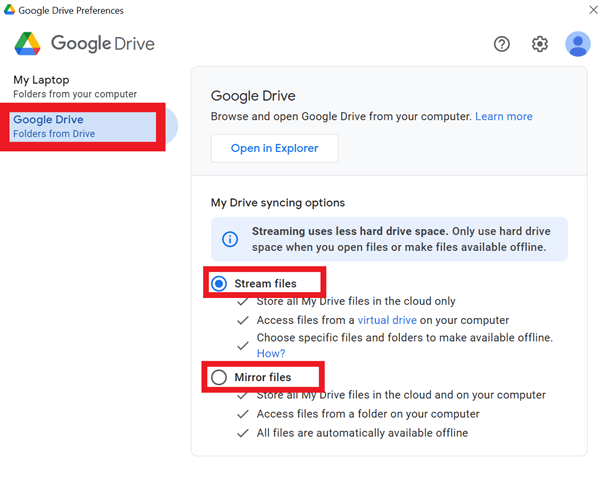
- Configure the settings to specify which folders you want to sync.
- The application will automatically sync your files across all devices connected to your Google Drive account.
How to Synchronize Google Drive on Smartphone And Tablet (Android, Ios/ipados)
To synchronize Google Drive on your smartphone or tablet, follow these steps:
- Download the Google Drive mobile app for Android or iOS/iPadOS.
- Sign in with your Google account.
- Configure the settings to specify which folders you want to sync.
- The app will automatically sync your files across all devices connected to your Google Drive account.
How to Synchronize Google Drive With Other Services
If you have multiple cloud storage services, such as Dropbox or OneDrive, you can synchronize them with Google Drive using third-party services like IFTTT (IF This Then That) or Zapier. These services allow you to automate the synchronization process between different cloud storage services.
Benefits of Synchronizing Google Drive
Synchronizing Google Drive offers several benefits, including:
- Accessibility: Access your files from anywhere, at any time.
- Collaboration: Share files and collaborate with others in real-time.
- Backup: Automatically back up your files to the cloud for added security.
Common Faqs
Here are some common questions and answers related to synchronizing Google Drive:
Q: What is the difference between syncing and backing up?
A: Syncing refers to updating files across all devices connected to your Google Drive account, while backing up refers to creating a copy of your files on the cloud for added security.
Q: Can I sync multiple cloud storage services with Google Drive?
A: Yes, you can use third-party services like IFTTT or Zapier to automate the synchronization process between different cloud storage services.
Q: How much storage space does Google Drive offer?
A: Google Drive offers 15GB of free storage space, which can be expanded up to 2TB by subscribing to the Google One service.
Q: Can I access my files offline?
A: Yes, you can access your files offline on devices connected to your Google Drive account. However, changes made offline will be synced with the cloud when an internet connection is available.
Conclusion
Synchronizing Google Drive with your devices offers numerous benefits, including accessibility, collaboration, and backup. By following the steps outlined in this article, you can ensure that all your files are updated in real-time across all devices connected to your Google Drive account.


