
Synchronizing Icloud: A Comprehensive Guide
As an Apple device user, you’re probably familiar with the concept of iCloud, a cloud storage service that allows you to store and access your files, photos, contacts, calendars, and more across all your devices. But have you ever wondered how to synchronize your iCloud data across different platforms? In this article, we’ll explore the ins and outs of synchronizing your iCloud content on various devices, including iPhone, iPad, Mac, PC, Android, and more.
Understanding Icloud
Before diving into the synchronization process, let’s briefly understand what iCloud is all about. ICloud is a cloud storage service that allows you to store and access your files, photos, contacts, calendars, and more across all your Apple devices. With iCloud, you can easily switch between devices without worrying about data loss or inconsistency.
Synchronizing Icloud on Iphone And Ipad
If you’re using an iPhone or iPad, synchronizing your iCloud content is a straightforward process. Here’s how to do it:
- Initial Configuration: When setting up your iPhone or iPad for the first time, you’ll be prompted to associate your device with your Apple ID. If you’ve already done this, congratulations! You’re all set.
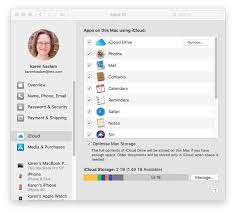
- Icloud Settings: To check if iCloud is active on your device, go to Settings > [Your name] > iCloud. If the switch next to Mail, Contacts, Calendars, and other services are turned ON, then iCloud is active.
Synchronizing Icloud on Android
If you’re using an Android device, synchronizing your iCloud content might seem tricky at first. However, it’s still possible to transfer your data from iCloud to Android in a few ways:
- Icloud Email Sync: You can sync your iCloud email account with your Android device by generating a specific password for the app. This will allow you to access your iCloud emails on your Android device.
- Manual Data Transfer: Unfortunately, it’s not possible to directly synchronize your contacts and other data from iCloud to Android. However, you can export your contacts from iCloud as a CSV or vCard file and import them into your Android device.
Synchronizing Icloud on PC And Mac
If you’re using a Windows PC or a Mac, synchronizing your iCloud content is relatively easy:
- Icloud For Windows: You can download the iCloud app for Windows, which allows you to access your iCloud files, photos, contacts, calendars, and more directly from your PC.
- Mac Setup: If you’re using a Mac, simply set up your device with your Apple ID during initial configuration or later via System Preferences > Apple ID.
Synchronizing Icloud Drive
ICloud Drive is a cloud storage service that allows you to store and access your files across all your devices. To use iCloud Drive:
- Enable Icloud Drive: Ensure that the switch next to iCloud Drive is turned ON on your iPhone, iPad, or Mac.
- Accessing Icloud Drive: You can access your iCloud Drive files directly from the Files app on your iOS device or from Finder on your Mac.
Synchronizing Photos
To sync your photos across all your devices:
- Icloud Photo Library: Ensure that the switch next to iCloud Photo Library is turned ON on your iPhone, iPad, or Mac.
- Accessing Icloud Photos: You can access your iCloud photos directly from the Photos app on your iOS device or from Photos on your Mac.
Synchronizing Contacts
To sync your contacts across all your devices:
- Icloud Contacts: Ensure that the switch next to iCloud Contacts is turned ON on your iPhone, iPad, or Mac.
- Accessing Icloud Contacts: You can access your iCloud contacts directly from the Contacts app on your iOS device.
Synchronizing Calendar
To sync your calendar across all your devices:
- Icloud Calendar: Ensure that the switch next to iCloud Calendar is turned ON on your iPhone, iPad, or Mac.
- Accessing Icloud Calendar: You can access your iCloud calendar directly from the Calendar app on your iOS device.
Conclusion
Synchronizing your iCloud content across various devices may seem daunting at first, but it’s actually quite straightforward once you understand how to do it. By following the steps outlined in this article, you’ll be able to easily transfer and access your files, photos, contacts, calendars, and more across all your Apple devices.
Frequently Asked Questions
- Q: How Much Icloud Storage do I Have?
A: You can check your available iCloud storage space by going to Settings > [Your name] > iCloud > Storage. - Q: Can I Sync my Android Device With Icloud?
A: Unfortunately, it’s not possible to directly synchronize your contacts and other data from iCloud to Android. - Q: How do I Access my Icloud Drive Files on my PC or Mac?
A: You can access your iCloud Drive files directly from the Files app on your iOS device or from Finder on your Mac. - Q: Can I Sync Multiple Calendars With Icloud?
A: Yes, you can sync multiple calendars with iCloud by going to Settings > [Your name] > iCloud > Calendar and selecting the calendars you want to sync. - Q: How do I Change my Icloud Password?
A: You can change your iCloud password by going to Settings > [Your name] > Password & Security. - Q: Can I Use Icloud on Multiple Devices at Once?
A: Yes, you can use iCloud on multiple devices simultaneously without any issues. - Q: How do I Delete my Icloud Account?
A: To delete your iCloud account, go to Settings > [Your name] > iCloud > Delete Account and follow the prompts.
Remember, synchronizing your iCloud content is a simple process that allows you to access your files, photos, contacts, calendars, and more across all your devices.


