
How to Synchronize Contacts on Iphone With Gmail
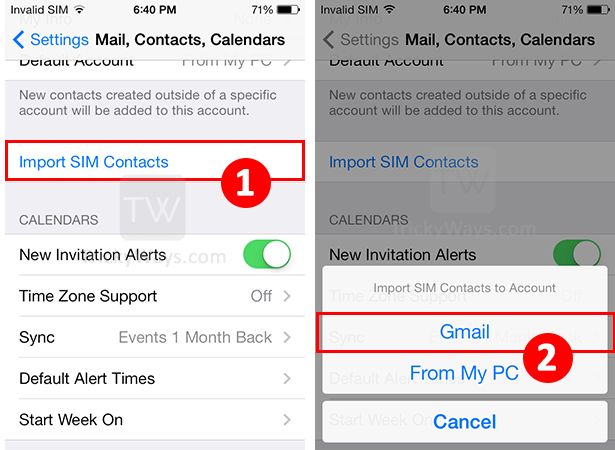
Are you switching from an Android device to an iPhone and want to sync your Google contacts? Look no further! You can do this without resorting to third-party apps. In this article, we will guide you through the process of synchronizing your iPhone contacts with your Gmail account.
Why Synchronize Contacts on Iphone With Gmail?
Syncing your contacts between devices ensures that all your contacts are up-to-date and easily accessible across multiple platforms. This is particularly useful when switching from an Android device to an iPhone or vice versa.
Step 1: Associate Your Google Account With Ios
To sync your iPhone contacts with your Gmail account, you need to associate your Google account with iOS. To do this:
- Go to Settings > Passwords & Accounts (on iOS 14 and later) or Settings > Mail
- Tap on “Add Account” and select Google from the list of available services
- Enter your Google account credentials to complete the setup process
Step 2: Set Up Your Google Account as The Default Account
Once you have associated your Google account with iOS, set it up as the default account for contact management:
- Go to Settings > Contacts
- Tap on “Account” and select Google from the list of available accounts
- Make sure the toggle switch next to “Gmail” is turned on
How Synchronization Works
Once you have completed these steps, all your contacts in your Gmail account will be synchronized with your iPhone. Any modifications made to your contacts on either device will be automatically reflected on both platforms.
Transferring Old Contacts From Iphone to Gmail
If you want to transfer old contacts from your iPhone (which is likely synced with iCloud) to your Gmail account, follow these steps:
- Download and install the “My Contacts Backup” app from the App Store
- Launch the app and grant it access to your iPhone contacts
- Tap on the “Export” button and select the type of file you want to export (VCF or CSV)
- Forward the exported file to your Gmail account using the email address associated with your Google account
Cleaning Up Duplicate Contacts
After synchronizing your contacts, you may find duplicate contacts in your Gmail account. To resolve this issue:
- Go to the “Contacts” app on your iPhone
- Tap on the “Join” button to merge duplicate contacts
Alternatively, you can use an app like Clean Contacts (available for purchase) to clean up duplicate contacts.
Tips And Precautions
Before proceeding with the steps outlined above, keep in mind:
- Transferring old contacts from your iPhone to Gmail may create duplicate contacts in both platforms.
- Always backup your contacts before making any changes.
- Be cautious when using third-party apps to avoid compromising your data security.
Conclusion
Syncing your contacts on iPhone with Gmail is a straightforward process that ensures all your contacts are up-to-date and easily accessible across multiple platforms. By following the steps outlined in this article, you can enjoy seamless contact management between devices.
Faqs
- Q: How do I Know if my Contacts Are Synchronized?
A: Check your iPhone’s Contacts app to see if all your contacts have been synchronized with Gmail. - Q: What Happens if I Delete a Contact on One Device?
A: Any modifications made to your contacts will be automatically reflected on both platforms. - Q: Can I Use Third-party Apps to Sync my Contacts?
A: While third-party apps can help, it’s recommended to follow the steps outlined in this article for seamless synchronization. - Q: How do I Transfer Old Contacts From my Iphone to Gmail?
A: Use the “My Contacts Backup” app or follow the steps outlined above. - Q: What Happens if I Encounter Duplicate Contacts After Syncing?
A: Clean up duplicate contacts by following the steps outlined in this article or using an app like Clean Contacts. - Q: Can I Use Gmail to Sync my Contacts With Other Devices?
A: Yes, you can sync your contacts across multiple platforms using your Gmail account. - Q: What Are Some Potential Risks Associated With Syncing my Contacts?
A: Always backup your contacts and be cautious when using third-party apps to avoid compromising data security. - Q: How do I Report Any Issues or Errors During The Synchronization Process?
A: Contact Apple Support for assistance with iOS-related issues, and Google Support for help with Gmail-related problems.
By following these steps and tips, you can enjoy seamless contact management across multiple platforms!


