
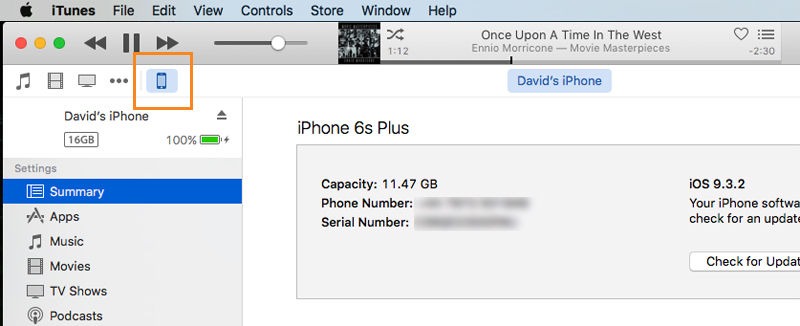
Synchronizing Iphone With Itunes: A Step-by-step Guide
Are you an iPhone user who wants to synchronize your device with iTunes? Look no further! In this article, we will guide you through the process of synchronizing your iPhone with iTunes on both Windows and Mac operating systems.
Why Synchronize Iphone With Itunes?
Synchronizing your iPhone with iTunes allows you to transfer music, videos, photos, contacts, calendars, and bookmarks between your device and computer. This feature is especially useful when you want to backup your data or create a copy of your iPhone’s content on your computer.
Pre-requisites For Synchronization on Windows
Before synchronizing your iPhone with iTunes on Windows, make sure to:
- Install the latest version of iTunes from Apple’s official website.
- Connect your iPhone to your computer using the Lightning cable.
Synchronizing Iphone And Itunes Via Usb Cable
To synchronize your iPhone with iTunes using a USB cable:
- Connect your iPhone to your computer using the Lightning cable.
- Authorize the communication between the two devices by clicking on “Continue” in iTunes and then entering the code displayed on your iPhone’s screen.
- Select the type of data you want to transfer (e.G., Music, videos, photos) from the iTunes menu.
- Choose the contents you want to synchronize with your iPhone.
Synchronizing Iphone And Itunes Via Wi-fi
To synchronize your iPhone with iTunes using Wi-Fi:
- Connect your iPhone to your computer using a USB cable and authorize the communication between the two devices.
- Select “Synchronize with iPhone over Wi-Fi” from the iTunes menu.
- Ensure that both your iPhone and computer are connected to the same wireless network.
Synchronizing Iphone With Itunes on Mac
To synchronize your iPhone with iTunes on Mac:
- Connect your iPhone to your Mac using a Lightning cable.
- Authorize the communication between the two devices by clicking on “Continue” in iTunes and then entering the code displayed on your iPhone’s screen.
- Select the type of data you want to transfer (e.G., Music, videos, photos) from the Finder menu.
- Choose the contents you want to synchronize with your iPhone.
Manual Synchronization of Music And Videos
If you want to manually manage the synchronization of music and videos on your iPhone:
- Select “Summary” from the iTunes menu.
- Check the box next to “Manually manage music and videos.”
- Choose the type of data you want to transfer (e.G., Music, videos) from the iTunes menu.
Transferring Files Between Apps
To transfer files between apps on your iPhone:
- Select “Sharing Settings” from the iTunes menu.
- Choose the app where you want to transfer the file.
- Drag and drop the file into the desired app.
Backup And Recovery of Iphone Data
To backup and recover your iPhone data:
- Connect your iPhone to your computer using a USB cable.
- Select “Summary” from the iTunes menu.
- Click on “Create Backup Now.”
Conclusion
Synchronizing your iPhone with iTunes is a straightforward process that allows you to transfer data between your device and computer. By following the steps outlined in this article, you can easily synchronize your iPhone with iTunes on both Windows and Mac operating systems.
Frequently Asked Questions (FAQs)
- Q: What is The Purpose of Synchronizing my Iphone With Itunes?
A: Synchronizing your iPhone with iTunes allows you to transfer music, videos, photos, contacts, calendars, and bookmarks between your device and computer. - Q: How do I Synchronize my Iphone With Itunes Using a Usb Cable?
A: Connect your iPhone to your computer using the Lightning cable, authorize the communication between the two devices, and select the type of data you want to transfer. - Q: Can I Synchronize my Iphone With Itunes Using Wi-fi?
A: Yes, you can synchronize your iPhone with iTunes using Wi-Fi by selecting “Synchronize with iPhone over Wi-Fi” from the iTunes menu. - Q: How do I Manually Manage The Synchronization of Music And Videos on my Iphone?
A: Select “Summary” from the iTunes menu, check the box next to “Manually manage music and videos,” and choose the type of data you want to transfer. - Q: Can I Transfer Files Between Apps on my Iphone Using Itunes?
A: Yes, you can transfer files between apps on your iPhone by selecting “Sharing Settings” from the iTunes menu and choosing the app where you want to transfer the file. - Q: How do I Backup And Recover my Iphone Data Using Itunes?
A: Connect your iPhone to your computer using a USB cable, select “Summary” from the iTunes menu, and click on “Create Backup Now.” - Q: What Are The System Requirements For Synchronizing my Iphone With Itunes?
A: You need a Windows or Mac operating system, an iPhone device, and the latest version of iTunes installed on your computer.


