
How to Synchronize Whatsapp: A Comprehensive Guide
As one of the most widely used messaging apps, WhatsApp has become an essential tool for communication among individuals and groups. However, with its vast user base comes a need to ensure that conversations are not lost or missed. In this article, we will delve into the world of synchronizing WhatsApp, exploring various methods to synchronize your chats, contacts, Google Photos, PC, and even Apple Watch.
Why Synchronize Whatsapp?
Synchronizing WhatsApp is crucial for several reasons:
- Backup: By backing up your conversations, you can ensure that they are not lost in case of a device change or technical issue.
- Accessibility: Synchronization allows you to access your chats on multiple devices, making it easier to stay connected with friends and family.
- Convenience: With synchronization, you can receive notifications and respond to messages across all your devices.
Synchronizing Whatsapp on Android
To synchronize WhatsApp on an Android device:
- Open the WhatsApp app and tap on the icon in the top-right corner.
- Select “Settings” from the menu.
- Choose “Chat” and then “Backup chat.”
- Configure the backup settings to suit your needs.
Synchronizing Whatsapp on Iphone
To synchronize WhatsApp on an iPhone:
- Open the WhatsApp app and tap on the Settings icon (gear).
- Select “Chats” and then “Backup.”
- Choose the frequency for backing up your chats.
- If you want to include videos in the backup, toggle the switch next to “Include Videos.”
Synchronizing Whatsapp With Google Photos
To synchronize WhatsApp photos with Google Photos:
- Open the Google Photos app and select your profile picture (or initial) in the top-right corner.
- Tap on “Settings” and then “Backup & Sync.”
- Choose the folders you want to back up, including WhatsApp images or videos.
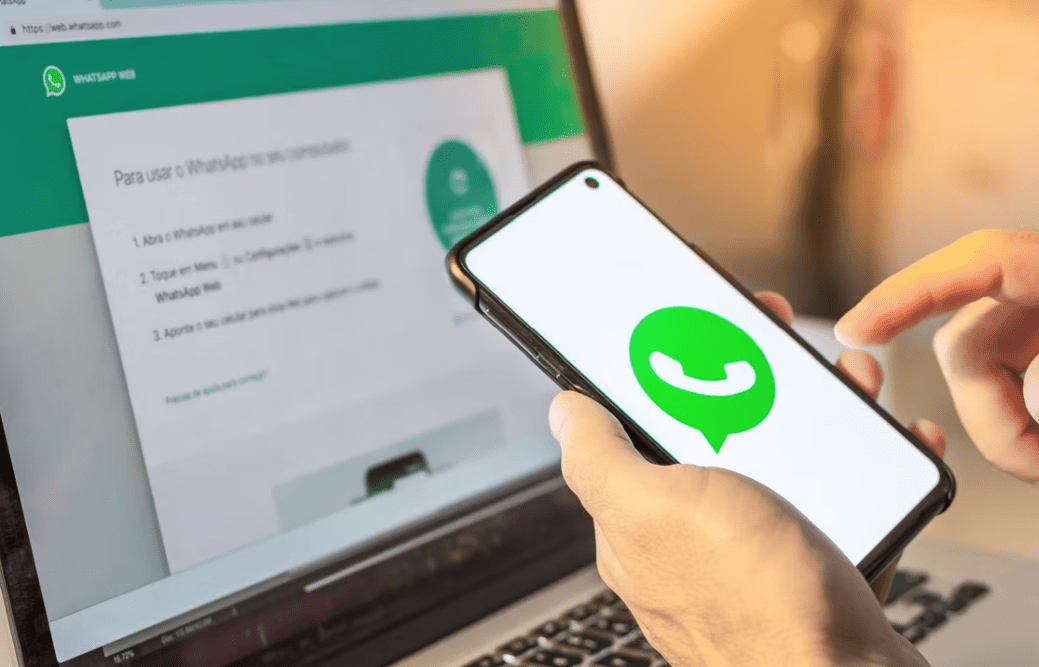
Synchronizing Whatsapp With PC
To synchronize WhatsApp with a PC:
- Open the WhatsApp Web page on your computer’s browser.
- Scan the QR code using your phone’s camera app.
- Follow the instructions to access your WhatsApp chats directly in the browser.
Synchronizing Whatsapp on Apple Watch
To synchronize WhatsApp on an Apple Watch:
- Ensure that your watch is connected to your iPhone via Bluetooth.
- Open the WhatsApp app on your iPhone and select “Settings” from the menu.
- Choose “Notifications” and toggle the switch next to “Show Notifications in Notification Center.”
- On your watch, go to Settings > General > Notifications, then scroll down to find WhatsApp.
Conclusion
Synchronizing WhatsApp is an essential step for ensuring that your conversations are not lost or missed. By following these steps, you can synchronize your chats, contacts, Google Photos, PC, and even Apple Watch.


