
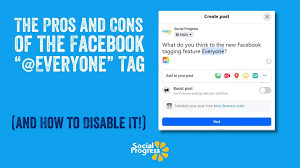
The Ultimate Guide to Tagging All Your Friends on Facebook
Are you looking to connect with all your friends on Facebook? Whether it’s to share a post, invite them to an event, or simply to show some love, tagging all your friends on the social media platform can be a bit tricky. But don’t worry, we’ve got you covered!
In this article, we’ll walk you through the step-by-step process of tagging all your friends on Facebook using both mobile devices and computers.
Why Can’t I Tag All My Friends in One Post?
Facebook has a feature called “mention” that allows you to tag specific friends in a post. However, it’s designed to prevent spam and only allows administrators of a group or page to mention all members at once. This is because mentioning all your friends in one post can be considered spammy.
How to Tag All Your Friends on Facebook
Tagging All Friends in a Post
If you’re looking to share a post with all your friends, you’ll need to use the “mention” feature available only to group administrators. Here’s how:
- Access Facebook using your mobile device or computer.
- Go to the “Groups” section and find the one where you want to mention all members.
- Click on the three dots next to the group name and select “Group Settings.”
- Scroll down to the “Permissions” section and click on “Mention @all”
- Type “@all” in the text box to mention all members of the group.
Inviting All Friends to a Page
If you’re looking to invite all your friends to like your Facebook page, follow these steps:
- Go to your Facebook page.
- Click on the three dots next to the “Page Settings” option and select it.
- Scroll down to the “Add Page Administrators” section and click on “Invite Friends”.
- Select “Invite @all friends” from the drop-down menu.
Inviting All Friends to an Event
If you’ve created an event on Facebook and want to invite all your friends, here’s how:
- Go to the Events section of your Facebook profile.
- Click on the “Your Events” tab.
- Select the event you want to invite people to.
- Click on the three dots next to the event name and select “Edit Event”.
- Scroll down to the “Guests” section and click on “Invite Friends”.
- Select “Invite @all friends” from the drop-down menu.
Tagging Individual Friends
If you want to mention a specific friend who’s not in your list of friends, simply type their name starting with “@” followed by their handle. For example: “@JohnDoe”.
Tips And Tricks
- Remember that mentioning all members at once is only possible for group administrators.
- You can’t tag all your friends in one post using the Facebook app on mobile devices or computers.
- To avoid spamming, Facebook limits the number of mentions you can make in a single post.
Conclusion
Tagging all your friends on Facebook can be a bit tricky, but with these step-by-step guides, you should be able to do it easily. Whether it’s to share a post, invite them to an event, or simply to show some love, we hope this article has helped you achieve your goals.
Frequently Asked Questions
- Can I Tag All my Friends in One Post?
No, mentioning all members at once is only possible for group administrators. - How do I Tag Individual Friends Who Are Not in my List of Friends?
Type their name starting with “@” followed by their handle. - Why Can’t I See The “@all” Option on my Mobile Device or Computer?
The “@all” option is only available to group administrators.
What’s Next?
If you have any questions or need further clarification, feel free to ask in the comments below!


