
How to Take a Screenshot on Android: A Step-by-step Guide
Are you tired of searching for ways to take a screenshot on your Android device? Look no further! In this article, we will guide you through the process of taking a screenshot on Android, including the various methods and apps available.
What is a Screenshot?
A screenshot is an image capture of what’s currently displayed on your screen. It’s useful for sharing moments, capturing important information, or simply saving memories.
Method 1: Using Power + Home Button
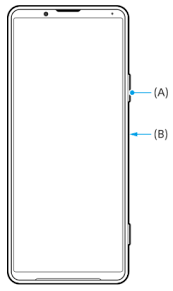
The most common method to take a screenshot on Android is by using the Power and Home buttons simultaneously. Here’s how:
- Press the Power button (usually located on the top-right side of your phone) and the Home button at the same time.
- Hold both buttons for a second, and you’ll hear a shutter sound, indicating that the screenshot has been taken.
Method 2: Using Gesture And Shortcuts
Many Android devices come with pre-installed gesture and shortcut options. Here are some popular methods:
- Samsung: On Samsung devices, you can take a screenshot by swiping your palm from right to left across the screen.
- Huawei: Huawei devices allow you to capture screenshots by double-tapping the back of your phone twice.
- Xiaomi: Xiaomi phones have a built-in feature that allows you to take a screenshot by swiping up and down on the home screen, then tapping the “Screenshot” button.
- Asus: Some ASUS devices come with an additional shortcut to take a screenshot by holding the Power button for 2 seconds.
Method 3: Using Apps
If you’re not comfortable using the power and home buttons or gestures, there are many apps available that can help you take screenshots on Android. Here are some popular options:
- Screenshot Easy: This app allows you to capture screenshots with a simple tap of a button. It also comes with features like screenshot editing and sharing.
- Longshot: LongShot is an app that enables you to capture full-page web content as a single image.
How to Use Screenshot Easy
Here’s a step-by-step guide on how to use Screenshot Easy:
- Download and install the app from the Google Play Store.
- Grant the necessary permissions for the app to function properly.
- Tap the “Initiate now” button to access the main screen.
- Choose your desired settings, such as icon superimposition or notification icons.
- Tap the “Capture” button to take a screenshot.
Other Apps For Taking Screenshots on Android
There are many more apps available that can help you take screenshots on Android. Here are some additional options:
- Screenshot Of Geeks Lab 2015: This app offers a simple and effective way to capture screenshots, with features like editing and sharing.
- Screenshot Quick: This free solution allows you to take screenshots quickly and easily.
- Screenshot X: This app enables you to capture screenshots and share them with others.
Conclusion
Taking a screenshot on Android is easier than ever, thanks to the various methods and apps available. Whether you prefer using the power and home buttons, gestures, or apps like Screenshot Easy, there’s an option for everyone. Remember to always check your device compatibility before downloading any app.
Frequently Asked Questions (FAQs)
Q: How do I take a screenshot on my Android device?
A: You can use the Power + Home button method, gesture and shortcuts, or apps like Screenshot Easy.
Q: What is the best app for taking screenshots on Android?
A: The best app for you will depend on your personal preferences. Some popular options include Screenshot Easy and LongShot.
Q: Can I take a screenshot of an entire webpage using Android?
A: Yes, you can use apps like LongShot to capture full-page web content as a single image.
Q: How do I share a screenshot on my Android device?
A: You can share screenshots through social media, messaging apps, or email by using the built-in sharing options available in your app.
Q: Can I edit a screenshot taken with an app?
A: Yes, most apps allow you to edit your screenshots before sharing them.


