
Capturing Perfection: A Comprehensive Guide to Photographing Your Mac Monitor
Are you tired of using subpar methods to capture your Mac monitor? Look no further! In this article, we’ll delve into the world of screenshotting and explore the various ways to photograph your Mac monitor with ease.
The Power of Keyboard Shortcuts
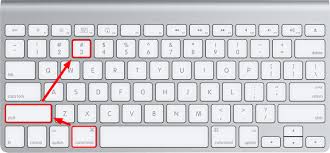
Before we dive into the nitty-gritty, let’s talk about one of the most efficient ways to capture your Mac monitor: Keyboard shortcuts. With a few simple keystrokes, you can take a screenshot of your entire screen or select portions of it. Here are some essential shortcuts to get you started:
- Command + Shift + 3: Take a screenshot of your entire Mac monitor.
- Command + Shift + 4: Select an area of the screen to capture.
These shortcuts will become your best friends in no time!
Using Macos’ Built-in Screenshot Tool
Did you know that macOS has its own built-in screenshot tool? It’s true! With a few clicks, you can access this powerful feature and take screenshots with ease. Here’s how:
- Open the Launchpad by clicking on the icon in the dock.
- Access the Other folder and click on the Screenshot app.
- Select the option of your choice: Capture Entire Screen, Capture Selected Window, or Capture Selection.
The screenshot tool is intuitive, user-friendly, and packed with features. Take advantage of it!
Alternative Solutions For Capturing Your Mac Monitor
Sometimes, you might need a little more flexibility in your screenshotting experience. That’s where third-party apps come in! Here are some fantastic alternatives to consider:
- Cleanshot X: A powerful screenshot tool that offers advanced editing capabilities and the ability to record your screen.
- Shottr: A free app that allows you to capture your Mac monitor, entire pages, or specific windows.
- Monosnap: An intuitive screenshot tool that comes with a built-in editor and 2 GB of cloud storage (free version).
- Shrinktheweb: A web-based service that lets you capture entire pages and offers a premium subscription for additional features.
Each of these apps has its unique strengths, so explore them to find the one that suits your needs!
Recording Your Mac Monitor
Have you ever wanted to record your screen for a tutorial or presentation? Look no further! With macOS’ built-in Quicktime Player, you can easily capture and edit your recordings. Here’s how:
- Open Quicktime Player by searching for it in Spotlight.
- Select the option to New Screen Recording.
- Choose the area of the screen you want to record.
With a few clicks, you’ll be recording like a pro!
Capturing Your Mac Monitor Without Keyboard Shortcuts
Don’t worry if you’re not a fan of keyboard shortcuts; there are still plenty of ways to capture your Mac monitor. You can use third-party apps or explore other solutions:
- Cleanshot X: Offers advanced editing capabilities and the ability to record your screen.
- Shottr: A free app that allows you to capture your Mac monitor, entire pages, or specific windows.
Experiment with these alternatives to find the one that works best for you!
Conclusion
Capturing your Mac monitor has never been easier! With a range of keyboard shortcuts, built-in tools, and third-party apps at your disposal, you’ll be taking perfect screenshots in no time. Whether you’re creating tutorials, presentations, or simply want to share a moment on social media, this guide has got you covered.
Frequently Asked Questions
- What Are The Most Useful Keyboard Shortcuts For Capturing my Mac Monitor?
- The top shortcuts are: Command + Shift + 3 (entire screen), Command + Shift + 4 (select area), and Command + Shift + 5 (selected window).
- Can I Use Third-party Apps to Capture my Mac Monitor?
- Yes, there are several excellent alternatives available, such as CleanShot X, Shottr, Monosnap, and ShrinkTheWeb.
- How do I Record my Mac Monitor For a Tutorial or Presentation?
- Use macOS’ built-in QuickTime Player by selecting the option to New Screen Recording and choosing the area of the screen you want to capture.
- Can I Capture Entire Pages or Specific Windows With These Apps?
- Yes, some apps, like CleanShot X and Shottr, allow you to capture entire pages or specific windows.
- What’s The Best Way to Edit my Screenshots?
- Many of these apps come with built-in editors or offer advanced editing capabilities.
Happy screenshotting!


