
How to Take a Screenshot With Windows: A Step-by-step Guide
Are you struggling to take a screenshot on your Windows computer? Look no further! In this article, we will show you how to capture the perfect screenshot using various methods.
Understanding The Basics of Screenshot Capture
Before we dive into the details, let’s understand the basics of screenshot capture. A screenshot is an image of what’s displayed on your screen at a particular moment. Windows provides several ways to take screenshots, including keyboard shortcuts and built-in tools.
Method 1: Using Keyboard Shortcuts
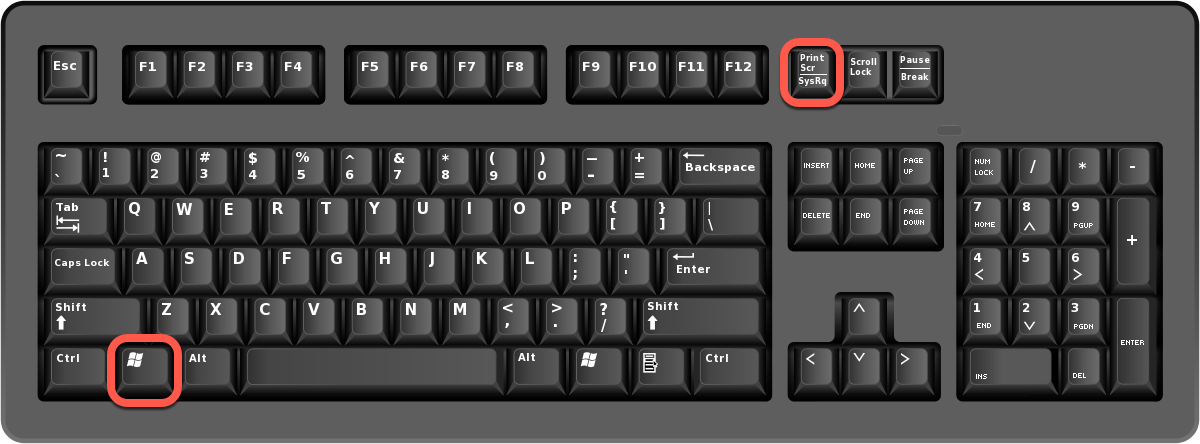
The easiest way to take a screenshot on Windows is by using keyboard shortcuts. Here are the steps:
- Windows + Print Screen (or Snipping Tool): Press the Windows key + Print Screen button to capture the entire screen.
- Windows + Ctrl + Print Screen: Press the Windows key + Ctrl + Print Screen button to capture a specific window.
- Windows + Alt + Print Screen: Press the Windows key + Alt + Print Screen button to capture a specific window.
Method 2: Using The Snipping Tool
The Snipping Tool is a built-in tool in Windows that allows you to take screenshots of selected areas. Here are the steps:
- Search for “Snipping Tool” in the Start menu and click on it.
- Select the area you want to capture by dragging the cursor around it.
- Press the New button to capture the screenshot.
Method 3: Using Third-party Software
If you’re not satisfied with the built-in tools, you can use third-party software like Snagit, Greenshot, or ShareX. These programs offer advanced features such as image editing and sharing options.
Tips And Tricks
Here are some additional tips to help you take better screenshots:
- Use a High-resolution Camera: If you’re taking screenshots on a Windows laptop or tablet, make sure the camera is set to its highest resolution.
- Use a Screen Capture Tool: If you need to take multiple screenshots quickly, use a screen capture tool like Snagit or Greenshot.
- Edit Your Screenshot: Use image editing software like Paint or Adobe Photoshop to edit your screenshot.
Common Faqs
Here are some frequently asked questions and their answers:
- Q: How do I take a screenshot on Windows?
A: You can use keyboard shortcuts (Windows + Print Screen, Windows + Ctrl + Print Screen, Windows + Alt + Print Screen) or the Snipping Tool. - Q: What is the best way to take a screenshot of a specific window?
A: Use the Windows key + Alt + Print Screen shortcut. - Q: How do I edit my screenshot?
A: Use image editing software like Paint or Adobe Photoshop.
Conclusion
Taking screenshots on Windows is easier than you think! With these methods, tips, and tricks, you’ll be able to capture the perfect screenshot every time.
Frequently Asked Questions (FAQs)
Here are some additional FAQs:
- Q: What is the best software for taking screenshots?
A: Snagit, Greenshot, or ShareX. - Q: How do I take a screenshot on Windows 10/11?
A: Use the keyboard shortcuts (Windows + Print Screen, Windows + Ctrl + Print Screen) or the Snipping Tool. - Q: Can I edit my screenshot?
A: Yes, use image editing software like Paint or Adobe Photoshop.
Note:


