
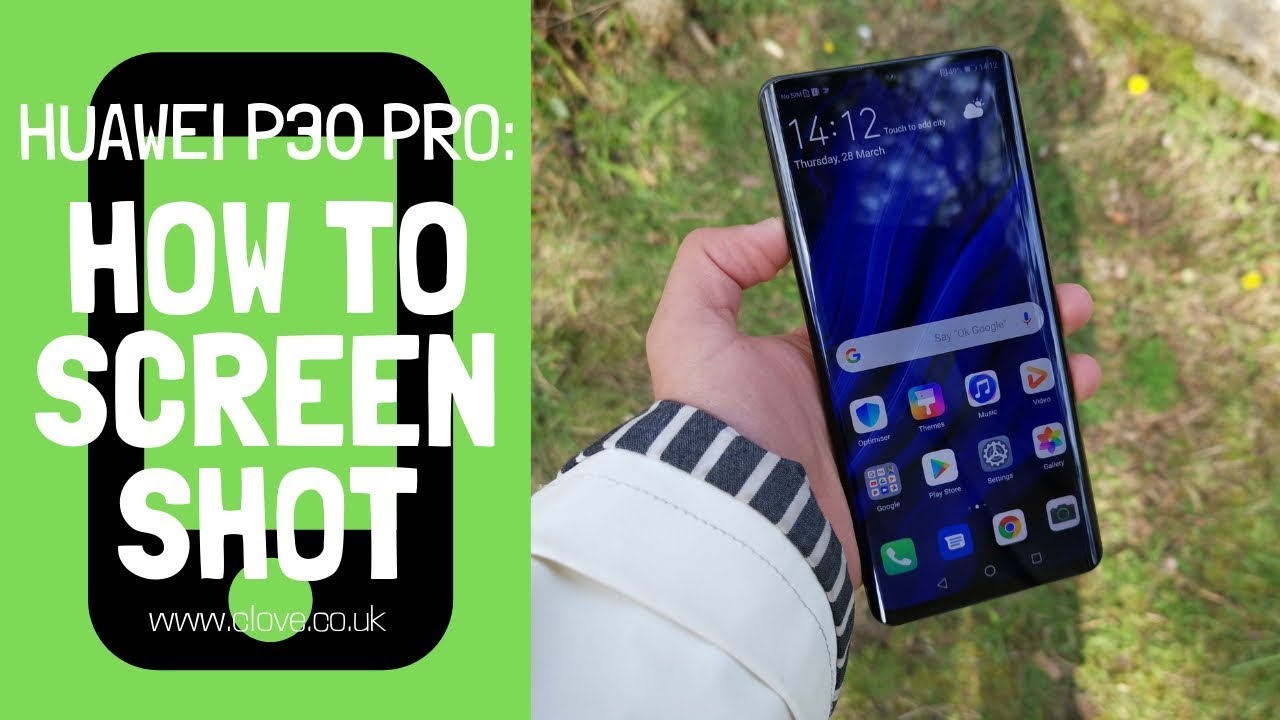
How to Take a Screenshot on Huawei Smartphone: A Step-by-step Guide
Are you tired of struggling to take a screenshot on your Huawei smartphone? Do the old combinations of buttons not work as they used to? Worry no more! In this article, we’ll guide you through the simple process of taking a screenshot on your Huawei device.
Why Can’t I Take a Screenshot?
Before we dive into the steps, let’s understand why some users might be struggling to take a screenshot. It’s possible that the combinations of buttons used on old cellular phones no longer function on newer devices like Huawei smartphones. This is because different smartphones have unique layouts and features, making it essential to find the right combination for your specific device.
Step 1: Find The Right Combination
To take a screenshot on your Huawei smartphone, you’ll need to press the correct combination of buttons. Here’s how:
- Method 1: Press and hold the Volume Down button and the Power button simultaneously until you see a screenshot thumbnail on the screen.
- Method 2: Go to Settings > Advanced Features > Smart Screenshot and toggle it ON. Then, simply tap on the screen with two knuckles (the back of your fingers) twice in quick succession.
Step 2: Capture The Screen
Once you’ve found the right combination, press the buttons or use the gesture feature to capture the screen. You’ll see a screenshot thumbnail appear on the screen, indicating that the process has been successful.
Step 3: Edit And Share Your Screenshot
To edit your screenshot, follow these steps:
- Open the Gallery app and navigate to the Screenshots album.
- Select the screenshot you want to edit and tap on it.
- You’ll see a range of editing tools at the bottom of the screen. Choose the one you need, such as cropping or adding annotations.
Step 4: Share Your Screenshot
Once you’re happy with your edited screenshot, share it with others via social media, email, or messaging apps.
Using Third-party Apps to Take Screenshots
If the built-in features don’t meet your needs, there are several third-party apps available that can help you take screenshots and edit them with ease. Some popular options include:
- Screenshot Easy: A free app that allows you to capture screenshots using a variety of methods.
- Image Combiner: An app that enables you to combine multiple screenshots into one image.
Frequently Asked Questions (FAQs)
Q: How do I take a screenshot on my Huawei smartphone?
A: Press and hold the Volume Down button and the Power button simultaneously or use the Smart Screenshot feature in Settings > Advanced Features.
Q: What if I don’t see the screenshot thumbnail on the screen?
A: Check that you’ve pressed the correct combination of buttons or used the gesture feature correctly. If you’re still experiencing issues, try restarting your device.
Q: How do I edit a screenshot on my Huawei smartphone?
A: Open the Gallery app and navigate to the Screenshots album. Select the screenshot you want to edit and tap on it. Choose from the range of editing tools available at the bottom of the screen.
Q: Can I share my edited screenshot with others?
A: Yes, once you’ve edited your screenshot, you can share it via social media, email, or messaging apps.
Q: What if I want to take a scrolling screenshot on my Huawei smartphone?
A: Press and hold the Power button and tap on the “Take Screenshot” option in the notification shade. Then, swipe down to capture the entire page.
Q: Are there any third-party apps that can help me take screenshots and edit them?
A: Yes, there are several third-party apps available that can assist you in taking screenshots and editing them with ease.
Conclusion
Taking a screenshot on your Huawei smartphone is easier than you think! With these simple steps, you’ll be able to capture your screen and share it with others. Don’t forget to explore the various features and apps available to enhance your experience.
Additional Resources:
For more information on taking screenshots on Android devices, check out our tutorial on how to photograph the monitor of an Android smartphone.


