
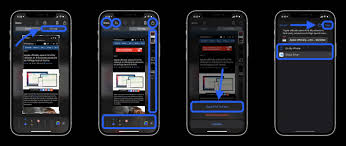
How to Take a Screenshot of an Entire Page on Any Device
Are you tired of taking screenshots of entire pages only to have them cut off or distorted? Do you wish there was an easier way to capture the entire page, no matter what device you’re using? Look no further! In this article, we’ll show you how to take a screenshot of an entire page on any device, including smartphones, tablets, and PCs.
Why Take a Screenshot of an Entire Page?
Taking a screenshot of an entire page can be useful in a variety of situations. For example, if you’re researching a topic online and want to save the entire webpage for later reference, taking a screenshot of the entire page is a great way to do so. Similarly, if you’re trying to troubleshoot a problem with your device or browser, having a screenshot of the entire page can be helpful in identifying the issue.
Taking a Screenshot on Android
If you’re using an Android device, taking a screenshot of an entire page is relatively easy. Simply press and hold the power button and the volume down button at the same time. This will take a screenshot of the entire screen, including any scrollable content. You can then share or save the screenshot as needed.
Taking a Screenshot on Iphone
If you’re using an iPhone, taking a screenshot of an entire page is also relatively easy. Simply press and hold the sleep/wake button and the home button at the same time. This will take a screenshot of the entire screen, including any scrollable content. You can then share or save the screenshot as needed.
Taking a Screenshot on PC
If you’re using a PC, taking a screenshot of an entire page is also easy. If you’re using Windows 10 or later, you can simply press the Print Screen button (usually located near the top-right corner of your keyboard) to take a screenshot of the entire screen. You can then paste the screenshot into any image editing program to save it.
Taking a Screenshot on Mac
If you’re using a Mac, taking a screenshot of an entire page is also easy. Simply press Command + Shift + 4 to take a screenshot of the entire screen. This will capture the entire window or screen, including any scrollable content.
Using Third-party Apps
In addition to the built-in screenshot features on your device, there are also third-party apps that can help you take screenshots of entire pages. For example, if you’re using an Android device, you can use apps like Image Combiner & Editor or Long Screenshot to take a screenshot of an entire page. Similarly, if you’re using a Mac, you can use apps like CleanShot X or Shottr to take a screenshot of an entire page.
Conclusion
Taking a screenshot of an entire page is easy and can be useful in a variety of situations. Whether you’re using an Android device, iPhone, PC, or Mac, there are many ways to take a screenshot of an entire page. By following the steps outlined in this article, you’ll be able to capture the entire page, no matter what device you’re using.
Faqs
- Q: How do I take a screenshot of an entire page on Android?
A: Press and hold the power button and the volume down button at the same time. - Q: How do I take a screenshot of an entire page on iPhone?
A: Press and hold the sleep/wake button and the home button at the same time. - Q: How do I take a screenshot of an entire page on PC?
A: Press the Print Screen button (usually located near the top-right corner of your keyboard) to take a screenshot of the entire screen. - Q: How do I take a screenshot of an entire page on Mac?
A: Press Command + Shift + 4 to take a screenshot of the entire screen. - Q: What are some third-party apps that can help me take screenshots of entire pages?
A: Apps like Image Combiner & Editor, Long Screenshot, CleanShot X, and Shottr can help you take screenshots of entire pages. - Q: How do I save my screenshot after taking it?
A: You can save your screenshot by pasting it into any image editing program or sharing it directly from the device’s built-in screenshot feature.


