
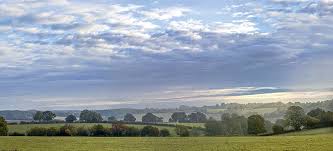
Creating Panoramic Photos With Photoshop: A Step-by-step Guide
Are you tired of taking multiple photos to capture a breathtaking landscape or scenic view? Do you want to create a stunning panoramic photo that will make your friends and family green with envy? Look no further! In this article, we’ll show you how to create panoramic photos with Adobe Photoshop.
Why Create Panoramic Photos?
Panoramic photos are not only visually stunning but also provide an immersive experience for the viewer. They allow you to capture a wider angle of a scene, making it possible to see more details and nuances that might be missed in a regular photo. Whether you’re a professional photographer or an avid hobbyist, creating panoramic photos can add a new dimension to your photography skills.
Requirements For Creating Panoramic Photos With Photoshop
To create panoramic photos with Photoshop, you’ll need:
- Photoshop CC 2018 or Later: You can download the latest version of Photoshop from Adobe’s website.
- Adequate Camera Equipment: Use a camera that allows you to take multiple shots in quick succession.
- Stable Tripod And Camera Support: Keep your camera stable and secure to avoid blurry photos.
- Good Lighting Conditions: Take photos during golden hour or overcast skies for optimal results.
Preparing Your Photos
Before creating a panoramic photo, ensure that:
- All Photos Are Taken With The Same Focal Length: This will help reduce distortion and make it easier to merge the images.
- Photos Are Taken From The Same Height: Use a tripod or camera support to maintain consistency in your shots.
- Avoid Using Fish-eye Lenses: These can distort the image, making it difficult to create a seamless panorama.
Step-by-step Guide to Creating Panoramic Photos With Photoshop
- Open Photoshop And Navigate to File > Automate > Photomerge: Select this option from the menu bar to access the Photomerge tool.
- Select Your Photos: Choose all the images you want to merge into a single panoramic photo.
- Choose The Merger Type: Select one of the following options:
- Automatic: Let Photoshop decide the best merger method.
- Perspective: Use this option for more control over the merger process.
- Cylindrical: Ideal for creating wide panoramas.
- Spherical: Suitable for 360-degree panoramas.
- Collage: Join images like a collage, rotating and scaling them as needed.
- Reposition: Merge images in the most precise manner possible without distortion.
- Adjust Settings: Fine-tune your merger options by selecting or deselecting additional features:
- Find Optimal Image Size: Let Photoshop determine the best image size for your panorama.
- Correct Geometric Distortions: Compensate for distortions caused by wide-angle lenses.
- Remove Vignettes: Adjust dark areas in the photo to improve overall brightness.
- Fill Transparent Areas: Automatically fill transparent areas with similar content from surrounding images.
- Click OK And Wait For Photoshop to Process Your Panorama: Depending on the complexity of your image, this may take several minutes.
Tips And Tricks
- Experiment With Different Merger Types: Try out various options to find the best fit for your panoramic photo.
- Pay Attention to Lighting Conditions: Natural light is always the best option; avoid using flash or harsh artificial light.
- Use a Consistent Camera Setting: Maintain the same exposure settings throughout your shoot to ensure a seamless merge.
- Take Multiple Shots: Capture more images than you need, and then select the best ones for your panorama.
Creating Panoramic Photos With Photoshop on Smartphone And Tablet
While Photoshop is available on mobile devices, the feature to create panoramic photos is not currently available. However, you can use the built-in camera app on your smartphone or tablet to take a panoramic photo, which can then be edited using Photoshop Mobile.
Conclusion
Creating panoramic photos with Adobe Photoshop requires some planning and preparation, but the end result is well worth the effort. By following these steps and tips, you’ll be able to capture stunning panoramic photos that will leave a lasting impression on your audience.
Frequently Asked Questions (FAQs)
- What Are The Requirements For Creating Panoramic Photos With Photoshop?
- Adobe Photoshop CC 2018 or later, adequate camera equipment, stable tripod and camera support, and good lighting conditions.
- How do I Prepare my Photos For Merging Into a Panoramic Image?
- Ensure all photos are taken with the same focal length, from the same height, and avoid using fish-eye lenses.
- What Are The Different Merger Types Available in Photoshop?
- Automatic, Perspective, Cylindrical, Spherical, Collage, Reposition, Find optimal image size, Correct geometric distortions, Remove vignettes, Fill transparent areas.
- Can I Create Panoramic Photos With Photoshop on my Smartphone or Tablet?
- While Photoshop is available on mobile devices, the feature to create panoramic photos is not currently available. However, you can use the built-in camera app to take a panoramic photo and then edit it using Photoshop Mobile.
References
- Adobe Photoshop CC 2018 User Guide.
- “Creating Panoramic Photos with Photoshop” by Adobe Creative Cloud.
- “Panorama Photography Tutorial” by Digital Photography School.


