
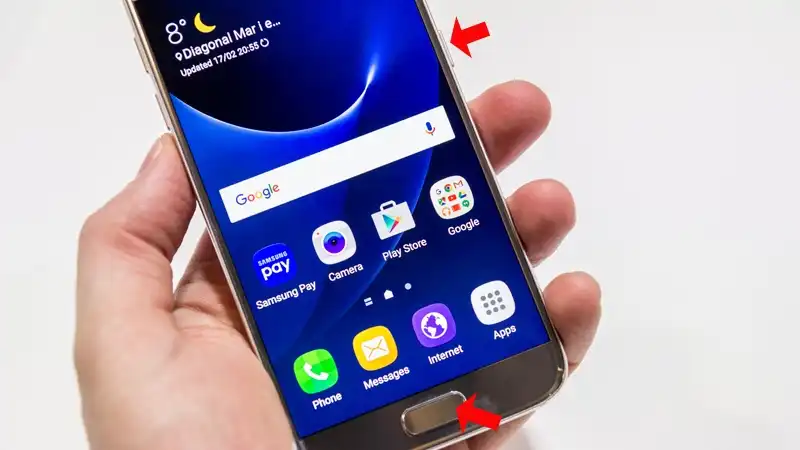
How to Take a Screenshot on Samsung Devices: A Step-by-step Guide
Are you struggling to capture that perfect screenshot on your Samsung device? Look no further! In this article, we’ll guide you through the various methods of taking screenshots on Samsung devices, from using the power button and volume down key to utilizing the built-in screenshot features.
The Classic Method: Using The Power Button And Volume Down Key
Taking a screenshot on Samsung devices has never been easier. To capture your screen, follow these simple steps:
- Locate The Power Button: This is usually found on the right side of your device.
- Press And Hold The Power Button: Hold down the Power button for about 3 seconds until you feel it vibrate or hear a slight click.
- Press The Volume Down Key: While still holding the Power button, press the Volume Down key with your other hand.
- Release Both Keys: Release the Power and Volume Down buttons simultaneously.
- The Screenshot is Saved Automatically: Your screenshot will be saved to the Gallery app on your device.
Alternative Method: Using Gestures
If you’re using a Samsung device with gesture navigation, you can take a screenshot by swiping down from the top of the screen with three fingers. This method works similarly to the classic method but uses gestures instead of buttons.
Other Options For Taking Screenshots on Samsung Devices
While the above methods are widely used and effective, there are other options available:
- Using Bixby Voice: If you have a Galaxy S10 or later device, you can use Bixby Voice to take a screenshot by saying “Hey Bixby, take a screenshot.”
- Using Google Assistant: Similarly, you can use the Google Assistant on your Samsung device to take a screenshot by saying “Ok Google, take a screenshot.”
- Utilizing S Pen: If you have a Galaxy Note device, you can use the S Pen to capture a screenshot by hovering over the screen and clicking the pen button.
- Using Third-party Apps: There are several third-party apps available on the Google Play Store that offer additional features for taking screenshots, such as editing tools and sharing options.
Taking Screenshots of Long Pages
If you want to take a screenshot of an entire webpage or long page, you can use the built-in “Long shot” feature:
- Take a Screenshot: Follow the classic method above.
- Enable Long Shot: Go to Settings > Advanced features > Screen recording and toggle on “Long shot”.
- Take Another Screenshot: Use the same method as before, but this time with the Long Shot feature enabled.
Conclusion
Taking screenshots on Samsung devices is a straightforward process that can be accomplished using various methods. Whether you prefer the classic power button and volume down key combination or one of the alternative options, we’ve got you covered. Happy snapping!


