
How to Take a Screenshot on Your Ipad: A Step-by-step Guide
Are you tired of trying to figure out how to take a screenshot on your iPad? Look no further! In this article, we will guide you through the process of taking a screenshot on various iPad models, including the iPad Pro, iPad Air, and iPad mini.
Why Take a Screenshot on Your Ipad?
Taking a screenshot on your iPad can be useful in many situations. You may want to capture a moment from a game or video, save an important webpage for later, or share a funny meme with friends. Whatever the reason, we’ll show you how to do it easily and efficiently.
How to Take a Screenshot on Your Ipad Pro
To take a screenshot on your iPad Pro, follow these steps:
- Access The Screen You Want to Capture: Go to the screen that you want to capture. This can be any app, webpage, or game.
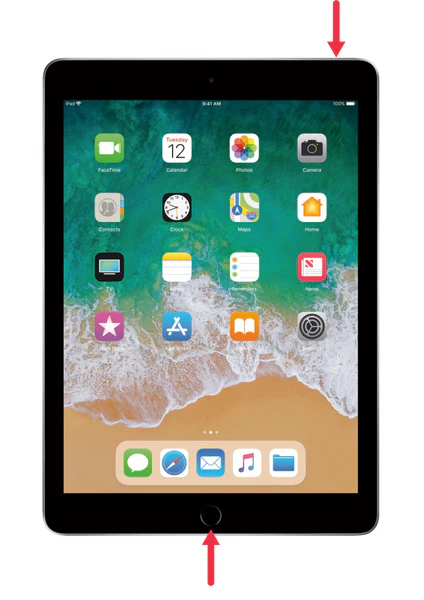
- Press The Volume And Power Buttons Simultaneously: Press the volume down button and the power button at the same time. You’ll hear a click and see a flash on the screen.
- Release The Buttons: Release the buttons, and the screenshot will be taken automatically.
How to Take a Screenshot on Your Ipad Air
The process of taking a screenshot on your iPad Air is similar to that of the iPad Pro:
- Access The Screen You Want to Capture: Go to the screen that you want to capture.
- Press The Volume And Power Buttons Simultaneously: Press the volume down button and the power button at the same time.
- Release The Buttons: Release the buttons, and the screenshot will be taken automatically.
How to Take a Screenshot on Your Ipad Mini
The process of taking a screenshot on your iPad mini is also similar:
- Access The Screen You Want to Capture: Go to the screen that you want to capture.
- Press The Volume And Power Buttons Simultaneously: Press the volume down button and the power button at the same time.
- Release The Buttons: Release the buttons, and the screenshot will be taken automatically.
How to Take a Screenshot on Your Ipad Pro Using Assistivetouch
If you’re having trouble taking a screenshot using the physical buttons, or if you want an alternative method, you can use AssistiveTouch:
- Access The Settings App: Open the Settings app.
- Select Accessibility: Tap on “Accessibility”.
- Tap on Enable Assistivetouch: Turn on AssistiveTouch by tapping on the toggle switch next to “AssistiveTouch”.
- Create a Customized Menu: Customize the menu that appears when you tap on the AssistiveTouch icon.
How to Take a Screenshot Using Assistivetouch
To take a screenshot using AssistiveTouch, follow these steps:
- Access The Screen You Want to Capture: Go to the screen that you want to capture.
- Tap on The Assistivetouch Icon: Tap on the AssistiveTouch icon to open the menu.
- Select “Device” And Then “Instantaneous Monitor”: Select “Device” and then “Instantaneous Monitor”.
- The Screenshot Will Be Taken Automatically: The screenshot will be taken automatically.
How to Take a Screenshot of a Webpage on Your Ipad
If you want to take a screenshot of a webpage, follow these steps:
- Open Safari: Open the Safari app.
- Access The Webpage You Want to Capture: Go to the webpage that you want to capture.
- Press The Volume And Power Buttons Simultaneously: Press the volume down button and the power button at the same time.
- Release The Buttons: Release the buttons, and the screenshot will be taken automatically.
How to Save a Screenshot on Your Ipad
To save a screenshot on your iPad, follow these steps:
- Access The Photos App: Open the Photos app.
- Select The Screenshot: Select the screenshot that you want to save.
- Edit The Screenshot (Optional): If you want to edit the screenshot, select it and tap on the “Edit” button.
- Save The Screenshot: Save the screenshot by tapping on the “Save” button.
Conclusion
Taking a screenshot on your iPad is easy and straightforward. Whether you’re using an iPad Pro, iPad Air, or iPad mini, follow the steps outlined in this guide to capture any screen you want. Don’t forget to save your screenshots for future reference!
Faqs
- Q: How do I Take a Screenshot on my Ipad?
A: To take a screenshot on your iPad, press the volume down button and the power button at the same time. - Q: Can I Use Assistivetouch to Take a Screenshot?
A: Yes, you can use AssistiveTouch to take a screenshot by tapping on the AssistiveTouch icon and selecting “Device” and then “Instantaneous Monitor”. - Q: How do I Save a Screenshot on my Ipad?
A: To save a screenshot on your iPad, open the Photos app and select the screenshot that you want to save. - Q: Can I Edit a Screenshot Before Saving It?
A: Yes, you can edit a screenshot by selecting it in the Photos app and tapping on the “Edit” button.
References
- Apple Support
- IPad User Guide


