
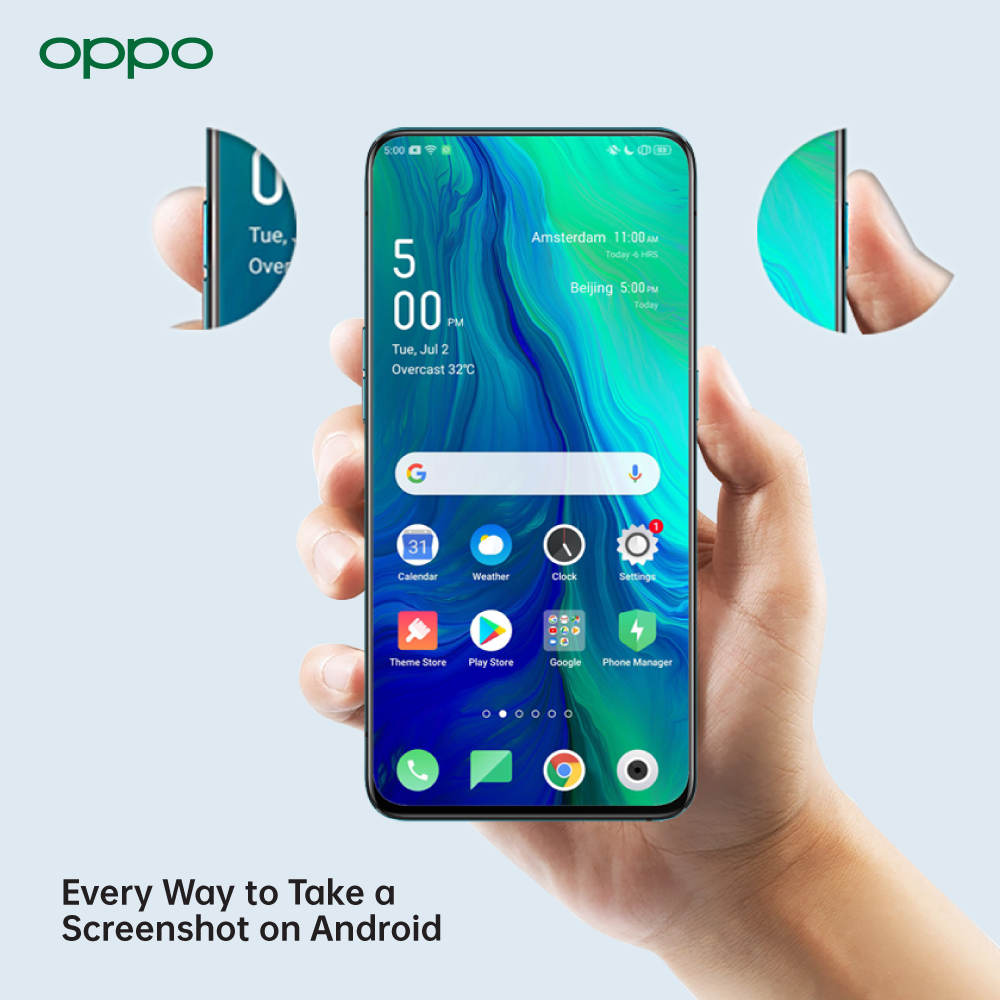
How to Take a Screenshot on Oppo: A Step-by-step Guide
Are you an OPPO user struggling to take a screenshot? Do you find yourself frustrated with the various methods available, but none seem to work as expected? Look no further! This article will guide you through the different ways to take a screenshot on your OPPO device.
The Importance of Screenshotting
In today’s digital age, taking screenshots has become an essential skill. Whether you want to capture a funny meme, save a crucial piece of information, or simply share a beautiful image, knowing how to take a screenshot is vital.
Methods to Take a Screenshot on Oppo
There are several ways to take a screenshot on your OPPO device. Here are the most common methods:
Method 1: Using Physical Buttons
- Locate the power button and volume down button on the right side of your device.
- Press and hold both buttons simultaneously for a few seconds.
- Release the buttons when you see the screenshot animation.
Note: This method is straightforward, but be careful not to press any other buttons accidentally.
Method 2: Using Gestures
- Place three fingers on the top part of the screen.
- Swipe down to capture the screenshot.
- Use the rectangle tool to select a portion of the screen or swipe up/down to capture more.
Note: This method is quick and convenient, but might take some practice to master.
Method 3: Using Google Assistant
- Say “Hey Google” followed by “Take a screenshot.”
- The assistant will take a screenshot for you.
- You can share the screenshot immediately or edit it later.
Note: This method requires voice recognition, so make sure your device is set up correctly.
Method 4: Using Third-party Apps
- Download and install apps like Screenshot Pro, Screenshot Easy, or REC Recording Monitor from the Google Play Store.
- Use these apps to capture screenshots with additional features like editing and sharing.
Note: These apps might have varying levels of functionality and compatibility with your device.
Method 5: Using Accessibility Features
- Go to Settings > Other settings > Gestures and motions.
- Enable “Swipe down with three fingers” or “Play and hold with three fingers” to capture screenshots using gestures.
Note: This method requires you to enable specific accessibility features on your device.
Troubleshooting Tips
If you’re having trouble taking a screenshot, try the following:
- Ensure that your screen is unlocked and not in sleep mode.
- Make sure you have enough battery life or are connected to a power source.
- Restart your device if you encounter any software-related issues.
- Check for any app updates or compatibility problems.
Conclusion
Taking a screenshot on OPPO can be done using various methods, including physical buttons, gestures, Google Assistant, and third-party apps. By following this guide, you should now be able to take screenshots with ease and share them with your friends and family.
Frequently Asked Questions (FAQs)
- Q: Why can’t I take a screenshot on my OPPO device?
- A: Ensure that your screen is unlocked and not in sleep mode.
- Q: What are the different methods to take a screenshot on OPPO?
- A: Physical buttons, gestures, Google Assistant, and third-party apps.
- Q: How do I use gestures to take a screenshot?
- A: Place three fingers on the top part of the screen and swipe down.
- Q: Can I share my screenshots immediately after taking them?
- A: Yes, you can share your screenshots using Google Assistant or third-party apps.
I hope this guide has helped you master the art of screenshotting on OPPO!


