
How to Take a Screenshot on Windows 11: A Step-by-step Guide
Are you tired of searching for ways to capture screenshots on your Windows 11 PC? Look no further! In this article, we will walk you through the various methods to take a screenshot on Windows 11, from using keyboard shortcuts to utilizing third-party tools.
Why Take a Screenshot on Windows 11?
Taking a screenshot on Windows 11 can be useful in several situations. You may want to capture a specific part of your screen to share with a friend or colleague, or to provide evidence for a technical issue you’re experiencing. Whatever the reason, we’ve got you covered.
Method 1: Using Keyboard Shortcuts
The first method is to use keyboard shortcuts. Here’s how:
- Windows + Print Screen: This combination will capture the entire screen and save it as a screenshot in the “Screenshots” folder.
- Windows + Alt + Print Screen: This combination will capture the currently active window and save it as a screenshot in the “Screenshots” folder.
Method 2: Using The Snipping Tool
The second method is to use the Snipping Tool. Here’s how:
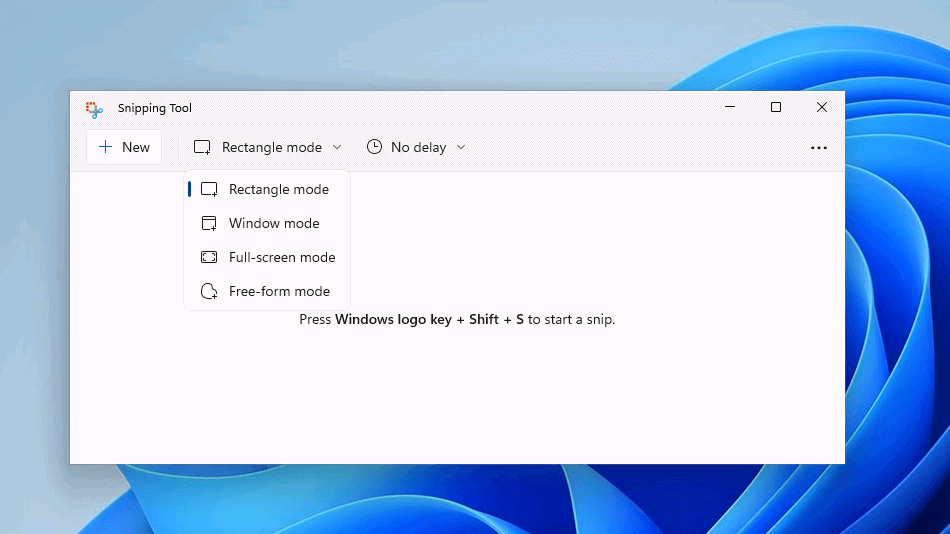
- Open The Snipping Tool: You can find the Snipping Tool by searching for it in the Start menu.
- Choose The Type of Screenshot: Select the type of screenshot you want to take, such as a full-screen capture, a rectangular capture, or a free-form capture.
- Capture The Screen: Click and drag the mouse to select the area you want to capture. Release the mouse button to capture the screen.
Method 3: Using The Xbox Game Bar
The third method is to use the Xbox Game Bar. Here’s how:
- Open The Xbox Game Bar: Press the Windows + G keys to open the Xbox Game Bar.
- Take a Screenshot: Click on the screenshot icon in the top-right corner of the screen to capture a screenshot.
Method 4: Using Third-party Tools
There are several third-party tools available that can help you take screenshots on Windows 11. Here are a few options:
- Greenshot: A free and open-source tool that allows you to take screenshots and edit them using various tools.
- Sharex: A free and open-source tool that allows you to take screenshots and share them with others.
Method 5: Using Microsoft Edge
If you’re using the Microsoft Edge browser, you can take a screenshot of a webpage by clicking on the “Screenshot” icon in the top-right corner of the screen.
Conclusion
Taking a screenshot on Windows 11 is easier than you think. Whether you use keyboard shortcuts, the Snipping Tool, or third-party tools, there’s a method that suits your needs. We hope this article has been helpful in showing you how to take a screenshot on Windows 11.
Frequently Asked Questions (FAQs)
Here are some frequently asked questions about taking screenshots on Windows 11:
Q: How do I take a screenshot of my entire screen?
A: You can use the keyboard shortcut Windows + Print Screen or the Snipping Tool.
Q: How do I take a screenshot of a specific window?
A: You can use the keyboard shortcut Windows + Alt + Print Screen or the Snipping Tool.
Q: How do I edit a screenshot?
A: You can use third-party tools such as Greenshot or ShareX to edit your screenshots.
Q: Can I share my screenshots with others?
A: Yes, you can share your screenshots using third-party tools such as ShareX.
Q: Is it possible to take a screenshot of a webpage?
A: Yes, if you’re using the Microsoft Edge browser, you can take a screenshot of a webpage by clicking on the “Screenshot” icon in the top-right corner of the screen.
Additional Tips And Tricks
Here are some additional tips and tricks for taking screenshots on Windows 11:
- Use The Snipping Tool to Capture Specific Areas: The Snipping Tool allows you to capture specific areas of your screen, such as a rectangle or a free-form shape.
- Use Keyboard Shortcuts to Save Time: Keyboard shortcuts can save you time when taking screenshots.
- Experiment With Different Tools And Techniques: Try out different tools and techniques to find what works best for you.
Final Thoughts
Taking a screenshot on Windows 11 is an essential skill that can be useful in many situations. Whether you’re a student, a professional, or simply someone who wants to capture memories, taking screenshots can help you achieve your goals. We hope this article has been helpful in showing you how to take a screenshot on Windows 11!


