
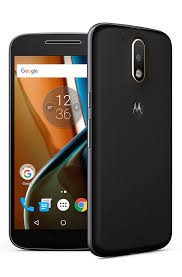
How to Take a Screenshot on Your Motorola Smartphone: A Step-by-step Guide
Are you struggling to capture the perfect screenshot on your Motorola smartphone? You’re not alone! Taking screenshots can be a frustrating experience, especially when you’re trying to document something important. In this article, we’ll show you how to take a screenshot on your Motorola phone using both native and third-party apps.
Why Can’t I Take a Screenshot on My Motorola Phone?
If you’re experiencing problems taking a screenshot on your Motorola phone, don’t worry! It’s likely due to one of the following reasons:
- You’re pressing the wrong buttons
- Your phone’s software is outdated or buggy
- You’ve installed a third-party app that’s interfering with the screenshot function
Method 1: Using Native Function
The first method involves using your Motorola phone’s native screenshot function. Here’s how to do it:
- Press and hold the Power button (usually located on the top right of your phone)
- Simultaneously press the Volume-down button
- Release both buttons when you see a flash on the screen
That’s it! Your screenshot should be saved in the gallery.
Method 2: Using Third-party Apps
If you’re experiencing issues with the native function, don’t worry! There are several third-party apps available that can help you take screenshots easily. Here are some of our top recommendations:
Screenshot Easy
- Download and install the app from the Google Play Store
- Launch the app and follow the on-screen instructions to configure it
- Press and hold the Power button and Volume-down button as before, but this time, tap on the floating camera icon on your screen
Screenmaster
- Download and install the app from the Google Play Store
- Configure the app by enabling the active voice screen capture feature
- Tap on the floating camera icon on your screen to take a screenshot
Easy Long Screenshot Capture
- Download and install the app from the Google Play Store
- Launch the app and select the “Capture Screenshots” option
- Press and hold the Power button and Volume-down button as before, but this time, tap on the floating camera icon on your screen
Tips And Tricks
Here are some additional tips to help you take screenshots like a pro:
- Use a screenshot app with a built-in editor to annotate or edit your screenshots
- Take multiple screenshots at once using an app that allows you to capture long screens
- Use a custom gesture to take a screenshot, such as swiping three fingers across the screen
Conclusion
Taking a screenshot on your Motorola phone doesn’t have to be difficult. With these simple methods and tips, you can easily capture the perfect screenshot every time. Whether you’re using native functions or third-party apps, we’ve got you covered.
Frequently Asked Questions (FAQs)
Here are some frequently asked questions about taking screenshots on Motorola phones:
Q: How do I take a screenshot on my Motorola phone?
A: Press and hold the Power button and Volume-down button simultaneously.
Q: Why can’t I take a screenshot on my Motorola phone?
A: It’s likely due to software issues or interference from third-party apps.
Q: What are some good screenshot apps for Motorola phones?
A: Some popular options include Screenshot Easy, ScreenMaster, and Easy Long Screenshot Capture.
Q: How do I edit or annotate my screenshots?
A: Use a screenshot app with a built-in editor, such as Screenshot Easy or ScreenMaster.
Q: Can I take multiple screenshots at once?
A: Yes! Use an app that allows you to capture long screens, such as Easy Long Screenshot Capture.


