
How to Download Youtube Videos: A Step-by-step Guide
Are you tired of watching your favorite YouTube videos only on the platform? Do you want to save them on your device or share them with others without relying on an internet connection? Look no further! In this article, we’ll guide you through the process of downloading YouTube videos using various methods and tools.
Why Download Youtube Videos?
Before we dive into the step-by-step instructions, let’s discuss why downloading YouTube videos might be useful. While watching videos online is convenient, sometimes you might want to:
- Save your favorite videos for offline viewing
- Share them with friends or family members without relying on an internet connection
- Use them as reference materials or study aids
- Enjoy them without ads and interruptions
Method 1: Using Youtube’s Built-in Download Feature
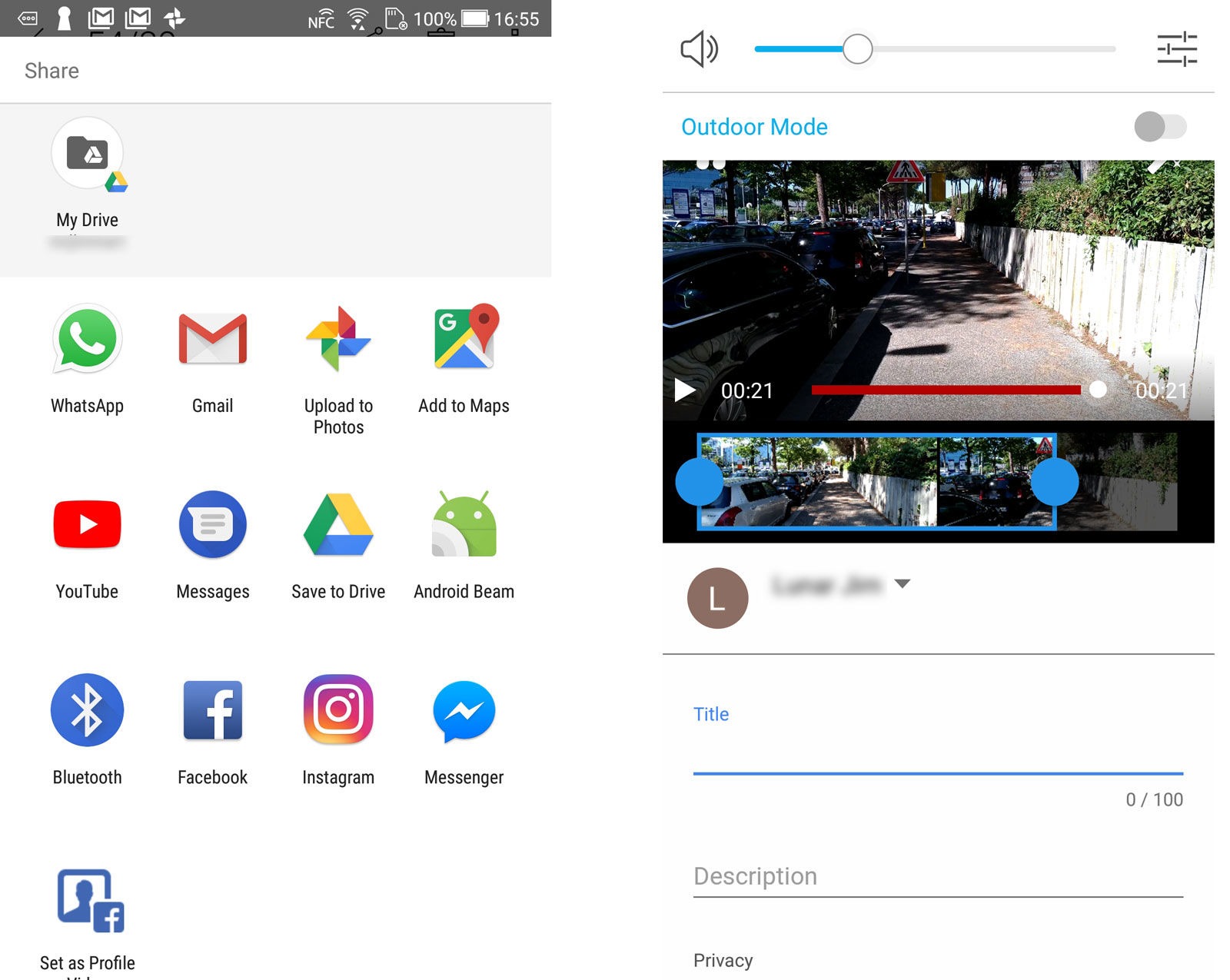
If you’re using a computer, smartphone, or tablet running Android or iOS/iPadOS, you can use the built-in download feature on YouTube. Here’s how:
Step-by-step Instructions For Android Devices:
- Open the YouTube app and navigate to the video you want to download.
- Tap on the three dots (⋮) in the top-right corner of the screen.
- Select “Download” from the dropdown menu.
- Choose the quality and resolution you prefer.
Step-by-step Instructions For Ios/ipados Devices:
- Open the YouTube app and navigate to the video you want to download.
- Tap on the share icon (the box with an arrow coming out of it).
- Select “Save Video” from the menu.
- Choose the quality and resolution you prefer.
Method 2: Using Jdownloader
JDownloader is a free, user-friendly tool that allows you to download videos from YouTube and other platforms. Here’s how to use it:
Step-by-step Instructions For Windows/mac/linux Devices:
- Download and install JDownloader on your computer.
- Launch the program and select “Download” from the top menu.
- Copy the URL of the video you want to download and paste it into the address bar at the bottom of the window.
- Click the “Add new link Web” button and follow the prompts to complete the download.
Step-by-step Instructions For Android Devices:
- Download and install JDownloader on your device from the Play Store or APK file.
- Launch the program and select “Download” from the menu.
- Copy the URL of the video you want to download and paste it into the address bar at the bottom of the screen.
- Follow the prompts to complete the download.
Method 3: Using Online Services
There are several online services that allow you to download YouTube videos without installing any software. Here’s a list of some popular options:
- NoTube (free, no account required)
- GrabFrom (free, with optional premium features)
- Loader.To (free, with optional premium features)
- 2Conv.Com (free, with optional premium features)
Method 4: Using Tubemate
If you’re using an Android device, you can use the TubeMate app to download YouTube videos. Here’s how:
Step-by-step Instructions For Android Devices:
- Download and install TubeMate from the Play Store or APK file.
- Launch the program and select “Download” from the menu.
- Copy the URL of the video you want to download and paste it into the address bar at the bottom of the screen.
- Follow the prompts to complete the download.
Method 5: Using Clip
If you want to extract only a part of a YouTube video, you can use the clip feature on YouTube. Here’s how:
Step-by-step Instructions For All Devices:
- Navigate to the video you want to clip.
- Click on the three dots (⋮) in the top-right corner of the screen.
- Select “Clip” from the dropdown menu.
- Choose the start and end times for your clip.
Conclusion
Downloading YouTube videos can be a convenient way to save your favorite content or share it with others. We’ve outlined several methods and tools you can use, depending on your device and preferences. Remember to always respect copyright laws and only download videos that are available under a Creative Commons license or are open-source.
Frequently Asked Questions (FAQs)
- Q: Can I Download Youtube Videos For Free?
A: Yes, there are several free methods and tools available, including JDownloader, noTube, and TubeMate. - Q: Do I Need to Create an Account to Download Youtube Videos?
A: Some services, like noTube and GrabFrom, don’t require an account, while others may ask you to sign up or log in. - Q: Can I Download Youtube Videos on my Computer or Only on my Mobile Device?
A: You can use most methods and tools on both computers and mobile devices, but some services may be more suitable for one platform over the other. - Q: Will Downloading Youtube Videos Affect my Internet Speed?
A: No, downloading YouTube videos will not directly impact your internet speed, as they are saved locally on your device. - Q: Can I Download Entire Playlists or Channels?
A: Some services and tools may allow you to download entire playlists or channels, but this is not always the case. - Q: How do I Know if a Youtube Video is Available For Download?
A: You can check the video’s description or comments section for any notes on availability for download. - Q: Can I Convert Downloaded Youtube Videos to Other Formats?
A: Some services and tools may allow you to convert downloaded videos to different formats, but this is not always possible.
We hope this guide has been helpful! If you have any further questions or concerns, feel free to ask.


