
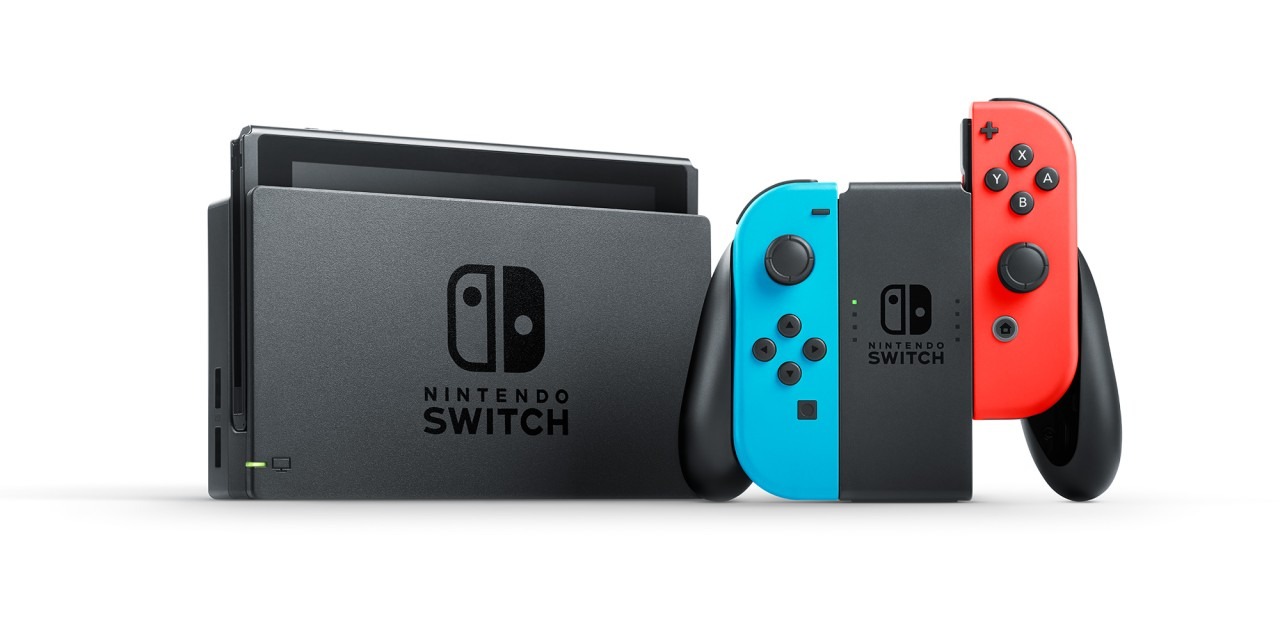
The Ultimate Guide to Speaking on Fortnite on Nintendo Switch
Introduction
Are you tired of not being able to communicate with your team in Fortnite on Nintendo Switch? Do you wish there was a way to speak with your friends while playing the game? Look no further! In this article, we will guide you through the process of setting up voice chat on Fortnite on Nintendo Switch.
Information Preliminary
Before we dive into the practical part of this tutorial, it’s essential to know that there are some preliminary requirements to play Fortnite on Nintendo Switch. To start, you’ll need to have a Nintendo Switch Online subscription, which costs 3.99€ Per month and allows you to play online games.
Creating an Epic Games Account
To play Fortnite on Nintendo Switch, you’ll also need to create an Epic Games account. This is a straightforward process that can be completed by going to the Epic Games website and following the instructions. Make sure to connect your Epic Games account to your Nintendo Switch account and vice versa.
Setting Up Voice Chat on Fortnite
Now that we’ve covered the preliminary requirements, let’s move on to setting up voice chat on Fortnite. To do this, follow these steps:
Step 1: Access The Settings Menu
First, access the settings menu by pressing the + button on your controller. From here, select “Play” and then choose the “Audio” option.
Step 2: Enable Voice Chat
In the Audio menu, make sure that voice chat is enabled. You can do this by selecting the “Chat Vocal” option and choosing “Yes”.
Step 3: Choose Your Microphone Settings
Next, you’ll need to choose your microphone settings. Select the “Form of Chat Vocal” option and choose either “Open Microphone” or “Speak”. If you choose to speak, make sure to select the “Push To Talk” option.
Step 4: Configure Your Controller Settings
Finally, configure your controller settings by selecting the “Controller” menu and choosing the “Modification Command” option. Here, you can assign a button to use for voice chat.
Conclusion
And that’s it! With these steps, you should now be able to speak with your friends in Fortnite on Nintendo Switch. We hope this tutorial has been helpful, and we wish you happy gaming!
Frequently Asked Questions (FAQs)
Here are some frequently asked questions related to speaking on Fortnite on Nintendo Switch:
Q: Do I Need a Nintendo Switch Online Subscription to Play Fortnite?
A: Yes, you do need a Nintendo Switch Online subscription to play Fortnite online.
Q: How do I Create an Epic Games Account?
A: To create an Epic Games account, go to the Epic Games website and follow the instructions. Make sure to connect your Epic Games account to your Nintendo Switch account.
Q: What Microphone Settings Should I Use For Voice Chat on Fortnite?
A: You can choose either “Open Microphone” or “Speak” as your microphone setting for voice chat on Fortnite.
Q: How do I Configure my Controller Settings For Voice Chat on Fortnite?
A: To configure your controller settings for voice chat, select the “Controller” menu and choose the “Modification Command” option. Here, you can assign a button to use for voice chat.
Q: Can I Play Fortnite With Friends Who Don’t Have a Nintendo Switch Online Subscription?
A: No, unfortunately not. You’ll need to ensure that all players in your party have a Nintendo Switch Online subscription to play Fortnite together online.


