
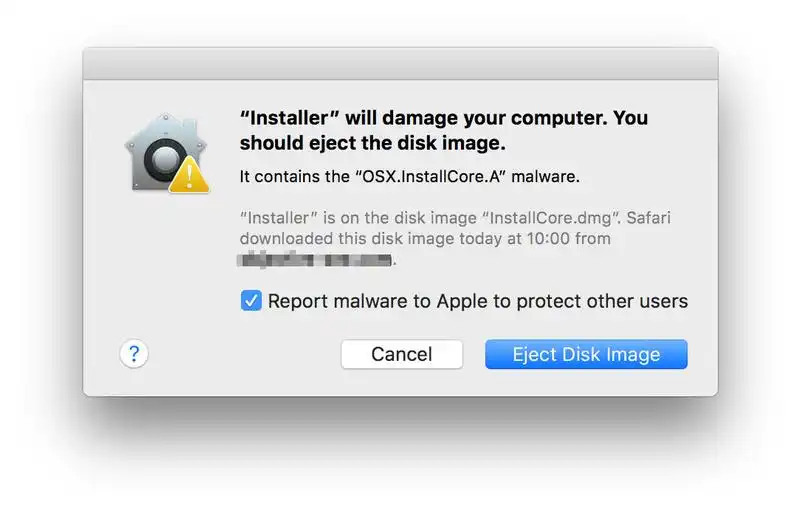
Understanding if Your Mac Has a Virus: A Step-by-step Guide
As a Mac user, you may have wondered at some point whether your device has been infected with a virus. The good news is that understanding how to check for viruses on your Mac is relatively straightforward and can be done in just a few simple steps.
Why Should You Check For Viruses on Your Mac?
Viruses can cause all sorts of problems, from slowing down your computer’s performance to stealing sensitive information like passwords or credit card details. In this article, we’ll show you how to check if your Mac has a virus and what you can do to remove it.
Signs That Your Mac May Have a Virus
Before we dive into the step-by-step guide, let’s look at some common signs that may indicate your Mac has a virus:
- Systematic pop-ups or notifications
- Excessive slowness or lagging
- Unexplained crashes or shutdowns
- Unexpected changes to your computer settings
Step 1: Check For Suspicious Processes
One of the first things you should do is check if there are any suspicious processes running on your Mac. You can do this by following these steps:
*   Open the Launchpad folder and find the "Activity Monitor" app.
*   Click on the icon to open it.
*   In the top toolbar, select the tab that says "CPU", then look for any unfamiliar or suspicious-looking processes.
Step 2: Run a Virus Scan
The next step is to run a virus scan using an anti-virus software. Here’s how you can do it:
- Go to the App Store and download CleanMyMac X.
- Launch the app and click on the “Scanning” tab.
- Select the type of scan you want to perform (e.G., Quick Scan, Deep Scan).
- Follow the prompts to complete the scanning process.
Using Malwarebytes For Mac
Malwarebytes is another powerful tool that can help detect and remove malware from your Mac. Here’s how you can use it:
*   Download and install Malwarebytes for Mac.
*   Launch the app and click on the "Scan" button.
*   Follow the prompts to complete the scanning process.
Other Ways to Check For Viruses
In addition to running a virus scan, there are other ways you can check if your Mac has a virus:
- Use VirusTotal Uploader: This tool allows you to upload suspicious files or executables to VirusTotal’s cloud-based platform for analysis.
- Install anti-virus software: In addition to CleanMyMac X and Malwarebytes, consider installing other reputable anti-virus software to provide an extra layer of protection.
How to Avoid Viruses on Your Mac
To avoid getting a virus in the first place, follow these best practices:
- Be cautious when downloading files or apps from the internet.
- Only install apps from trusted sources like the App Store.
- Keep your operating system and software up-to-date with the latest security patches.
Conclusion
In conclusion, checking for viruses on your Mac is a simple process that can be done in just a few steps. By following these tips, you can protect your device and keep it running smoothly. Remember to always be cautious when downloading files or apps from the internet and to keep your operating system and software up-to-date with the latest security patches.
Frequently Asked Questions (FAQs)
-
What is a Virus on a Mac?
A virus on a Mac is a type of malware that can cause harm to your device, steal sensitive information, or disrupt its performance. Viruses can take many forms, including trojans, spyware, and ransomware.
-
How do I Check if my Mac Has a Virus?
To check if your Mac has a virus, follow these steps: Run a virus scan using an anti-virus software like CleanMyMac X or Malwarebytes for Mac; check for suspicious processes running on your device; and use VirusTotal Uploader to analyze suspicious files.
-
How do I Remove a Virus From my Mac?
If you find out that your Mac has a virus, here’s how you can remove it: Update your operating system with the latest security patches; run a virus scan using an anti-virus software; and manually delete any suspicious processes or files.
-
Can Viruses Harm my Personal Data on my Mac?
Yes, viruses can cause significant harm to your personal data stored on your Mac. They can steal sensitive information like passwords, credit card details, or other confidential data.
-
How do I Prevent Getting a Virus on my Mac in The First Place?
To avoid getting a virus on your Mac, follow these best practices: Be cautious when downloading files or apps from the internet; only install apps from trusted sources like the App Store; and keep your operating system and software up-to-date with the latest security patches.
-
What Are Some Common Signs That my Mac May Have a Virus?
Some common signs that your Mac may have a virus include: Systematic pop-ups or notifications, excessive slowness or lagging, unexplained crashes or shutdowns, and unexpected changes to your computer settings.
-
Can I Use Anti-virus Software on my Mac?
Yes, you can use anti-virus software on your Mac. There are many reputable options available, including CleanMyMac X and Malwarebytes for Mac.


