
How to Test a Hard Disk: A Comprehensive Guide
Are you experiencing slow PC performance or encountering strange error messages when trying to copy data to your external hard disk? It’s possible that there’s an issue with the hard drive itself. Before it’s too late and you lose all your precious data, let’s explore some solutions to test and diagnose the problem.
Understanding Hard Disk Issues
Hard disks are prone to errors, especially if they’re old or have been used extensively. These errors can manifest in various ways, such as:
- Physical Damage: Physical shock, electrical surges, or other forms of physical stress can cause mechanical failure.
- Logical Issues: Errors in the disk’s file system, metadata corruption, or bad sectors can lead to data loss or corruption.
Testing a Hard Disk on PC
Windows provides several built-in tools to diagnose and repair hard disk issues. Let’s explore these options:
1. Controllo Disco (Disk Check)
This is an evolution of the classic ScanDisk tool. It scans your hard drives for errors, bad sectors, and other issues.
Step-by-step Instructions:
1. Open File Explorer and navigate to the “This PC” section.
2. Right-click on the external hard drive you want to test and select “Properties.”
3. In the Properties window, click on the “Tools” tab and then click on “Check” under the “Error checking” section.
4. Follow the prompts to run the disk check.
2. Chkdsk (Check Disk)
This is a command-line tool that scans your hard drives for errors and bad sectors. You can use it to repair issues or schedule a disk check at startup.
Step-by-step Instructions:
1. Open the Command Prompt as an administrator.
2. Type chkdsk C: /Spotfix (replace “C:” With the drive letter of your external hard drive) and press Enter.
3. Follow the prompts to run the CHKDSK scan.
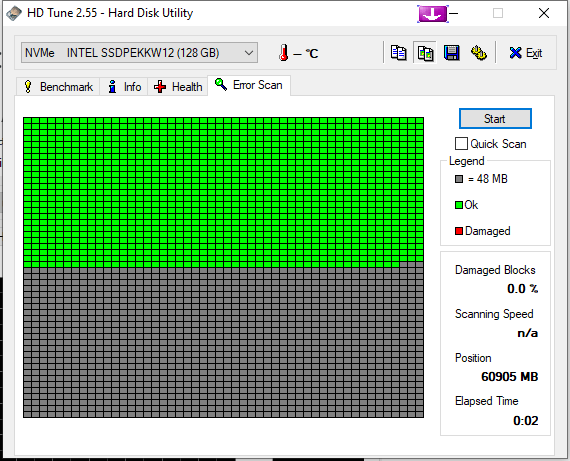
3. HD Tune
This is a third-party tool that provides detailed information about your hard drives, including errors, bad sectors, and temperature monitoring.
Step-by-step Instructions:
1. Download and install HD Tune from the official website.
2. Launch HD Tune and select the drive you want to test.
3. Click on “Analyze” to run the scan.
4. Crystaldiskinfo
This is another third-party tool that provides detailed information about your hard drives, including errors, bad sectors, and temperature monitoring.
Step-by-step Instructions:
1. Download and install CrystalDiskInfo from the official website.
2. Launch CrystalDiskInfo and select the drive you want to test.
3. Click on “Scan” to run the scan.
Testing a Hard Disk on Mac
MacOS provides several built-in tools to diagnose and repair hard disk issues. Let’s explore these options:
1. Utility Disco (Disk Utility)
This is the pre-installed tool for macOS that allows you to verify, repair, or erase disks.
Step-by-step Instructions:
1. Launch Disk Utility from the Applications/Utilities folder.
2. Select the external hard drive you want to test and click on “Verify” to run the scan.
3. If errors are found, click on “Repair” to fix them.
2. Terminal
You can use Terminal to run a command-line disk check using the diskutil tool.
Step-by-step Instructions:
1. Open Terminal and type diskutil verifyvolume /Volumes/your_disk_name (replace “your_disk_name” with the name of your external hard drive).
2. Press Enter to run the scan.
3. If errors are found, use the repairvolume command to fix them.
3. Drivedx
This is a third-party tool that provides detailed information about your hard drives, including errors, bad sectors, and temperature monitoring.
Step-by-step Instructions:
1. Download and install DriveDx from the official website.
2. Launch DriveDx and select the drive you want to test.
3. Click on “Scan” to run the scan.
4. Blackmagic Disk Speed Test
This is a third-party tool that allows you to test the speed of your hard drives.
Step-by-step Instructions:
1. Download and install Blackmagic Disk Speed Test from the official website.
2. Launch Blackmagic Disk Speed Test and select the drive you want to test.
3. Click on “Start” to run the test.
5. Drive Genius
This is a third-party tool that provides detailed information about your hard drives, including errors, bad sectors, and temperature monitoring.
Step-by-step Instructions:
1. Download and install Drive Genius from the official website.
2. Launch Drive Genius and select the drive you want to test.
3. Click on “Scan” to run the scan.
In conclusion, testing a hard disk is essential to ensure its integrity and prevent data loss. Whether you’re using Windows or MacOS, there are various built-in tools and third-party software available to help you diagnose and repair issues.
Frequently Asked Questions:
1. Q: What causes hard disk errors?
A: Hard disk errors can be caused by physical damage, logical issues, or other forms of stress on the drive.
2. Q: How often should I test my hard disk?
A: It’s recommended to test your hard disk every 6-12 months, depending on usage and age.
3. Q: Can I use third-party software to test my hard disk?
A: Yes, there are many third-party tools available for Windows and MacOS that can help you diagnose and repair issues.
4. Q: What should I do if my hard disk is faulty?
A: If your hard disk is faulty, it’s recommended to back up your data and replace the drive with a new one.
5. Q: Can I use a combination of built-in tools and third-party software to test my hard disk?
A: Yes, using a combination of built-in tools and third-party software can provide a more comprehensive analysis of your hard disk.


